Invite your team
In short. Invite people from Settings → Team with the role they should have. They sign up through the link, you approve them, and they are in. Set each person’s manager so team views work.
Who it is for. Admins. Team management is available on Essentials and above; the entry plan is single-seat.
Invite someone
Section titled “Invite someone”- Open Settings → Team and click Invite.
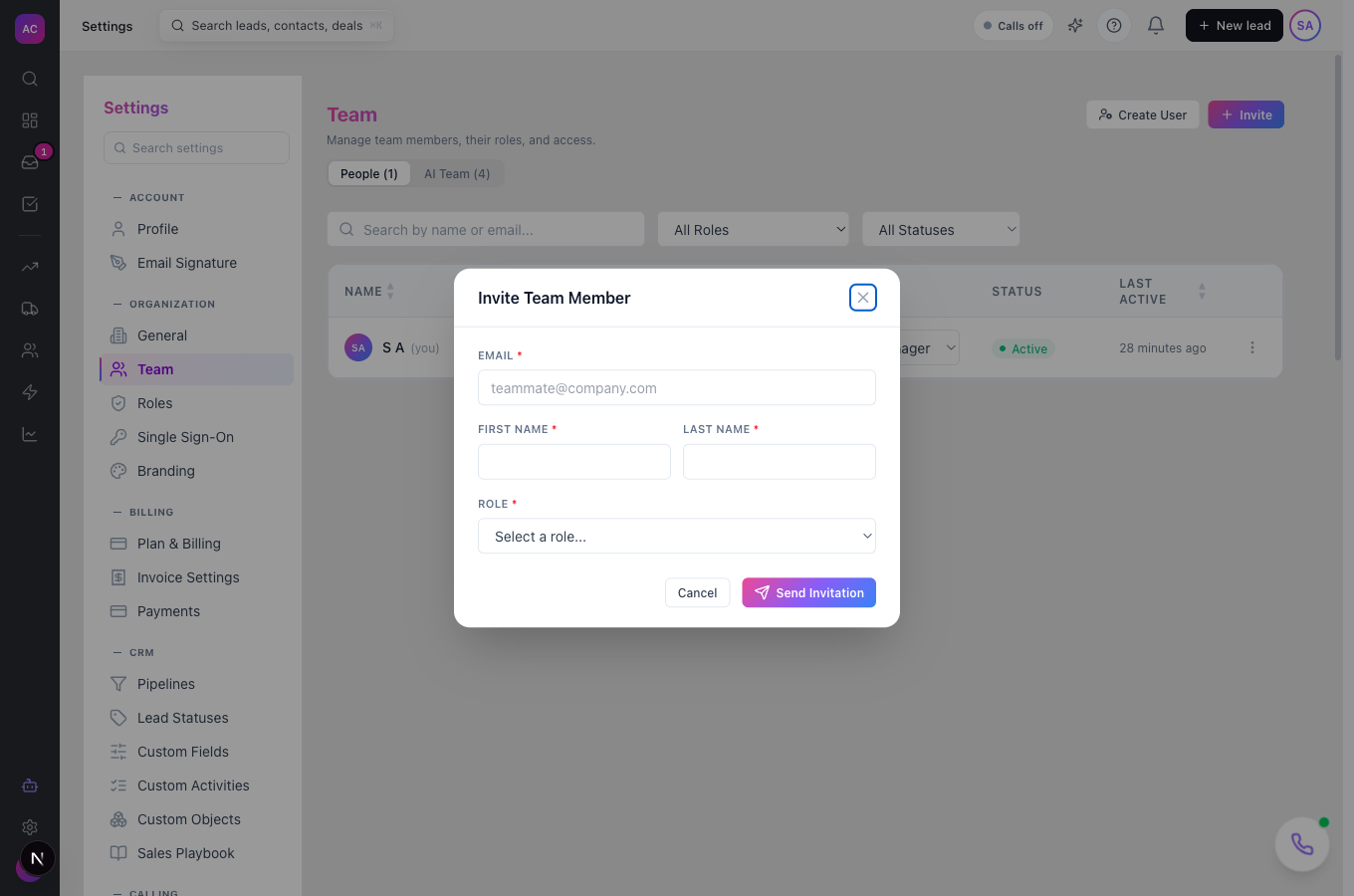
- Enter Email, First name, Last name and pick a Role. Not sure which? Employee sees only their own records; Manager sees their team’s; Admin sees everything. Details are on the Roles and permissions page.
- Click send. The person receives an email with an Accept Invitation button. The Invite Sent screen also shows a signup link you can copy and send yourself, which is handy if the email does not arrive.
What the invitee does
Section titled “What the invitee does”They open the link, enter their name, the same email address, a password, and the invite code (it is in the email, and usually prefilled; if the field is empty, paste it). Their account then waits for approval.
Approve them
Section titled “Approve them”Back in Settings → Team, filter by Pending Approval, open the row menu and click Approve. They can sign in from that moment. Reject turns them away.
Set managers
Section titled “Set managers”In the team table, use the Manager column to say who each person reports to. A manager whose role has Team scope then sees their reports’ leads, deals and tasks.
If you need a user right now
Section titled “If you need a user right now”Create User makes an active account immediately with a password you choose, skipping the email and approval steps. Use it for shared or internal accounts.
Rules and limits
Section titled “Rules and limits”| Rule | Value |
|---|---|
| Invite link | valid for 48 hours; use Resend Invite from the row menu after that |
| Seats | Solo 1, Essentials 5, Growth 25, Scale unlimited; usage shows under Settings → Billing |
| Super User | not offered when inviting; promote from the Team page afterwards |
| Cancelling an invite | there is no revoke; suspend or delete the invited user instead |
| Deleting a user | only the workspace owner can delete |
Troubleshooting
Section titled “Troubleshooting”“A user with this email already exists in this organization”. They were invited before. Find them with the status filter and resend or approve.
The invitee cannot sign up: “Email does not match the invite”. They must use exactly the address you invited.
The code field is empty on the sign-up page. Paste the code from the invitation email.
I do not see Settings → Team. Your role lacks the Team Management permission, or your plan is single-seat.