 Help
Two-factor authentication
In short. Two-factor authentication asks for a 6-digit code from an authenticator app after your password. Turn it on in Settings → Profile and save your recovery codes. Admins can require it for admins or everyone.
Who it is for. Everyone who signs in with a password, and the admins who decide whether the team must use it.
What it does
Section titled “What it does”- Asks for a second step each time you sign in with your password: the 6-digit code your authenticator app shows, or one of your recovery codes.
- Works with any time-based authenticator app, such as Google Authenticator, Microsoft Authenticator, 1Password or Authy. You scan a QR code, or type the key by hand.
- Gives you 10 recovery codes when you turn it on. Each one signs you in once, for the day your phone is lost or wiped.
- Locks the code step for 15 minutes after 5 wrong codes in a row, so nobody can guess their way in.
- Emails you when two-factor is turned on or off for your account, when one of your recovery codes is used, and when an admin resets it.
- Lets an admin require it under Settings → Two-Factor Auth: Off, Admins or Everyone. People the policy covers set it up the next time they sign in.
- Lets an admin Reset 2FA for a member who lost their phone and their codes, from Settings → Team.
What it does not do
Section titled “What it does not do”- It does not send codes by text message or email. The only second step is an authenticator app, with recovery codes as the backup.
- It does not remember a device. You enter a code at every password sign-in; staying signed in on a device does not ask again.
- It does not apply to single sign-on. If you sign in through your company’s identity provider, that provider handles the second step, and the policy does not cover you.
- It does not change API tokens. Tokens keep working without a code; see API access.
- It does not turn off when you reset your password. Your authenticator and codes still apply after a reset.
- An admin cannot see your key or your recovery codes, and cannot turn two-factor on for you.
Set it up
Section titled “Set it up”Turn it on for yourself
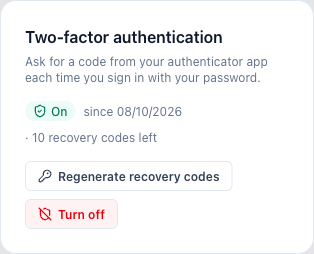
Section titled “Turn it on for yourself”- Open Settings → Profile and find the Two-factor authentication card.
- Click Turn on two-factor.
- Open your authenticator app and scan the QR code. If you cannot scan it, choose the app’s option to enter a setup key and type the key shown under Can’t scan? Enter this key.
- Type the 6-digit code the app shows into 6-digit code and click Verify and turn on.
- Under Save your recovery codes, click Copy all or Download .txt, and keep them somewhere safe and separate from your phone, such as your password manager.
- Tick I have saved these recovery codes somewhere safe and click Done. The codes are not shown again.
Require it for your team
Section titled “Require it for your team”You must turn two-factor on for your own account first. If you have not, saving says “Turn on two-factor authentication for your own account first, then require it for others.”
- Open Settings → Two-Factor Auth under Organization.
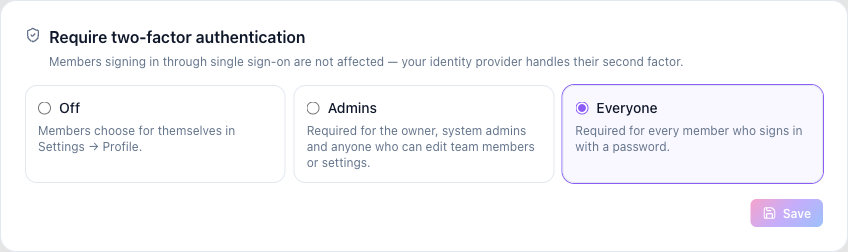
- Under Require two-factor authentication, pick who must use it:
- Off: members choose for themselves.
- Admins: the organisation owner, system administrators, and anyone whose role can edit team members or settings. With the built-in roles, that is Admin and Super User.
- Everyone: every member who signs in with a password.
- Click Save.
People the new policy covers who have not set up two-factor yet are signed out, and must set it up at their next sign-in before they reach the app.
Works the same on mobile. Setting it up is easiest on a computer, with the authenticator app on your phone.
Use it day to day
Section titled “Use it day to day”Sign in. Enter your email and password as usual. On the Two-factor authentication screen, type or paste the 6-digit code from your app and click Verify.
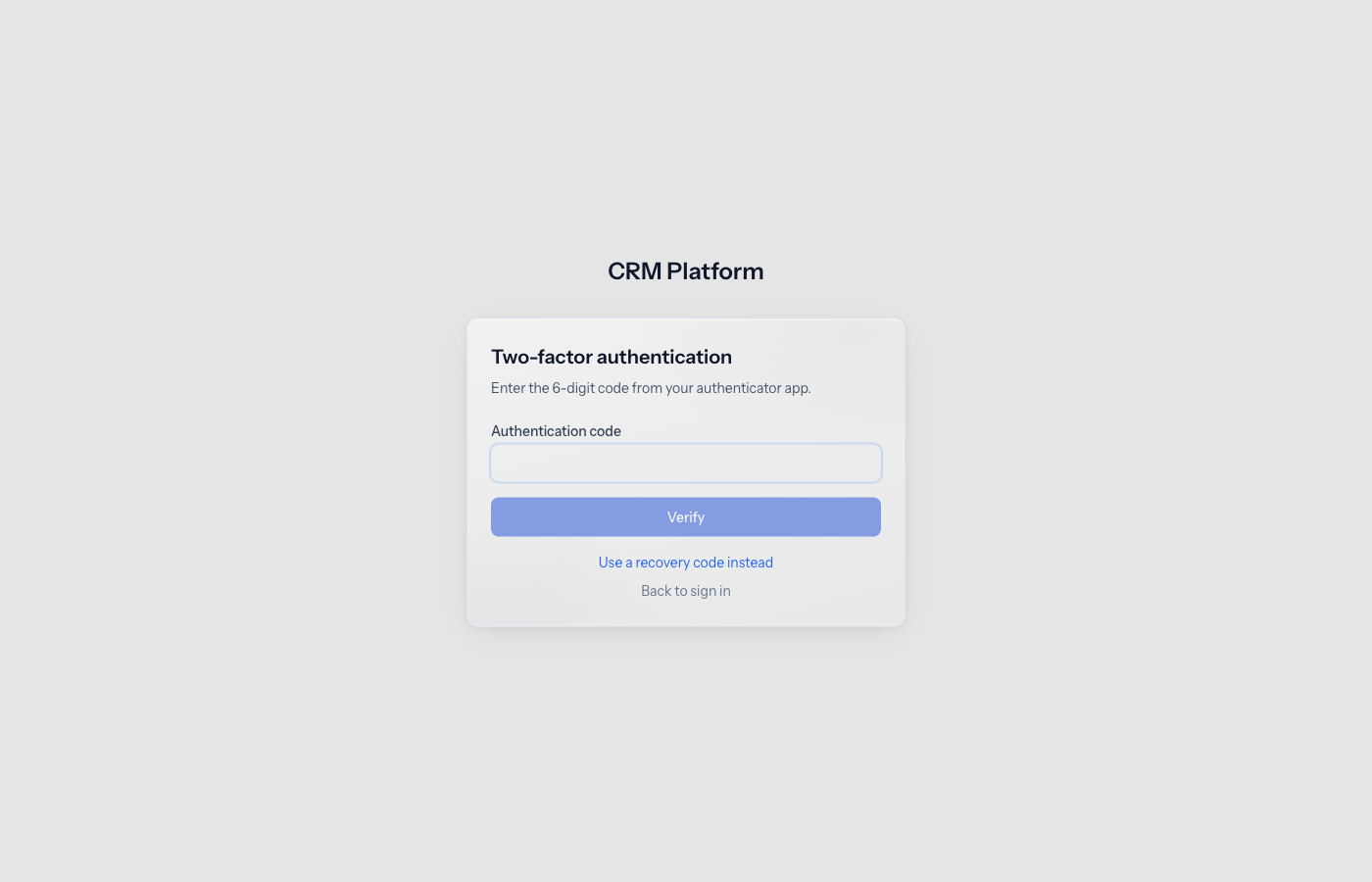
Sign in without your phone. Click Use a recovery code instead and type one of your saved codes. Capitals and dashes do not matter. That code is then used up; the Profile card shows how many you have left.
Set it up at sign-in. If your organisation requires two-factor and you have not set it up, Pitch2Sale shows Set up two-factor authentication after your password. Scan the QR code, enter a code, save your recovery codes, then click Continue to the app.
Get new recovery codes. When you are running low, click Regenerate recovery codes on the Profile card, enter your Current password and an Authenticator code, and click Generate new codes. Your old codes stop working.
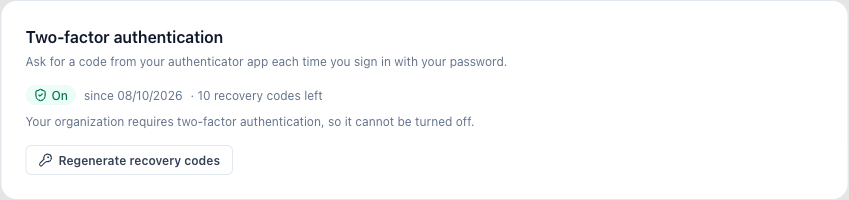
Turn it off. Click Turn off on the Profile card and confirm with your password and a code from your app. If your organisation requires two-factor, the button is not there and the card says it cannot be turned off.
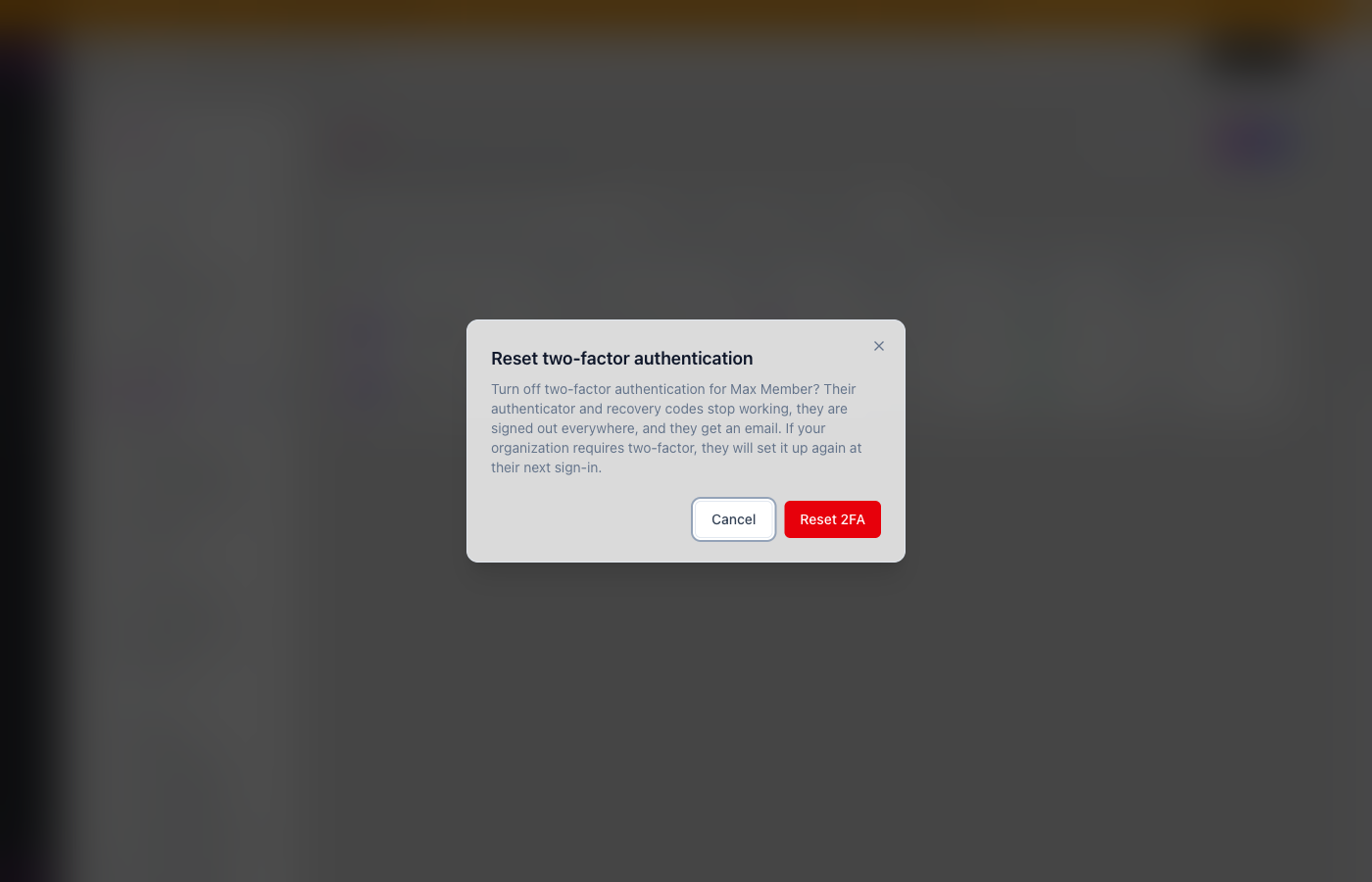
Reset a member who is locked out. An admin opens Settings → Team, opens the member’s row menu, clicks Reset 2FA and confirms. The member’s authenticator and recovery codes stop working, they are signed out everywhere and they get an email. If the organisation requires two-factor, they set it up again at their next sign-in; if not, they can turn it on again from their profile.
Rules and limits
Section titled “Rules and limits”| Rule | Value |
|---|---|
| Plans | every plan |
| Second step | 6-digit code from a time-based authenticator app, or a recovery code |
| Recovery codes | 10 at a time, 10 letters and digits each, each works once, shown only when created |
| Wrong codes before a lock | 5 in a row |
| Lock length | 15 minutes; recovery codes are locked too |
| Time to finish the code step | 5 minutes after your password; then sign in again |
| Turning it off or new recovery codes | your current password and a code from your app |
| Organisation policy | Off, Admins or Everyone; default Off |
| Who counts as an admin for the policy | organisation owner, system administrators, and roles that can edit team members or settings |
| Who can change the policy | people who can edit the organisation’s general settings, by default the Admin role; they must have two-factor turned on first |
| Who can reset a member | roles that can edit team members; nobody can reset their own |
| Resetting an Admin, the owner or a system administrator | only the organisation owner or a system administrator |
| Single sign-on members | not covered by the policy; their identity provider handles the second step |
Troubleshooting and FAQ
Section titled “Troubleshooting and FAQ”“That code is not valid. Check your authenticator app and try again.” Check that you are reading the Pitch2Sale entry in the app, and that your phone’s clock is set automatically. A code that already worked once cannot be used again; wait for the next one.
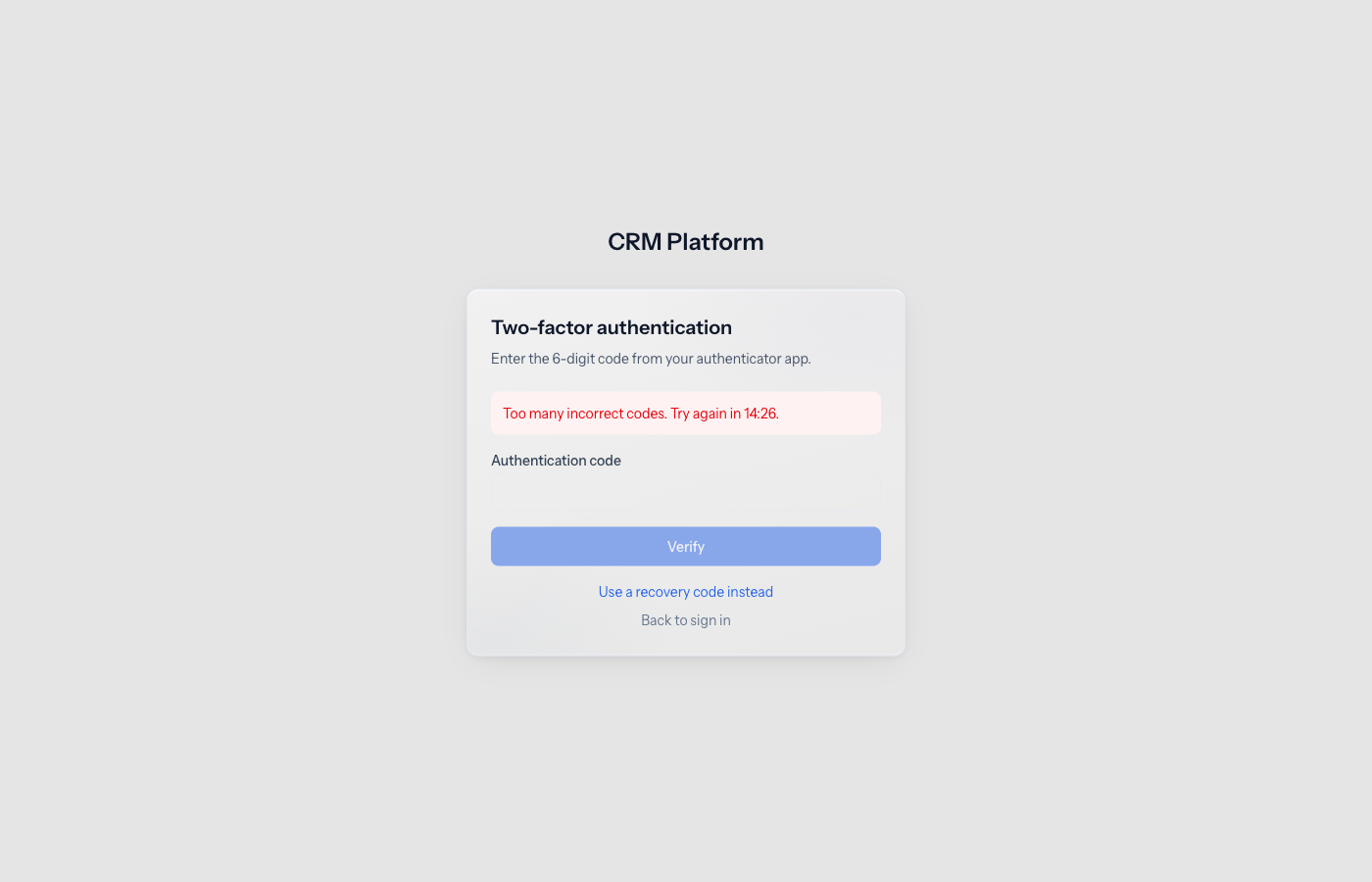
“Too many incorrect codes. Try again in 14:26.” Five wrong codes in a row lock the code step for 15 minutes. Recovery codes are locked too. Wait for the countdown, then try again.
“Your sign-in took too long. Please sign in again.” More than 5 minutes passed after your password. Enter your email and password again.
I lost my phone. Sign in with Use a recovery code instead. Then ask an admin to Reset 2FA for you, and turn it on again with your new phone from Settings → Profile. Turning it off or getting new codes yourself needs a code from the old app.
I lost my phone and my recovery codes. Ask an admin in your organisation to Reset 2FA for you. If you are the organisation owner and nobody else can reset you, ask Pitch2Sale support.
“Your organization requires two-factor authentication, so it cannot be turned off.” The policy covers you. Ask an admin to change the policy if you should not be covered.
I was signed out after an admin changed the policy. The new policy covers you and you had not set up two-factor. Sign in again and follow the setup steps.
A banner says my organisation requires two-factor. Click Set up two-factor and turn it on from your profile.
Reset 2FA says “Forbidden”. The member is an Admin, the organisation owner or a system administrator, or holds permissions you do not. Ask the owner or a system administrator.
I do not see Reset 2FA on a member. They have not turned two-factor on, it is your own row, or your role cannot edit team members.
Do I need a code to sign in with single sign-on? Not from Pitch2Sale. Your identity provider decides.