Tasks
In short. A task is a to-do with a due date, a priority and an owner. You create it from the lead it belongs to, and the Tasks page shows every open task across your team so nothing is forgotten.
Who it is for. Sales reps, for the follow-up they promised on a call. Managers, when they want to see who is overdue and reassign work in bulk.
- Where it lives
- CRM › Tasks
- Plans
- SoloEssentialsGrowthScaleEvery plan
- Permission
- Tasks
What it does
Section titled “What it does”- Keeps a to-do list per lead, visible in the Tasks section of the lead page with “Due today” and “Due tomorrow” labels.
- Collects every task in the organisation on the Tasks page, with tabs for all types, tasks and calls, and a toggle between open and completed.
- Lets managers select several tasks and reassign them, change their priority, complete them or delete them in one go.
- Writes a line on the lead’s timeline when a task is completed, so the history of who did what stays with the lead.
- Accepts tasks created by automation: a Workflow step can create a task or a call task, and Copilot can propose one.
What it does not do
Section titled “What it does not do”- It does not create tasks from the Tasks page. You create a task on the lead it belongs to; the Tasks page is for working through them.
- It does not repeat. There are no recurring tasks; create the next one when you complete the current one, or let a Workflow do it.
- It does not sync to Google Calendar. Calendar sync covers meetings and scheduling pages, not tasks.
- It does not send a reminder email or push notification by itself. Reminders surface in your Inbox under reminders.
Set it up
Section titled “Set it up”There is nothing to switch on. Anyone with the Tasks permission can create and complete tasks straight away.
- Open a lead, for example Pioneer Foods, and find the Tasks section.
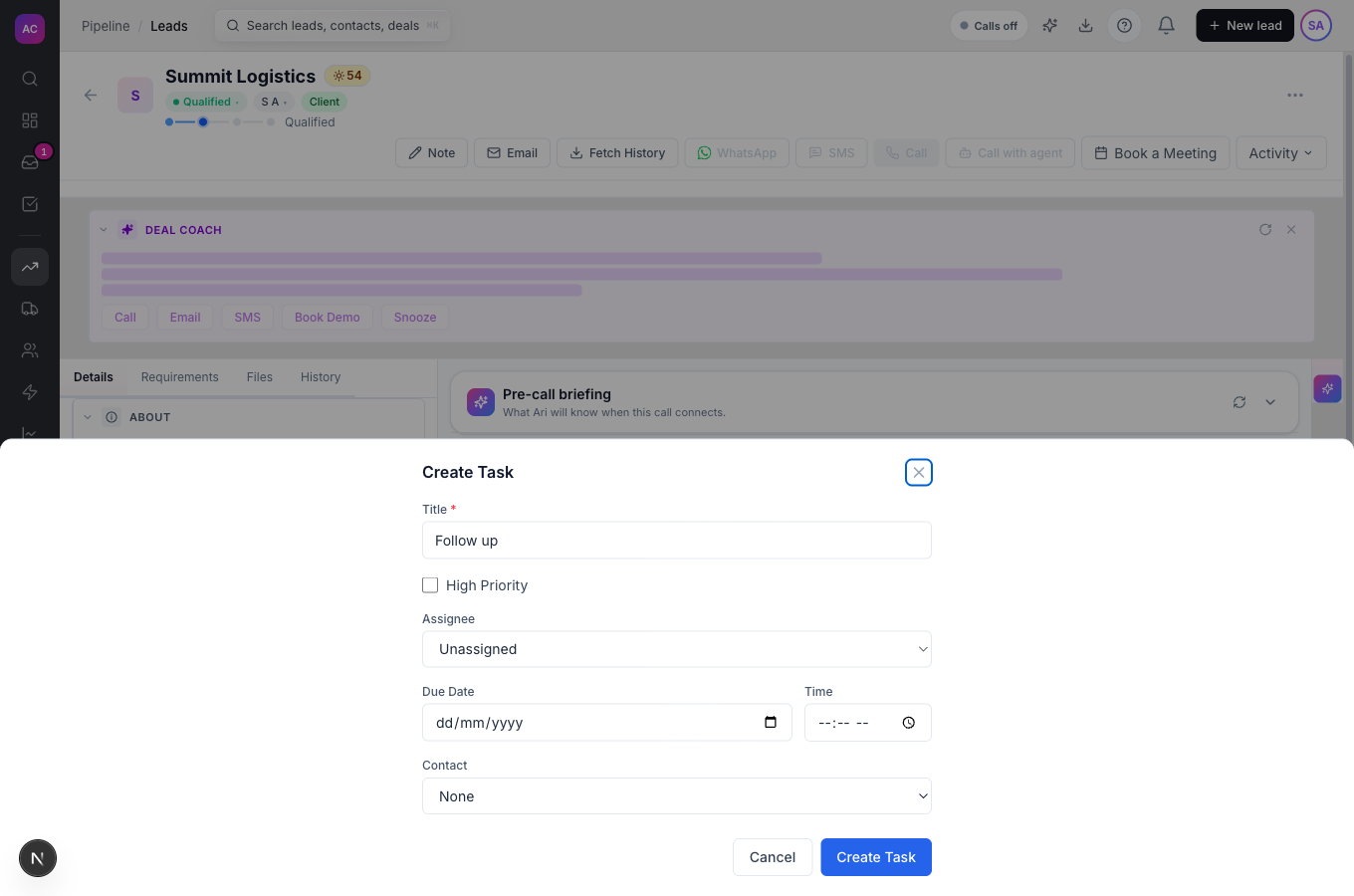
- Click the Add task button. The Create Task panel opens with the title prefilled as “Follow up”.
- Change the title, tick High Priority if it is urgent, pick an assignee, a date and a time, and optionally the contact it concerns.
- Click Create Task. The task appears in the lead’s Tasks section and on the Tasks page.
If you leave the assignee empty, the task is assigned to you. If you leave the date empty, it is due now.
Works the same on mobile, except the Tasks page shows cards instead of a table.
Use it day to day
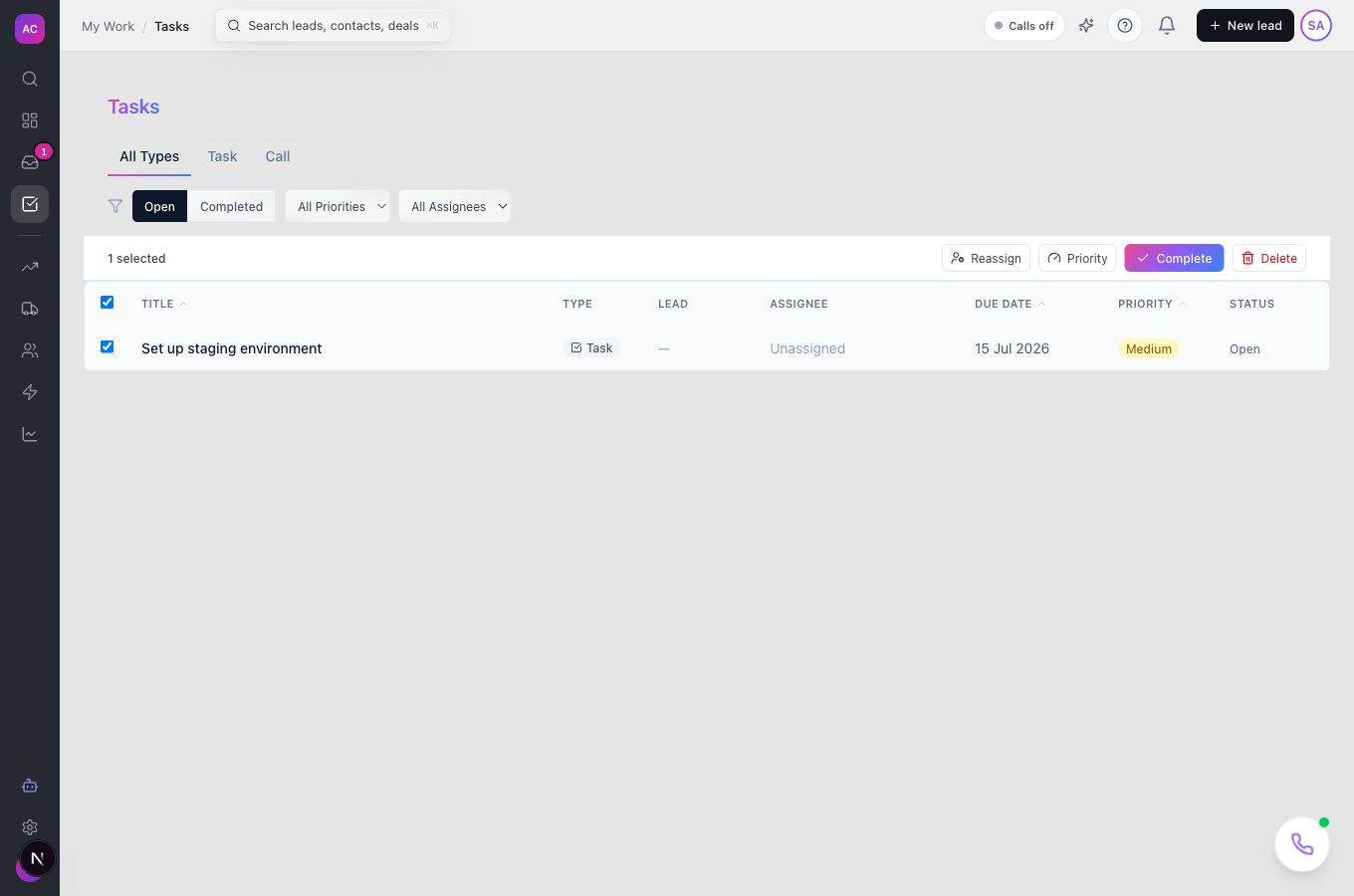
Section titled “Use it day to day”- Work from the Tasks page. Open Tasks in the sidebar. Use All Types, Task and Call to narrow by type, Open and Completed to switch lists, and the priority and assignee drop-downs to focus on one person or one urgency. Overdue dates show in red.
- Jump to the lead. Click a row to open its lead. Tasks that are not attached to a lead, such as project tasks, are not clickable here.
- Complete a task from the lead page by clicking its tick. The lead’s timeline gets a “Task completed” entry and the lead’s last-activity date updates.
- Handle several at once. Tick the rows you want, then use the bar that appears: Reassign opens the Assign Tasks dialog, Priority opens Change Priority, Complete closes them, Delete asks you to confirm. Up to 100 tasks per action.
- Snooze from the Inbox. Task reminders appear in your Inbox, where you can snooze them until later.
Rules and limits
Section titled “Rules and limits”| Rule | Value |
|---|---|
| Title length | 1 to 500 characters |
| Description length | up to 5,000 characters |
| Default priority | Medium, or High when the box is ticked |
| Tasks per bulk action | up to 100 |
| Rows per page on the Tasks page | 25 |
| Who sees which tasks | Own, Team or All, set by the role’s Tasks permission |
| Deleting a task | Removes it from every list; the completed-task line on the lead timeline stays |
Troubleshooting and FAQ
Section titled “Troubleshooting and FAQ”I cannot find a “New task” button on the Tasks page. That is by design. Open the lead the task belongs to and use Add task in its Tasks section.
I completed a task but the person who made it cannot see that. Completing writes a timeline entry on the lead. Anyone who can open the lead sees it there.
A task shows “Unassigned”. It was created without an owner by an automation or an import. Tick it, click Reassign and pick a person.
Where do call tasks come from? The Power Dialer and the call outcome dialog create them when you choose to call back later. They show under the Call tab.
Can I delete tasks from a lead? Not from the lead page. Use the Tasks page: tick the task and click Delete.