Invoices
In short. Create an invoice for a client, send it with a PDF, and record payments as they arrive, by bank transfer or online through Razorpay or Stripe. The Invoices page shows what is outstanding, overdue and paid this month.
Who it is for. Whoever bills after a deal closes. Admins, to set numbering, taxes and payment terms once. Clients see and pay their invoices in the portal.
- Where it lives
- Billing › Invoices
- Plans
- SoloEssentialsGrowthScaleEvery plan
- Permission
- Invoices
What it does
Section titled “What it does”- Opens with a dashboard: Total Outstanding, Overdue, Avg Days to pay, Revenue, a monthly revenue chart and an aging report, with Send Reminders and Export All as quick actions.
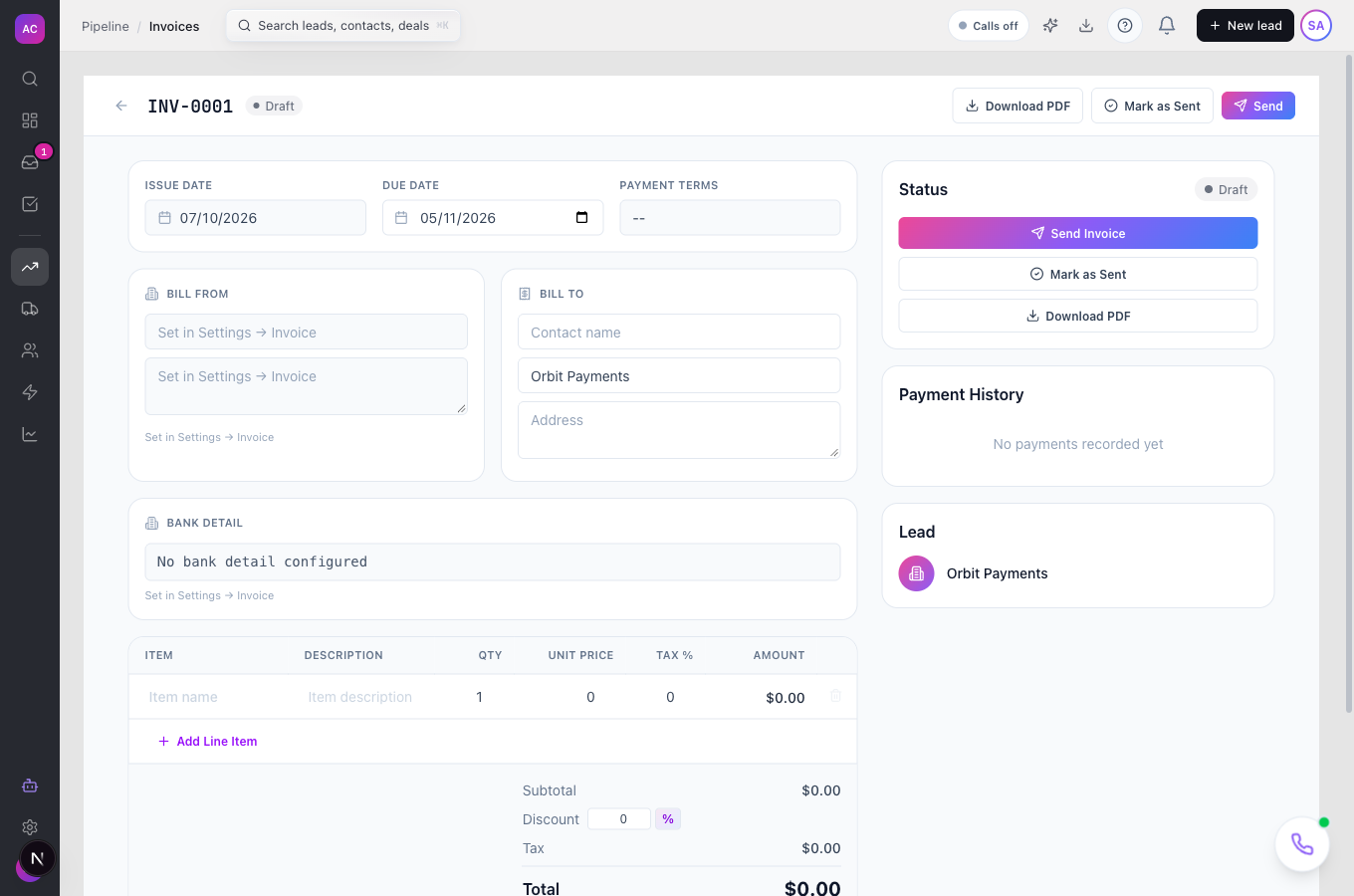
- Creates an invoice on a lead with an automatic number, your branding, line items, per-line tax, a discount in percent or amount, notes, and the bank details to print.
- Sends it by email with the PDF attached and a personal message, or marks it as sent when you deliver it another way.
- Tracks status automatically: Draft, Sent, Viewed when the client opens it, Partial, Paid, Overdue, Cancelled.
- Records payments by Bank Transfer, Credit Card, Cash, Cheque, Online or Other, including partial payments, and refunds against a payment.
- Lets clients pay online in the client portal when Stripe or Razorpay is connected under Settings → Payments.
- Creates invoices from accepted estimates and from projects, by milestone, by time or by amount.
- Sends automatic reminders before and after the due date, once an admin turns them on.
What it does not do
Section titled “What it does not do”- It does not keep a products catalogue in the editor yet. Line items are typed in; the Items screen is not available in the app.
- It does not void an invoice. Cancel it, or refund its payments; an invoice with payments cannot be deleted.
- It does not hold GST registration numbers, HSN codes or place of supply. Add them to line descriptions or notes if your invoices need them.
- It does not offer recurring invoices from the editor yet, and it does not show where to edit reminder schedules or email wording. Those exist behind the scenes; ask support to adjust them.
Set it up
Section titled “Set it up”- Open Settings → Invoice Settings. Under Branding choose a template, logo and colours.
- Under Invoice Numbering set the Prefix (INV- by default), the Number Padding, whether to Include Year, and whether to Reset Yearly. Use Set Next Number only when migrating from another system.
- Under Tax Configuration add your tax lines, for example CGST and SGST with their rates, and mark the default. Choose whether prices include tax.
- Under Payment Terms keep or edit the presets (Due on Receipt, Net 7, 15, 30, 45, 60, 90) and set the default. Optionally enable an early-payment discount or a late fee.
- To accept online payments, open Settings → Payments and connect Stripe or Razorpay.
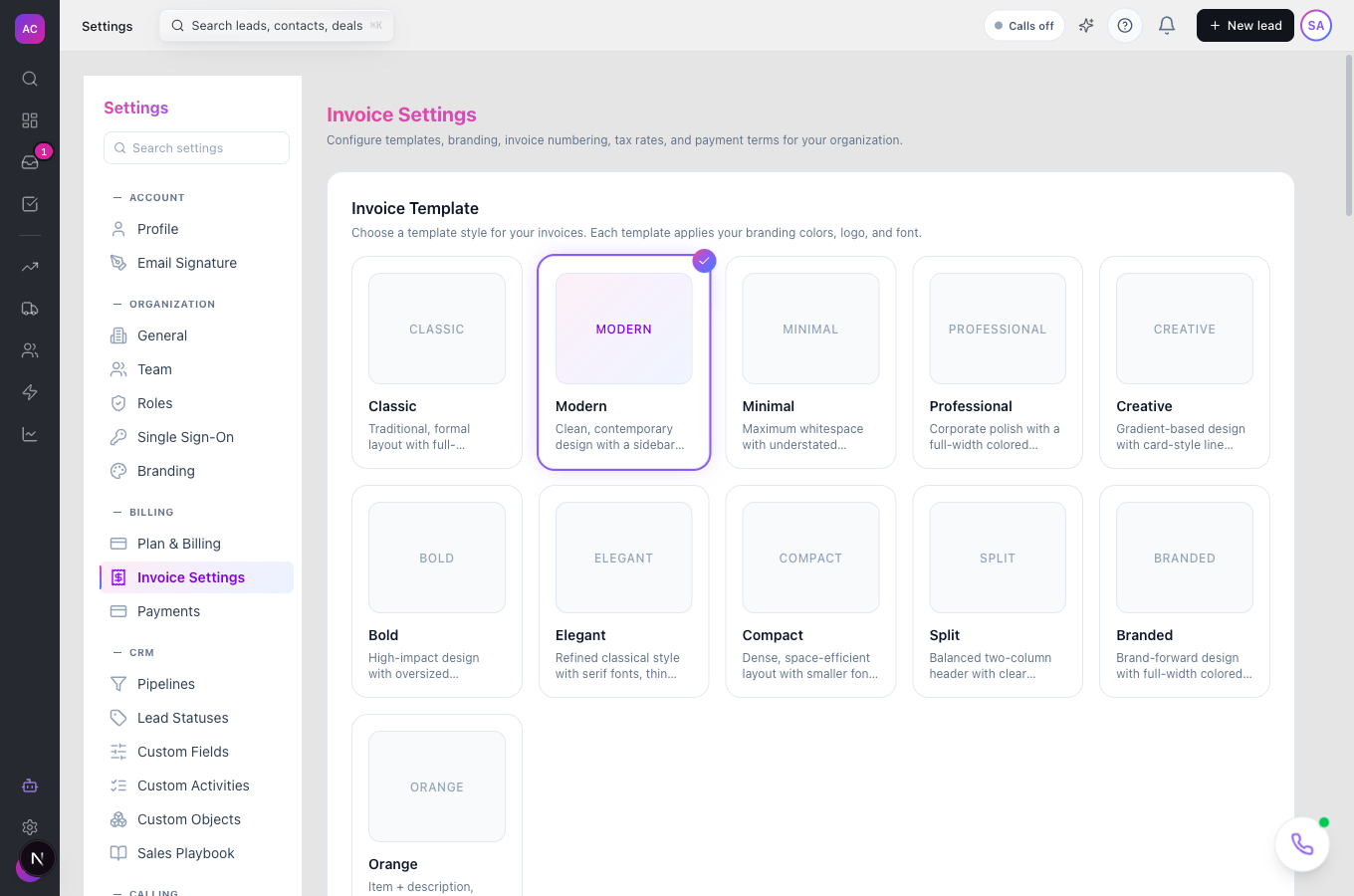
Works the same on mobile.
Use it day to day
Section titled “Use it day to day”- Create. Open Billing → Invoices, click New Invoice, search the lead, set Due Date and Currency, then Create Invoice. The editor opens on a Draft that saves as you type.
- Fill it in. Add lines with Add Line Item: item, description, unit price and tax. Add a discount if agreed. Check Bill To and the Bank Detail to print. Use Download PDF to preview.
- Send. Click Send, confirm the recipient, subject and an optional message, keep Attach invoice as PDF ticked, and send. If you deliver it another way, click Mark as Sent instead.
- Get paid. When money arrives, open the invoice and click Record Payment: amount, date, method and a reference. Partial amounts set the status to Partial until the balance is zero.
- Chase. On the dashboard, click Send Reminders (N overdue) to email every overdue client at once.
- Fix a mistake. Refund from the payment row in Payment History. Drafts can be edited freely; sent invoices can be edited until they are paid.
Rules and limits
Section titled “Rules and limits”| Rule | Value |
|---|---|
| Plans | every plan; online payments on every plan, credit notes on Essentials and above |
| Who can send or record payments | the Send and Record Payment capabilities; by default Admin and Super User |
| Invoice must belong to | a lead or client |
| Default numbering | INV- prefix, 4 digits, starting at 1 |
| Default payment terms | Net 30 |
| Payment amount | more than zero and not above the balance due |
| Attachments | up to 10 per invoice |
| Overdue check | nightly at 03:00 |
| Automatic reminders | off by default; up to 5 per invoice, stop on payment |
| Currencies | USD, EUR, GBP, INR, CAD, AUD, SGD, AED |
Troubleshooting and FAQ
Section titled “Troubleshooting and FAQ”I cannot see Send or Record Payment. Your role lacks those capabilities. By default only Admin and Super User have them; an admin can grant them to your role under Settings → Roles.
Delete is refused. Paid invoices, and any invoice with recorded payments, cannot be deleted. Refund the payment first, or cancel the invoice.
The client says “Payment provider not configured”. Connect Stripe or Razorpay under Settings → Payments, then resend the invoice.
The invoice went to Sent but the email failed. The toast tells you. Fix the recipient address and use Send again; the status stays Sent.
Reminders are not going out. Automatic reminders are off until an admin enables them, and an invoice needs a due date to schedule any.
Can I bill from an estimate? Yes, once the estimate is accepted. Open it and convert it to an invoice.