Connect email and calendar
In short. Two sign-in popups. After the first, every email you send or receive with a lead appears on that lead. After the second, meetings go on your real calendar and prospects can book you through a scheduling page.
Who it is for. Everyone who emails or meets prospects. Each person connects their own accounts.
Connect your mailbox
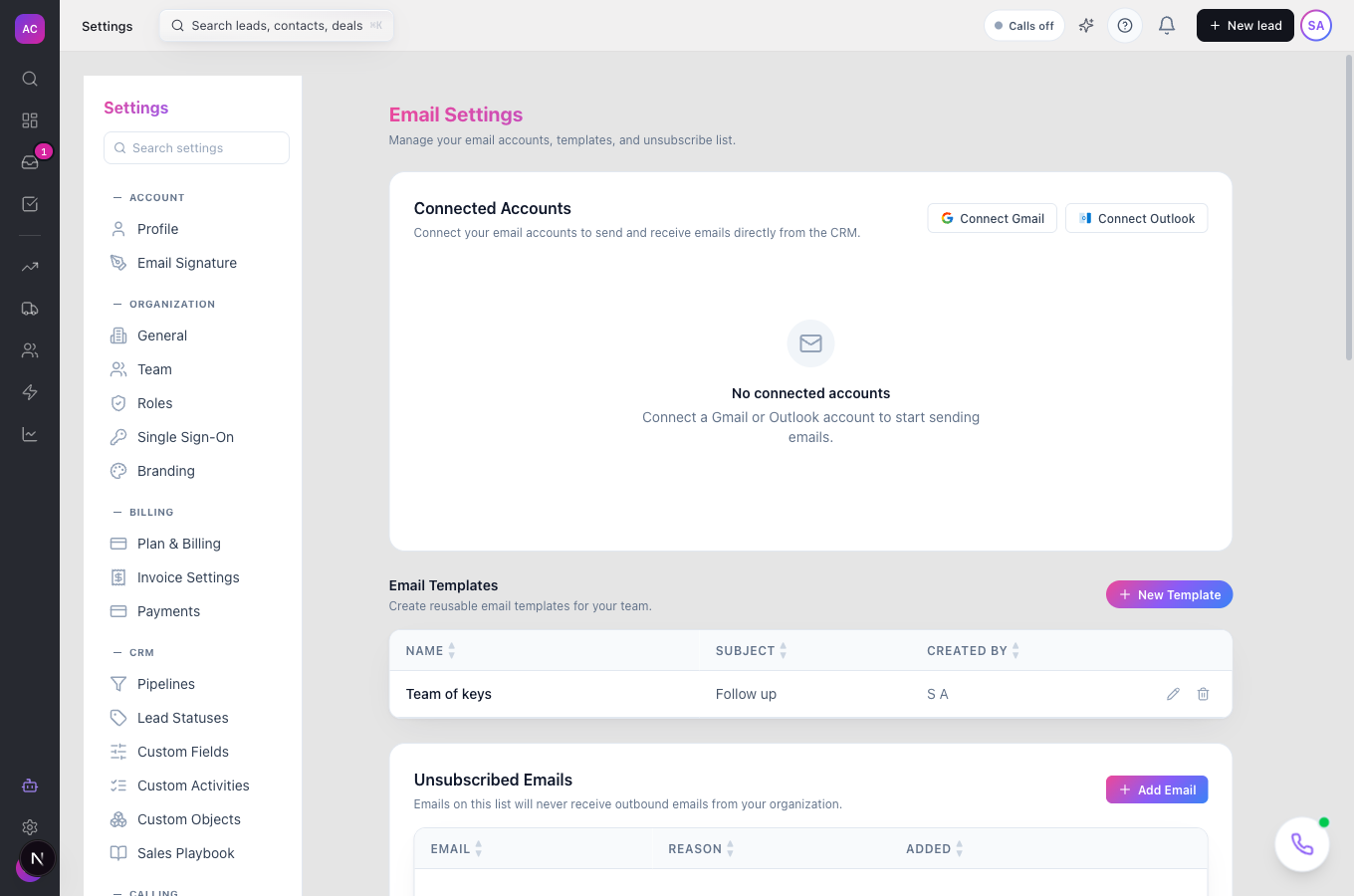
Section titled “Connect your mailbox”- Open Settings → Messaging → Email.
- Under Connected Accounts, click Connect Gmail or Connect Outlook. Allow popups if nothing appears.
- Sign in and accept the permissions. For Gmail these are send mail, read mail and your profile; for Outlook, read mail, send mail and offline access.
- The account appears with a Syncing badge. The last 7 days of mail sync first; new mail arrives about every 3 minutes.
- To bring in older conversations, open the account’s Backfill menu and choose 30, 90, 180 or 400 days. The toast tells you it will land within about 3 minutes.
Only Gmail and Outlook are supported. There is no manual IMAP or SMTP option.
Connect your calendar
Section titled “Connect your calendar”- Open Settings → Integrations → Calendar.
- Click Connect Google or Connect Microsoft. If your mailbox is already connected, Enable Calendar upgrades that connection instead of asking you to sign in again.
- On the calendar card, set buffers before and after meetings (0 to 60 minutes), the durations you offer (15, 30 or 60 minutes) and your business hours, then save.
- If you want meetings booked by others to appear in the CRM too, turn on back-sync. An admin must enable it for the workspace first, then you enable it on your calendar.
One calendar connection per person. Disconnect before connecting a different account.
Create a booking page
Section titled “Create a booking page”- Open Settings → Integrations → Calendar → Scheduling pages and click Create new page.
- Give it a Title and a Slug (the slug cannot be changed later), choose allowed durations, the default duration, the notice period in hours and the booking window in days, and your business hours.
- Save. Your page lives at
/book/<slug>. In the email composer, Insert booking link drops it into any email.
What to expect
Section titled “What to expect”- Replies to emails you sent from the CRM show on the lead’s timeline and in your Inbox.
- Emails older than the sync window stay out until you backfill.
- If your provider revokes access, usually after a password change, the account shows Needs Reconnect. Click Reconnect; nothing else changes.
Troubleshooting
Section titled “Troubleshooting”The popup closed and nothing happened. The browser blocked it. Allow popups for the app and try again.
“Calendar OAuth is not configured on this server”. The workspace admin has not set up the calendar integration yet.
I connected the mailbox but see no emails on leads. Only mail to or from addresses that match a lead’s contacts is attached. Add the person as a contact on the lead, then backfill.
Can my colleague see my mailbox? Your connected account is yours. What they see of the conversations follows their role’s Email scope.