Contracts & e-signature
In short. Write a contract for a lead, or generate one from an accepted proposal. Send it to the client to sign electronically. Once it is signed, turn it into a delivery project with the contract value as the budget.
Who it is for. Reps and account managers who close the deal on paper, and admins who decide whether contracts and projects are created automatically.
- Where it lives
- Billing › Contracts
- Plans
- SoloEssentialsGrowthScale
- Permission
- Contracts
What it does
Section titled “What it does”- Lists every contract under Billing → Contracts, with search, a status filter, and sent and signed dates.
- Drafts a contract from an accepted proposal with one click. The proposal’s sections become the body and the accepted value becomes the contract value. See Proposals.
- Gives you a rich-text editor and lets you start from one of your organisation’s templates.
- Fills in variables such as
{{client_name}},{{contract_value}}and{{venue}}in the preview and PDF. - Places client and company signature blocks where you want them.
- Emails the client a link to the contract. The client signs in the client portal by typing their full name, which counts as an electronic signature.
- Tracks status: Draft, Sent, Viewed, Signed, Counter-Signed, Expired, Cancelled. An unsigned contract past its Expiry Date becomes Expired.
- Creates the delivery project from a signed contract with Create Project, or automatically if an admin turns that on. See Projects.
What it does not do
Section titled “What it does not do”- It does not let your company counter-sign in the app yet. The Counter-Signed status exists, but there is no button for it.
- It does not let you cancel a contract. Delete a draft you no longer need.
- It does not let you create or edit contract templates in the app. The Template picker lists the templates your organisation already has.
- It does not let you change or delete a signed contract.
- It does not send the contract for signature on its own. Automation only creates drafts; a person always clicks Send.
Set it up
Section titled “Set it up”There is nothing to switch on for your team. Contracts are included on Essentials and above. To email contracts, connect your mailbox first; see Connect email and calendar.
An admin can automate the hand-offs on either side of the contract:
- Open Settings → General and scroll to Automation.
- Turn on Auto-draft the contract when a proposal is accepted to get a draft contract as soon as a client accepts a proposal. It stays a draft until someone reviews and sends it.
- Turn on Auto-create the delivery project when a contract is signed to start the project the moment the client signs.
- Click Save Changes.
Both switches are off by default.
Works the same on mobile.
Use it day to day
Section titled “Use it day to day”Start a contract
Section titled “Start a contract”- From a proposal. Open the accepted proposal, click Generate Contract, then Create contract. The new draft is named “Contract for” followed by the proposal title, and it opens straight away.
- From scratch. Open Billing → Contracts, click New Contract, pick the lead (for example Northwind Traders), type a Title, and create it.
Prepare it
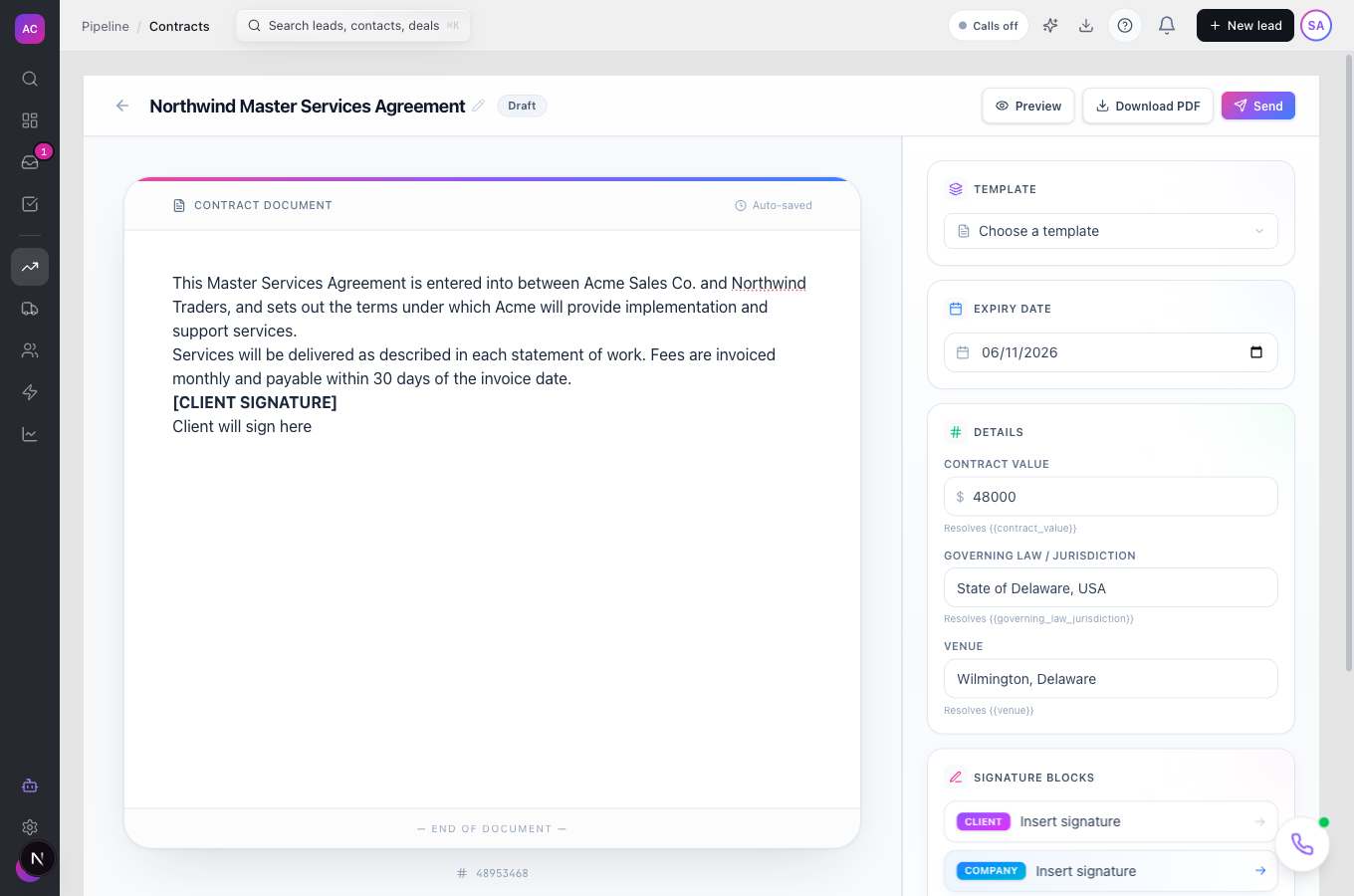
Section titled “Prepare it”- Write or paste the body, or pick a starting text under Template.
- Under Details, enter the Contract value, Governing law / jurisdiction and Venue. These fill the matching variables.
- Set an Expiry Date if the offer should lapse.
- Under Signature Blocks, click Insert signature for the client and for your company, where the signatures should appear.
- Click Preview to see the contract with every variable filled in, or Download PDF.
Send it for signature
Section titled “Send it for signature”- Click Send, check Recipient, Subject and Message (optional), and send. The status changes to Sent.
- The client opens the contract in the client portal and signs it with their full legal name. The status changes to Signed.
If the email cannot go out, the contract is still marked Sent and a warning tells you why.
Hand it to delivery
Section titled “Hand it to delivery”Open the signed contract and click Create Project. The project opens, named after the contract, with the contract value as its budget. Clicking again opens the same project; a contract has only one.
Rules and limits
Section titled “Rules and limits”| Rule | Value |
|---|---|
| Plans | Essentials, Growth and Scale |
| Who can create and edit | Admin, Super User, Manager and Employee by default |
| Who can delete | Admin and Super User by default |
| Who can create the project | anyone with the Projects create permission |
| Title | 1 to 500 characters |
| Governing law and venue | up to 300 characters each |
| Statuses that can be sent | Draft only |
| Statuses that can become a project | Signed and Counter-Signed |
| Signed contracts | cannot be edited or deleted |
| Expiry check | hourly |
| Projects per contract | one |
| Project billing | fixed price when a contract value is set, otherwise hourly |
Troubleshooting and FAQ
Section titled “Troubleshooting and FAQ”The client says the link shows “This contract could not be found or has been removed.” The emailed link does not open the contract for signing yet. Ask the client to sign from the client portal, where the contract appears under their contracts.
“Contract marked sent, but the lead has no email — share the public link manually.” Add an email address to the lead’s contact, or share the contract another way. It already counts as sent.
Filtering by Counter-Signed shows an error. The Counter-Signed filter is not available yet. Use All Statuses instead.
I do not see Create Project. The contract must be signed, your plan must include Projects, and you need permission to create projects.
A proposal was accepted but no contract appeared. Automatic contracts are off by default. Click Generate Contract on the proposal, or ask an admin to turn on the switch under Settings → General → Automation.
The Template list is empty. Your organisation has no contract templates yet. Write the body directly.