Leads
In short. A lead is a company or person you might sell to. The Leads list is where you find and triage them; the lead page is where you work one, with its contacts, timeline, tasks and deals in one place.
Who it is for. Every rep, every day. Managers, for triaging unassigned leads, reassigning in bulk and exporting.
- Where it lives
- CRM › LeadsCRM › OpportunitiesSettings › LEAD CAPTURE › Instant ResponseSettings › CRM › Lead StatusesSettings › CRM › Pipelines
- Plans
- SoloEssentialsGrowthScaleEvery plan
- Permission
- Leads & Opportunities
What it does
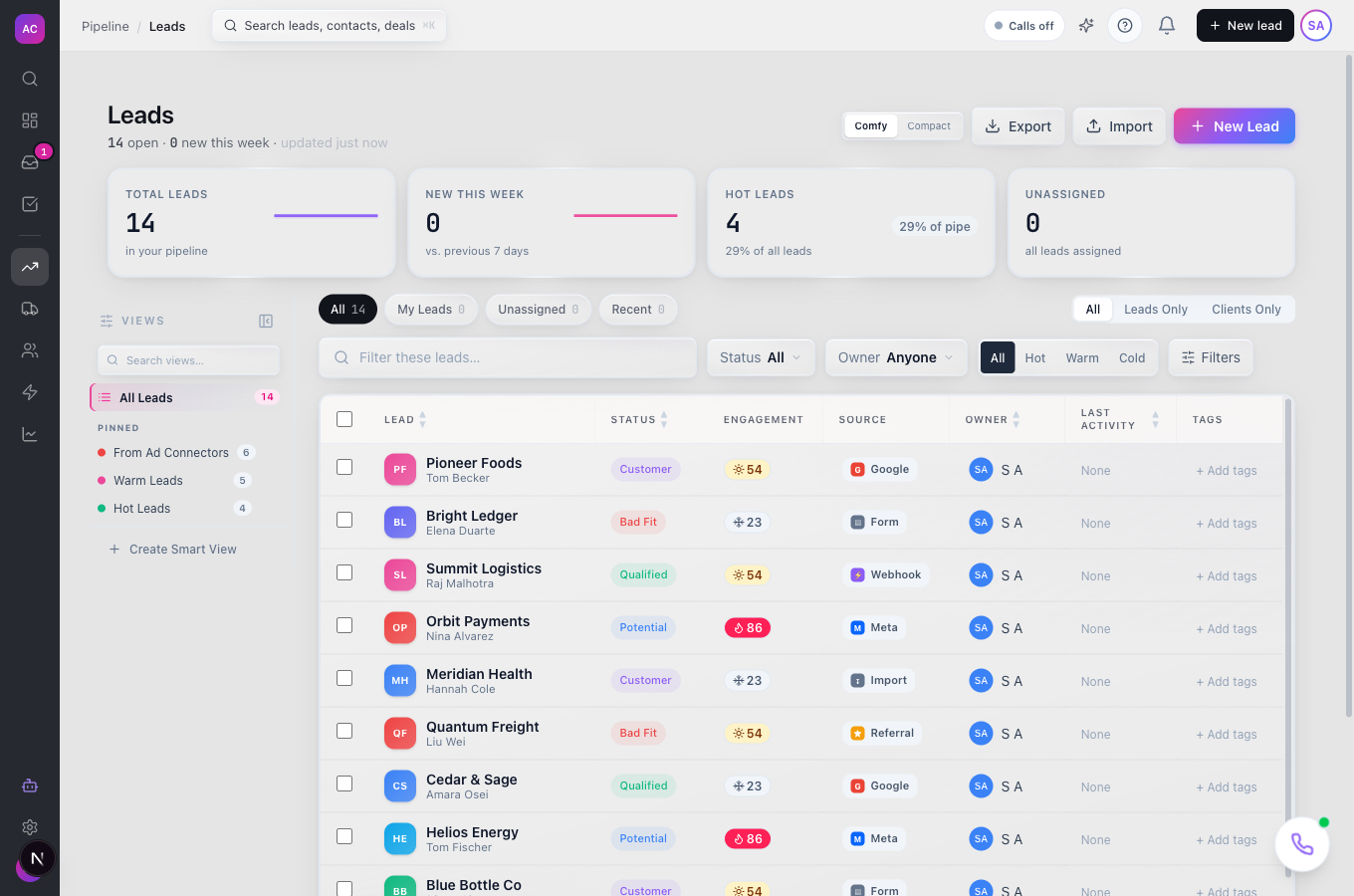
Section titled “What it does”- Lists every lead you are allowed to see, with four tiles at the top (Total leads, New this week, Hot leads, Unassigned) and quick tabs All, My Leads, Unassigned and Recent.
- Filters by status, owner, engagement (hot, warm, cold), qualification, words found in call transcripts, and do-not-contact leads. Any active filter can be saved as a Smart View.
- Edits in place from the list: click a Status, Owner, Source or Tags cell to change it without opening the lead.
- Bulk actions on selected rows: assign an owner, update status, add or remove tags, convert to client, grant consent, sync email history, delete. Every bulk action can be undone for 24 hours from the toast.
- Opens a lead page with an inline-editable name, a status pill, a lifecycle badge, a left panel (About, Lead context, Tasks, Opportunities, Contacts, Custom fields, Account manager) and an activity panel with Timeline, All, Important, Conversations and Notes & Summaries.
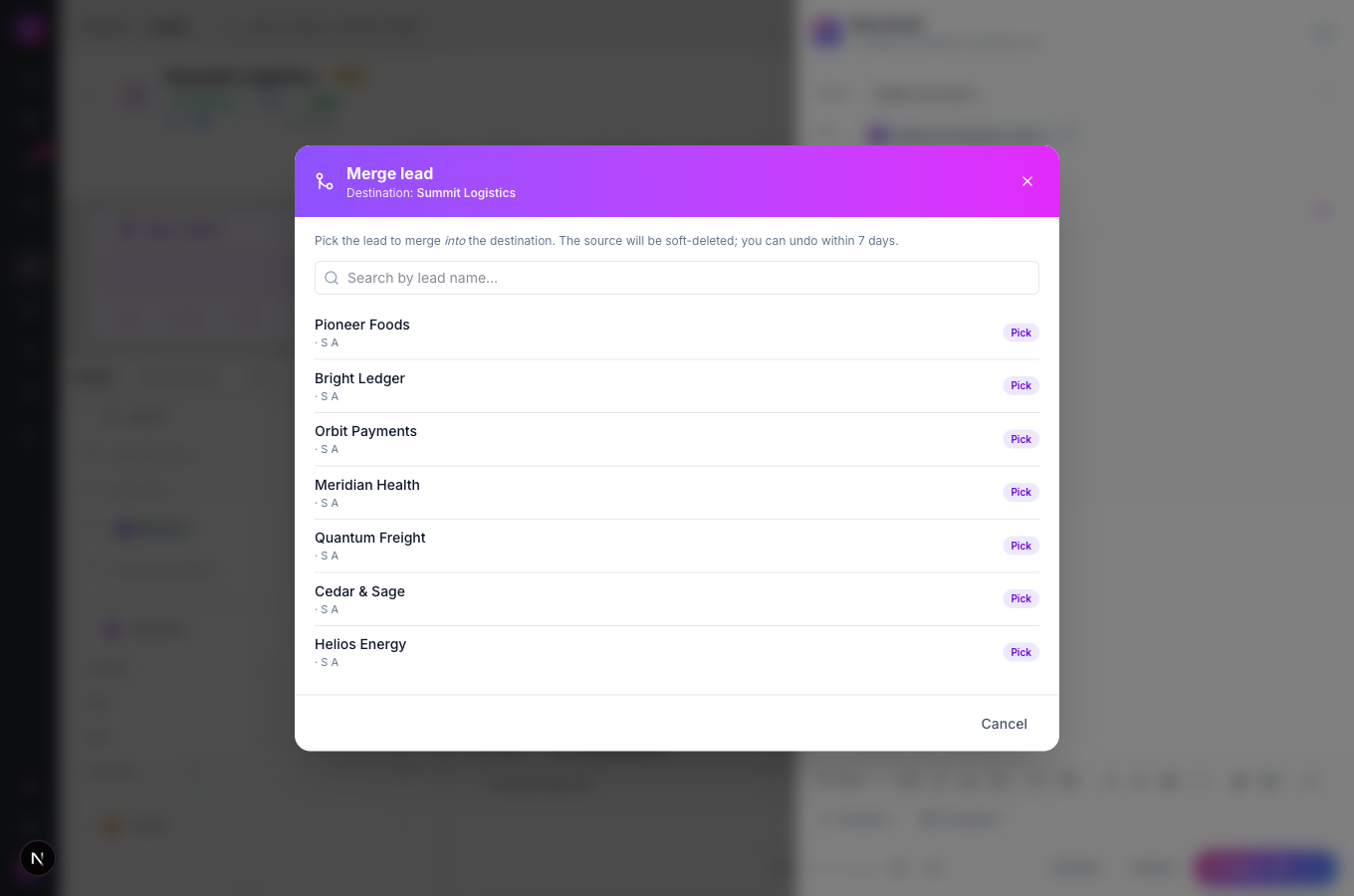
- Merges duplicates field by field and keeps an undo for seven days.
- Converts a lead to a client, and reverts if needed.
- Exports the current filtered list as CSV or XLSX.
What it does not do
Section titled “What it does not do”- It does not keep a trash. Deleting a lead also removes its contacts, activities and opportunities, and the only undo is the 24-hour toast after a bulk delete. Single deletes cannot be undone.
- It does not score leads by hand. The engagement chip is computed from activity, call time and deal value; you cannot set it.
- It does not create tasks or opportunities from the buttons at the top of the lead page yet. Use the Tasks and Opportunities sections in the left panel.
- It does not import from another CRM here. The Import button on this page takes a CSV or Excel file; migrating from another CRM lives under Settings.
Set it up
Section titled “Set it up”Leads work out of the box. Two admin settings shape them:
- Statuses. Open Settings → CRM → Lead Statuses. Your workspace starts with Potential (the default), Qualified, Bad Fit and Customer. Click Add Status to add one, Change color to recolour it, drag to reorder, and mark one as the default for new leads. A status in use cannot be deleted.
- Who sees what. The Leads permission on each role decides whether a person sees their own leads, their team’s or everyone’s. See the Roles and permissions page.
Works the same on mobile, with rows shown as cards and the lead page actions behind an Action button.
Use it day to day
Section titled “Use it day to day”- Add a lead. Click New Lead, type the Lead Name (the only required field), optionally set Status, Owner, Source, Phone and Website, then Create Lead. The time zone fills itself from the phone number.
- Find your work. Use My Leads for what you own and Unassigned to pick up new enquiries. Recent sorts by last activity. Type in Filter these leads… to search.
- Update without opening. In the list, click a lead’s Status, Owner or Tags cell and change it in the popover.
- Work a lead. Open it. Everything you do with the person, calls, emails, notes, SMS, WhatsApp, meetings, lands on the Timeline. Use the type filter to show only calls or only emails, and the date range to narrow it.
- Handle many at once. Tick rows, open the bulk menu, pick an action, confirm. Watch for the Undo button on the toast.
- Merge duplicates. Open the lead you want to keep, choose More actions → Merge Lead, pick the duplicate, then decide field by field whether to keep this lead’s value, the duplicate’s, or both. Contacts, activities, opportunities and tasks move across. Undo is available for seven days.
- Won the customer? Choose More actions → Convert to Client. The lead becomes a client, shows under Clients, and can be reverted.
- Export. Use the export control in the header and pick CSV or XLSX. The export respects your current filters.
Rules and limits
Section titled “Rules and limits”| Rule | Value |
|---|---|
| Required field on a new lead | Lead Name only |
| Rows per page | 25 |
| Leads per bulk action | up to 100, and up to 50 tags per action |
| Bulk undo window | 24 hours |
| Merge undo window | 7 days |
| Import file | CSV, .xlsx or .xls, up to 10 MB |
| Email history sync | up to 5,000 leads per run, pulling 400 days of email |
| Engagement chip | hot at 70 or more, warm at 40 to 69, cold below 40 |
| Lead statuses | label up to 100 characters, exactly one default |
Troubleshooting and FAQ
Section titled “Troubleshooting and FAQ”I deleted a lead by mistake. If it was a bulk delete within the last 24 hours, click Undo on the toast. A single delete cannot be undone, so take a moment on the confirmation dialog.
I cannot see a colleague’s leads. Your role’s Leads permission is set to Own. Ask an admin to change it to Team or All.
A status cannot be deleted. Leads still use it. Move those leads to another status first.
The New Lead button is missing. Your role does not have the Create capability for Leads.
The engagement chip shows a dash. The lead has not been scored yet. It fills in once there is activity to score.
Merge is greyed out. You need the Edit capability for Leads, and the lead must not already be deleted.