Estimates
In short. An estimate is a priced quote for a lead: line items, tax, discounts, notes and terms. The client accepts or declines it. Once accepted, you turn it into a draft invoice with the same lines.
Who it is for. Reps and account managers who quote a price without a full proposal, and admins who decide whether an accepted estimate creates an invoice on its own.
- Where it lives
- Billing › Estimates
- Plans
- SoloEssentialsGrowthScale
- Permission
- Estimates
What it does
Section titled “What it does”- Lists every estimate under Billing → Estimates, with search and a status filter.
- Numbers each estimate automatically: EST-0001, EST-0002 and so on.
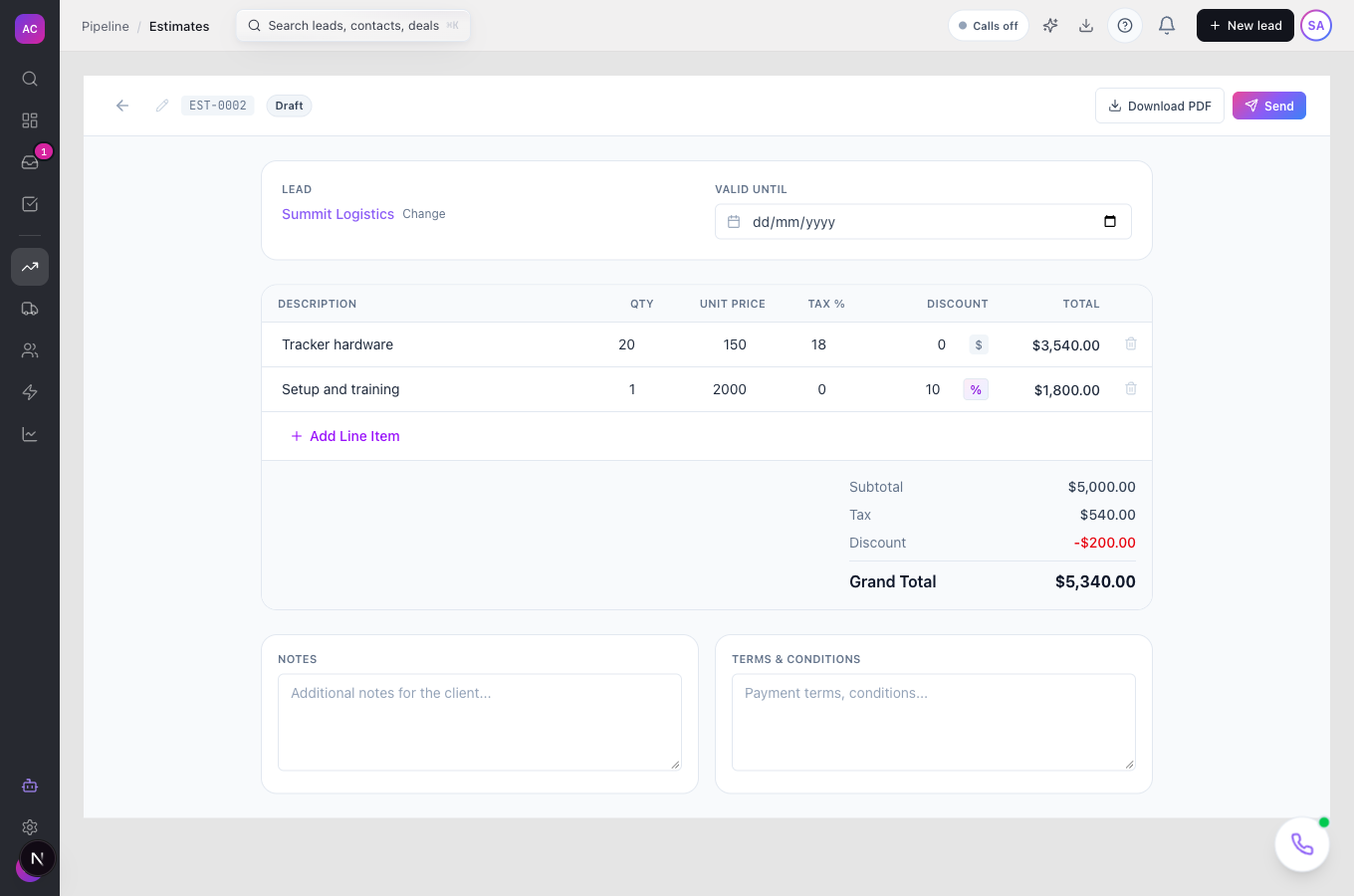
- Builds the price from line items: description, quantity, unit price, tax percentage and a discount per line, either a fixed amount or a percentage. It shows the subtotal, tax, discount and grand total.
- Keeps Notes and Terms & Conditions for the client, a Valid Until date, and a Download PDF copy.
- Lets the client accept with their name, or decline with a reason, from the client portal.
- Converts an accepted estimate into a draft invoice with Convert to Invoice, carrying over the lines and currency, with a due date 30 days out. The estimate then shows as Invoiced.
- Creates and emails the invoice automatically on acceptance, if an admin turns that on.
What it does not do
Section titled “What it does not do”- It does not email the estimate yet. Send marks the estimate as sent and makes it visible to the client in the client portal, but no email goes out, even though the dialog asks for a recipient and a message. Tell the client yourself.
- It does not show a shareable link to the estimate in the app.
- It does not expire on its own. Valid Until is printed for the client, but the estimate stays open after that date.
- It does not have a currency picker. Estimates are in US dollars unless the currency was set through the API.
- It does not let you change an estimate once it has been accepted or declined.
Set it up
Section titled “Set it up”There is nothing to switch on for your team. Estimates are included on Essentials and above. For clients to see and accept estimates, they need access to the client portal.
To bill accepted estimates automatically:
- Open Settings → General and scroll to Automation.
- Turn on Auto-create invoice when proposals or estimates are accepted.
- Click Save Changes.
With this on, the client’s acceptance creates the invoice from the estimate’s lines and emails the client a payment link. With it off, someone clicks Convert to Invoice.
Works the same on mobile.
Use it day to day
Section titled “Use it day to day”Create an estimate
Section titled “Create an estimate”- Open Billing → Estimates and click New Estimate.
- Search for the lead, for example Summit Logistics, and pick it.
- Type an Estimate Title, such as “Fleet Tracking Pilot”, and click Create Estimate. The editor opens on a draft.
Price it
Section titled “Price it”- Set Valid Until if you want a date printed on the estimate.
- Click Add Line Item for each line, then fill in Description, Qty, Unit Price and Tax %.
- Enter a Discount on any line. Click the symbol next to it to switch between a fixed amount and a percentage.
- Add Notes and Terms & Conditions. Changes save as you type.
- Click Download PDF to check what the client will see.
Send it and get an answer
Section titled “Send it and get an answer”- Click Send, fill in the dialog and confirm. The status changes to Sent.
- Let the client know by email or phone that the estimate is waiting in their portal.
- When the client accepts, the status changes to Accepted. If they decline, it changes to Declined, with their reason if they gave one.
Bill it
Section titled “Bill it”- Open the accepted estimate and click Convert to Invoice.
- Click Create invoice in the confirmation. The new draft invoice opens. Check it and send it from Invoices.
Rules and limits
Section titled “Rules and limits”| Rule | Value |
|---|---|
| Plans | Essentials, Growth and Scale |
| Who can create and edit | Admin, Super User, Manager and Employee by default |
| Who can delete | Admin and Super User by default |
| Who can convert to an invoice | anyone with the Invoices create permission |
| Numbering | EST- followed by 4 digits, counting up per organisation |
| Title | 1 to 500 characters |
| Line description | 1 to 1,000 characters |
| Tax per line | 0 to 100 percent |
| Notes | up to 5,000 characters |
| Statuses that can be sent | Draft only |
| Statuses that can be converted | Accepted only |
| Invoice due date on conversion | 30 days after conversion |
Troubleshooting and FAQ
Section titled “Troubleshooting and FAQ”I clicked Send but the client got nothing. Sending does not email the estimate yet. The client sees it in the client portal. Tell them it is there.
I do not see Convert to Invoice. The estimate must be accepted, and you need permission to create invoices.
Filtering by Viewed, Expired or Invoiced shows an error. The list filters by Draft, Sent, Accepted or Declined only. Use All Statuses for the rest.
The lead picker is gone. It hides once an estimate is accepted, declined or invoiced, because those estimates are locked.
Can I turn an estimate into a contract or a project? No. Estimates lead straight to invoices. For the contract and project path, use Proposals.