Support tickets
In short. A ticket is a support request with a number, status, priority and SLA timer. Tickets arrive by email, the client portal or the help widget, or you create them. Closing one sends a satisfaction survey.
Who it is for. Support and account teams who answer customers after the sale, and admins who set SLAs, categories, macros and routing.
- Where it lives
- Delivery › TicketsSettings › SUPPORT › CategoriesSettings › SUPPORT › MacrosSettings › SUPPORT › Ticket Routing
- Plans
- SoloEssentialsGrowthScale
- Permission
- Tickets
What it does
Section titled “What it does”- Lists every ticket on the Tickets page with its number (TKT-0001, TKT-0002 and so on), subject, status, priority and last update. Filter by status (new, open, pending, in progress, on hold, resolved, closed) and by priority (low, normal, high, urgent).
- Turns email into tickets. Mail sent to one of your Support Email Aliases opens a new ticket, and a customer’s reply to that thread is added to the same ticket.
- Takes tickets from your customers through the client portal and the embeddable Help Widget.
- Tracks two SLA timers per ticket, first response and resolution, and shows a red SLA breached badge when one is missed.
- Lets you reply to the customer or add an Internal note they never see. Public replies are emailed to the ticket’s contact.
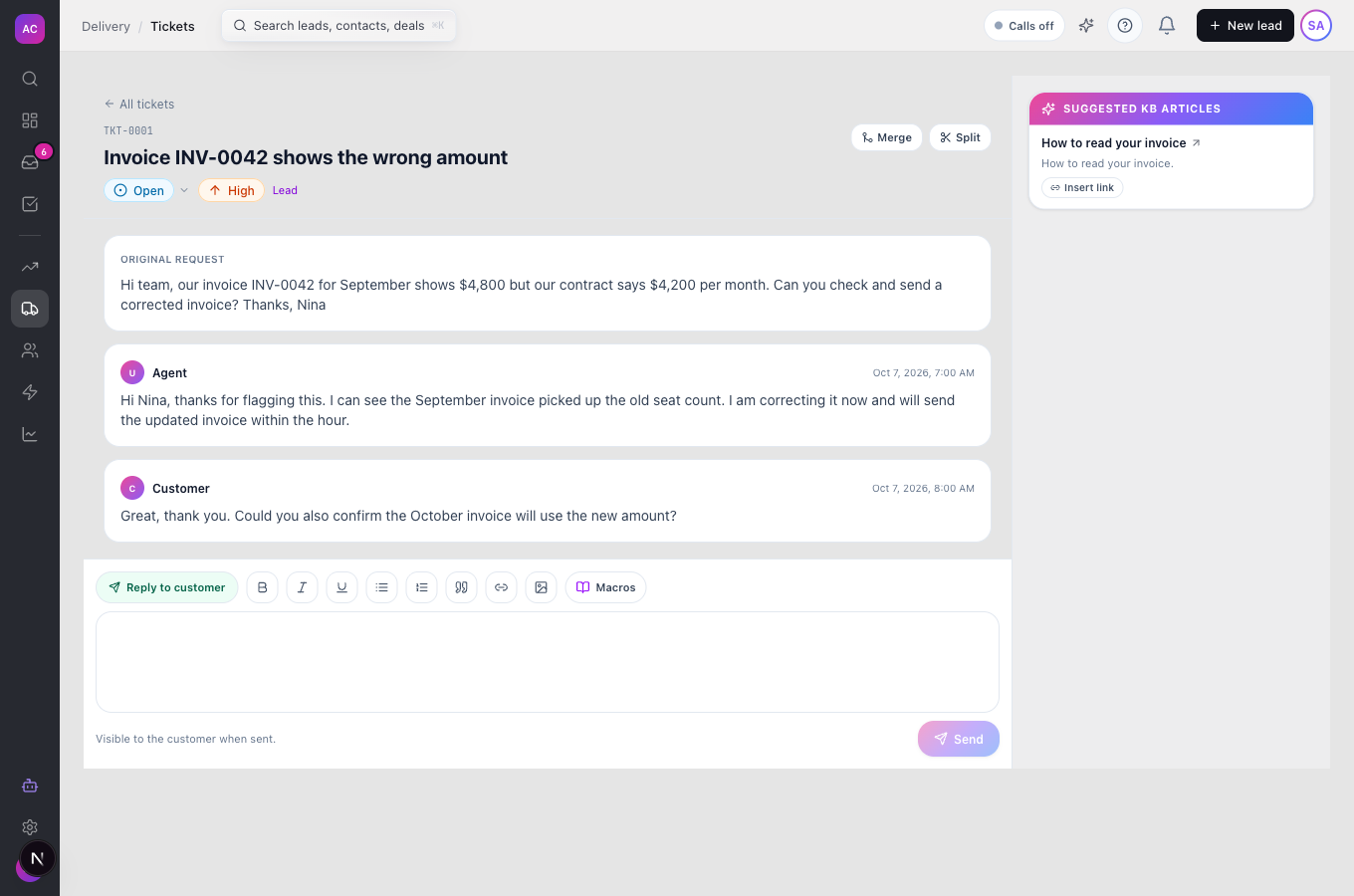
- Inserts saved replies (Macros) with placeholders such as the contact’s first name and the ticket subject, and suggests knowledge-base articles next to the conversation.
- Merges duplicate tickets and splits a conversation that drifted into two problems.
- Assigns, categorises and prioritises new tickets automatically with Ticket Routing rules and category defaults.
- Sends a “How did we do?” survey when a ticket is closed and reports the results under Customer satisfaction.
What it does not do
Section titled “What it does not do”- It does not let you pick a lead or contact when you create a ticket from the Tickets page. Tickets from email and the portal are linked to the sender’s contact; hand-made tickets are not linked to a lead.
- It does not let you assign or reassign a ticket, or change its priority, from the ticket page yet. Assignment comes from a category’s default assignee or a routing rule.
- It does not show the lead’s name in the list. The Lead column shows a short ID; open the ticket and use its Lead link.
- It does not close resolved tickets automatically. There is no setting for auto-close in the app yet.
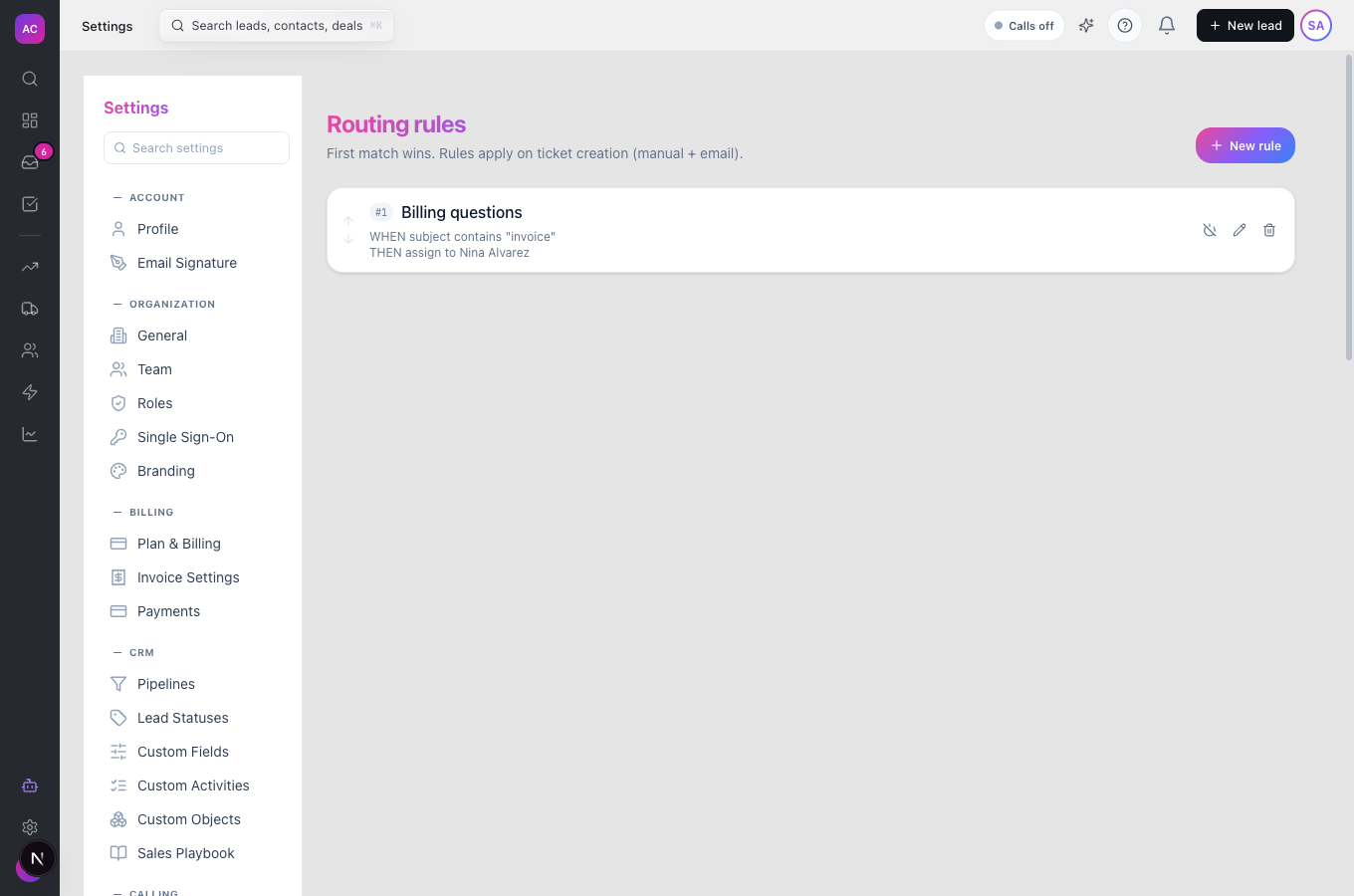
- It does not run routing rules on tickets that already exist. Rules apply when a ticket is created.
Set it up
Section titled “Set it up”- Open Settings → SLA and review the first-response and resolution times for each priority. Changes cannot be saved from this page yet, so the default times apply; see Troubleshooting.
- Open Settings → Categories and click New category. Give it a name such as “Billing”, and optionally a Default assignee and Default priority. New tickets in that category pick these up.
- Open Settings → Macros and click New macro. Write the reply, for example “Hi {{contact.first_name}}, thanks for reaching out about {{ticket.subject}}”. Admins can tick Available to entire org; otherwise the macro is personal.
- Open Settings → Ticket Routing and click New rule. Under When (all must match) add conditions on subject, body, sender email or category, using contains, matches or equals. Under Then pick Assign to, Set category and Set priority. Use the arrows to order rules; the first match wins.
- To receive email, open Settings → General, find Support Email Aliases, add an address such as support@acme-sales.example and click Save Aliases. Then have your mail provider forward that address to your connected mailbox.
- To take tickets on your website, open Settings → Help Widget, pick Bottom right or Bottom left, click Copy and paste the snippet into your site.
On mobile the knowledge-base suggestions move into a KB suggestions panel you open from the ticket.
Use it day to day
Section titled “Use it day to day”Work the queue. Open Tickets, click new to see what has just arrived, then open for what you are working on. A red SLA breached badge tells you which ones are late.
Answer a ticket. Click the subject. Read the Original request and the replies. Keep the pill on Reply to customer, write your answer or click Macros to insert one, and click Send. The customer gets it by email. To leave a note for a colleague, switch the pill to Internal note first.
Point to an article. In Suggested KB articles, click Insert link to copy a link to the article, then paste it into your reply.
Change the status. Click the status badge and pick the next one. Options that are not allowed from the current status are greyed out; for example, a closed ticket can only be reopened. When the customer replies to a pending or resolved ticket, it goes back to open.
Merge or split. Nina Alvarez sees that Orbit Payments emailed twice about the same invoice. On the newer ticket she clicks Merge, searches for the older ticket by subject or number and picks it. To split, click Split, tick the replies that belong to the new problem, give it a subject and confirm.
Create a ticket by hand. Click New Ticket, fill in Subject and Description, choose a Category if you have any and a priority, then Create.
Check satisfaction. Click Customer satisfaction on the Tickets page to see the average rating, total responses, response rate, the 1 to 5 star distribution and recent comments for the last 7, 30 or 90 days.
Rules and limits
Section titled “Rules and limits”| Rule | Value |
|---|---|
| Plans | Growth and Scale |
| Subject length | 1 to 500 characters |
| Rows per page | 25 |
| Default first-response SLA | Urgent 1 hour, High 4 hours, Normal 8 hours, Low 24 hours |
| Default resolution SLA | Urgent 4 hours, High 1 day, Normal 3 days, Low 7 days |
| SLA value range | 1 minute to 30 days |
| Support email aliases | up to 25 |
| Routing rule conditions | up to 20 per rule, all must match |
| Category name | up to 100 characters |
| Satisfaction survey | one per ticket, 1 to 5 stars, optional comment up to 2,000 characters, one answer only |
| Survey email | sent only if the ticket’s contact has an email address and your workspace has a connected sending mailbox |
| Who sees what | the role’s Tickets permission (Own, Team or All); the satisfaction dashboard needs All |
Troubleshooting and FAQ
Section titled “Troubleshooting and FAQ”“Failed to save SLA configuration”. SLA times cannot be changed from the SLA page yet, and its Medium row stands for the Normal priority. The default SLA times apply. Contact support if you need different times.
Emails to your support address do not create tickets. Check that the address is listed under Support Email Aliases and that your mail provider forwards it to a mailbox connected to Pitch2Sale. The alias must appear in the To or CC line.
The customer did not get the satisfaction survey. The ticket has no contact with an email address, or no sending mailbox is connected. Tickets created by hand have no contact, so they never send a survey.
A status is greyed out. That move is not allowed from the current status. For example, from closed you can only go back to open.
Merge is greyed out. You cannot merge a closed ticket. Reopen it first.
Split is greyed out. The ticket has no replies yet, so there is nothing to split.
I cannot see the Customer satisfaction numbers. The dashboard needs the Tickets “View Global” permission. Ask an admin.
Related: Knowledge base, Surveys & CSAT.