Roles and permissions
In short. Every person has one role, and the role decides what they can see (their own records, their team’s, or everyone’s) and do (create, edit, delete, send, record payments and so on). Five roles come built in; on the Scale plan you can add your own and change any of them.
Who it is for. Admins and Super Users, when onboarding a team, promoting someone, or deciding that a contractor should see less.
- Where it lives
- Opens from a record or another screen
- Plans
- SoloEssentialsGrowthScale
- Permission
- Role-Based Access
What it does
Section titled “What it does”- Ships five roles in every workspace: Admin, Super User, Manager, Employee and Restricted. A System badge marks them.
- Shows a permission matrix per role under Settings → Roles, grouped into Sales, Communication, AI & Automation, Financial, Operations and Settings. Each feature has View Own, View Team, View All, Create, Edit and Delete, plus feature-specific capabilities such as Import, Export and Merge on Leads or Send and Record Payment on Invoices.
- Applies scope everywhere: lists only show records in your scope, and opening a record outside it returns “not found”.
- Defines “team” through the Manager field on each person in Settings → Team, so a manager with Team scope sees everyone who reports to them.
- Lets an admin override single capabilities for one person without creating a role: Grant, Deny or Inherit per capability in the Edit Role dialog.
- Assigns the role when you invite someone, and lets you change it later from the Team page.
- Maps single sign-on groups to roles when SSO is configured, and keeps roles in step with SCIM groups.
What it does not do
Section titled “What it does not do”- It does not let anyone change their own role or their own overrides. Another admin must do it.
- It does not rename or delete the built-in roles. It does allow editing their permissions, so change them with care; there is no “restore defaults” button.
- It does not delete a role while people are assigned to it, even though the dialog suggests reassignment will follow. Reassign first.
- It does not offer custom roles below the Scale plan. Solo, Essentials and Growth use the five built-in roles.
- It does not hide individual fields from a role in the app yet. Field-level restrictions exist behind the scenes for a few fields but have no screen.
Set it up
Section titled “Set it up”- Open Settings → Roles. Pick a role on the left, for example Manager, and read its matrix on the right.
- To adjust it, click the pills. Ticking View All also ticks Team and Own; unticking Own clears Team and All. Click Save. Everyone with that role gets the change at once.
- On Scale, click Add, type a Role Name such as “Sales Manager” and click Create Role, or hover a built-in role and use Clone this role as a custom role to start from a copy.
- Open Settings → Team, invite people with the right role, and set each person’s Manager so Team scope works.
- Decide message privacy under Settings → General: by default managers see their team’s SMS and WhatsApp conversations; the strict setting limits messages to their owner.
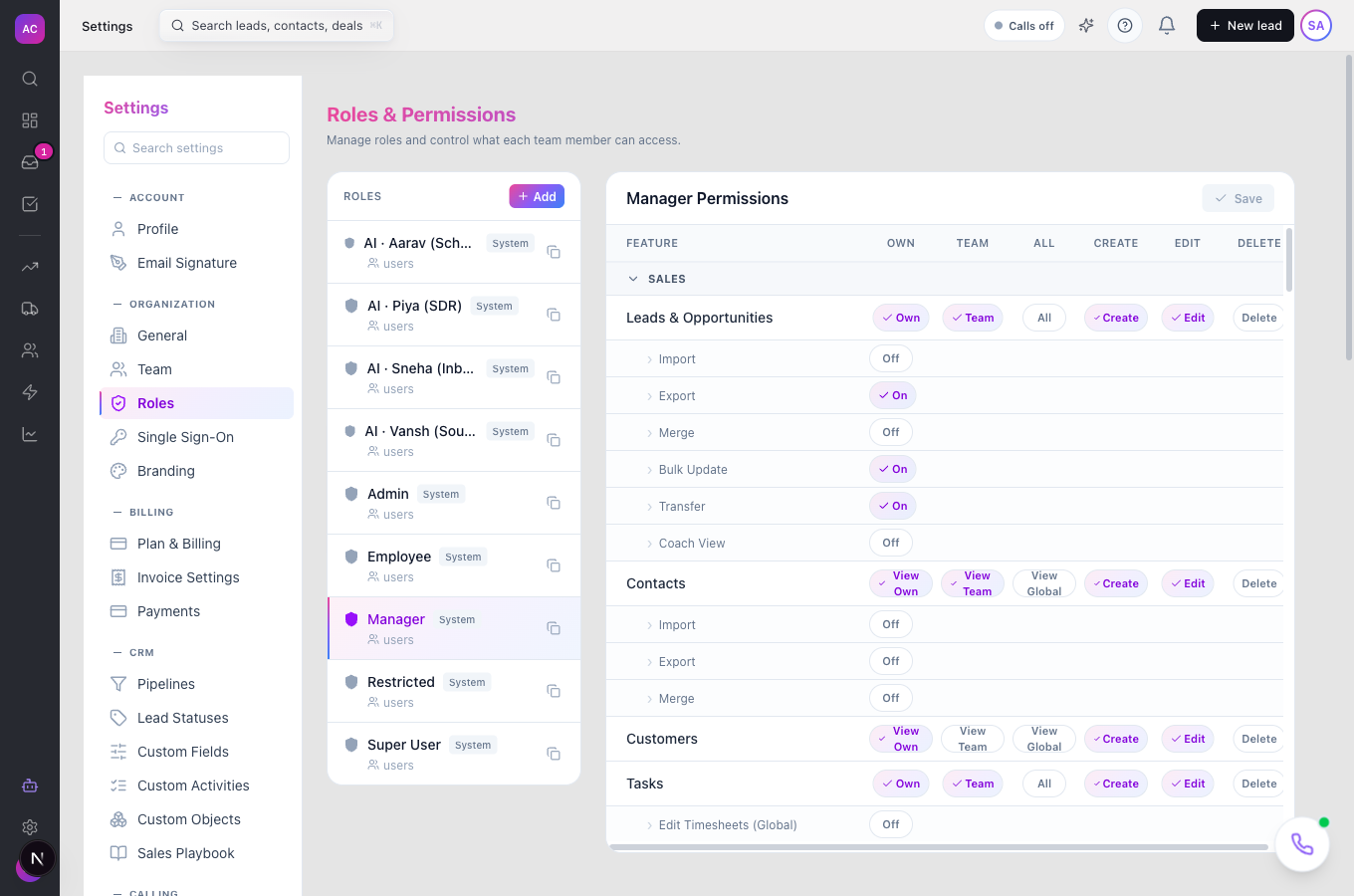
Works the same on mobile; the matrix is easier to read on a wide screen.
Use it day to day
Section titled “Use it day to day”- Promote someone. Team → row menu → Edit Role → choose the New Role → Save. A warning appears if the new role has less access than the old one.
- Make one exception. In the same dialog, set a single capability to Grant or Deny. Overrides win over the role.
- Cap AI spend per person. The Edit Role dialog also has AI token limit; blank means the organisation limit applies.
- See who has what. Each role on the Roles page shows how many people hold it, and the Team page filters by role and status.
What the built-in roles allow
Section titled “What the built-in roles allow”| Role | Scope | Can do |
|---|---|---|
| Admin | everything | all capabilities, including billing, audit log, API keys and signing in as another user |
| Super User | everything | all capabilities except billing and organisation-wide General settings; still manages roles, team, pipelines and integrations |
| Manager | own and team | create and edit leads, contacts, deals, tasks, projects, invoices and documents; export and bulk-update leads; reassign and distribute leads; team reports; call and send; no deleting |
| Employee | own only | create and edit their own leads, contacts, deals, tasks, projects, invoices and documents; call and send; own reports; no import, export or settings |
| Restricted | own only | read only on leads, contacts, clients, tasks, projects and Smart Views |
These are the defaults. Your admin may have changed them under Settings → Roles.
Rules and limits
Section titled “Rules and limits”| Rule | Value |
|---|---|
| Custom roles | Scale plan |
| Role name | 1 to 50 characters, unique |
| Built-in roles | cannot be renamed or deleted; permissions can be edited |
| Deleting a custom role | only when no one is assigned to it |
| Invite link | valid for 48 hours |
| Super User on invite | not offered in the invite list; assign it from the Team page afterwards |
| Organisation owner | cannot be deleted or demoted from the app; contact support to transfer ownership |
Troubleshooting and FAQ
Section titled “Troubleshooting and FAQ”The Add button is disabled. Custom roles need the Scale plan. The tooltip says “Upgrade to create custom roles”.
A manager cannot see a rep’s leads. Set the rep’s Manager on the Team page, and check the manager’s role has View Team on Leads.
Someone can see a lead that is not theirs. Leads are visible to their owner, their creator and their account manager, and to those people’s managers under Team scope.
I changed a role and nothing happened for the user. Permission changes apply at once, but the person may need to reload the page.
Delete role is refused. People are still assigned to it. Change their roles first, then delete.
Can I give one person Delete without a new role? Yes. Team → Edit Role → set that capability to Grant.