Knowledge base
In short. The knowledge base holds your team’s articles: how-tos, product facts, pricing rules. Keep an article internal, or make it public so clients can read it in the client portal.
Who it is for. Admins and team leads who write and maintain the articles, and anyone on the team who needs a reliable answer.
- Where it lives
- Insights › Knowledge Base
- Plans
- SoloEssentialsGrowthScale
- Permission
- Knowledge Base
What it does
Section titled “What it does”- Stores articles with a title, category, tags, language and a formatted body with headings, lists, quotes and links.
- Keeps every article as Internal — staff only or Public — visible in client portal. Public, published articles appear in the client portal.
- Tracks status: Draft, In Review, Published or Archived, with a Submit for review step for drafts.
- Saves a snapshot on every save. View history lets you compare versions side by side and restore one; a restore can itself be undone.
- Shows related articles under each one, either suggested automatically or chosen by you.
- Lets readers vote “Was this helpful?” and discuss the article in a team-only Discussion with @mentions.
- Supports translations: link an article in another language to the original, and readers can switch language.
- Feeds the AI: tick Use as AI context and proposal generation can draw on the article. Ticket screens also suggest matching articles.
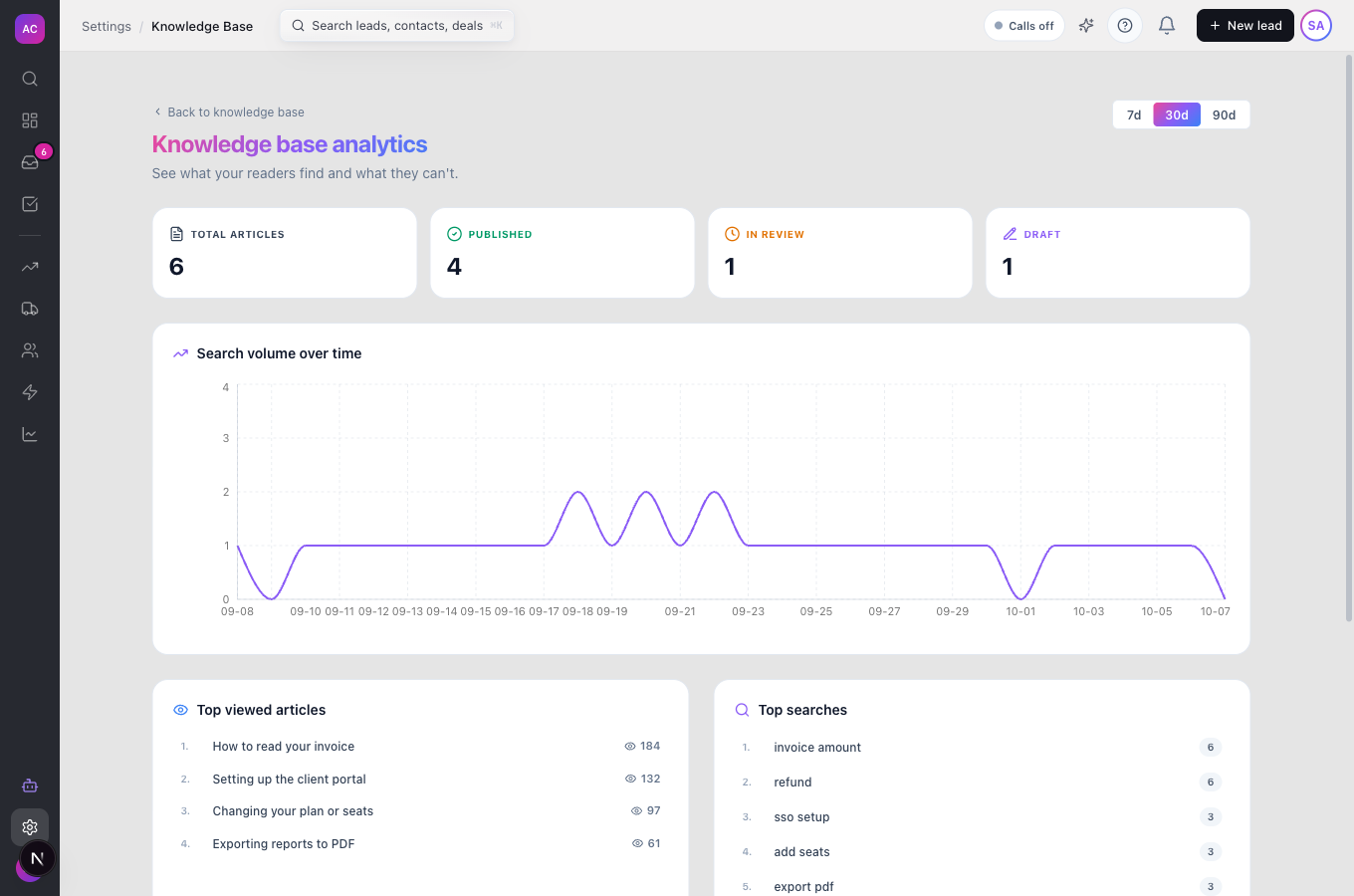
- Reports on use under Analytics: views, searches, searches with no result, and articles waiting for review.
What it does not do
Section titled “What it does not do”- It does not give most of the team access by default. The built-in Manager and Employee roles have no Knowledge Base permissions; an admin must add at least View to their roles.
- The Approve and Reject buttons for articles in review do not appear for regular admins yet. To publish a reviewed article, open it and set Status to Published.
- It is not a public website. Public articles are visible to clients signed in to your client portal, not to search engines.
- It is separate from the Voice Agent knowledge under Settings → Calling; see AI voice agents.
Set it up
Section titled “Set it up”- Make sure the right people can read and write. In Roles and permissions, give writers Create and Edit for Knowledge Base, and give everyone else View.
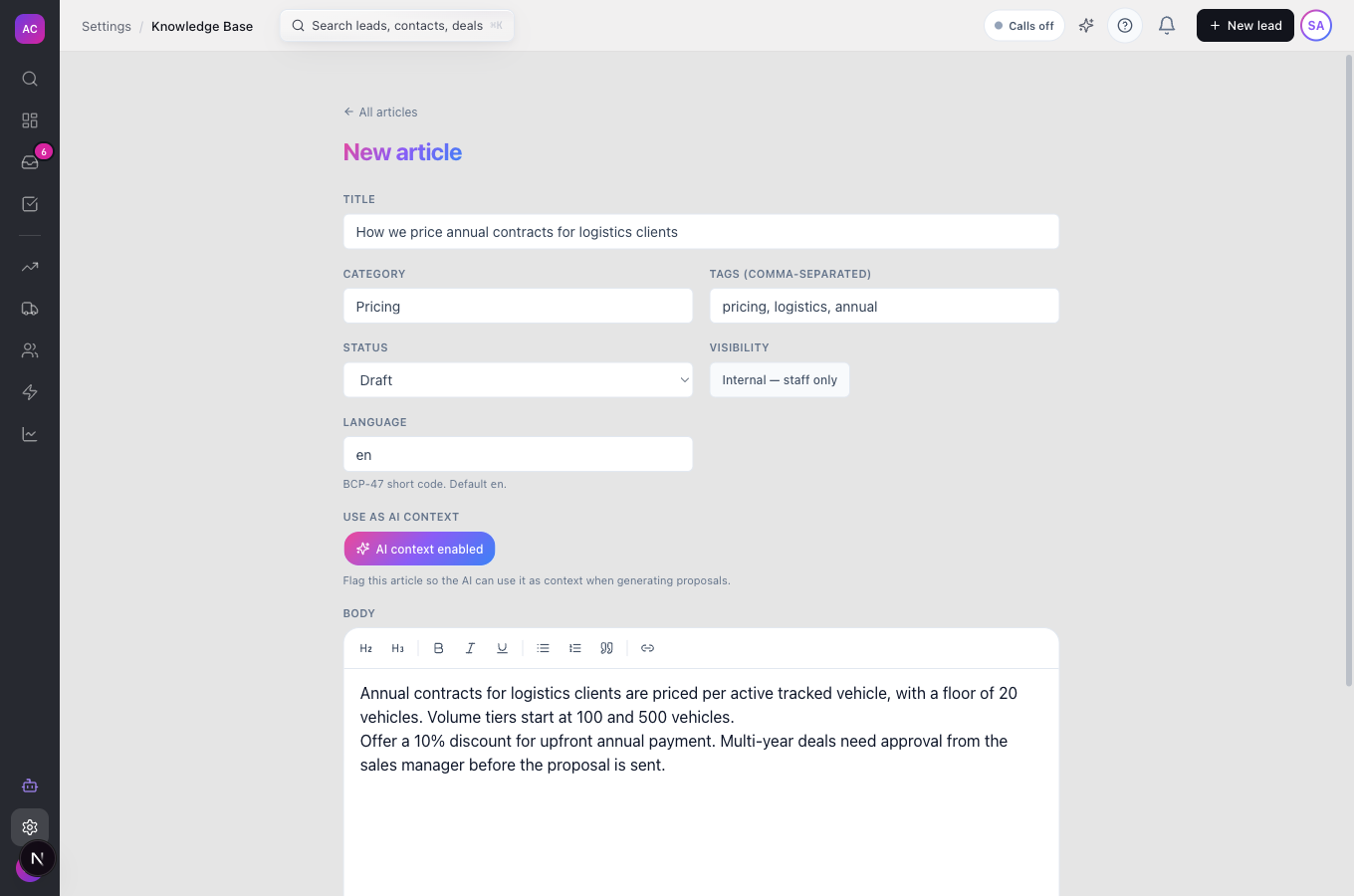
- Click Knowledge Base in the sidebar, then New Article.
- Enter a Title, for example “Annual contract pricing for logistics clients”, a Category such as “Pricing”, and Tags (comma-separated).
- Leave Status on Draft while you write. Choose the visibility: keep Internal — staff only unless clients should read it.
- If proposals should use this content, tick Use as AI context.
- Write the Body and click Create article.
- When it is ready, click Submit for review, or set Status to Published and click Save changes.
Works the same on mobile.
Use it day to day
Section titled “Use it day to day”Find an answer
Section titled “Find an answer”Open Knowledge Base, pick a category on the left or type in Search articles…. Use the language filter if you write in more than one language. Open an article to read it, then answer Was this helpful?.
Discuss and improve an article
Section titled “Discuss and improve an article”Under Discussion, write a comment and @mention a teammate, for example to ask Raj Malhotra to update a price. Comments are visible to your team only. Editors open the article, click Edit article, change it and click Save changes. Each save adds a version.
Restore an older version
Section titled “Restore an older version”In the editor click View history, pick a version to compare it with the current text, and restore it if needed.
Curate related articles
Section titled “Curate related articles”In the editor, under Related articles, choose up to 10 articles and click Save related list. With none chosen, suggestions appear automatically.
Find gaps
Section titled “Find gaps”Open Analytics from the list page. Zero-result searches shows what people looked for and did not find, a good list of articles to write next. Pick 7d, 30d or 90d.
Rules and limits
Section titled “Rules and limits”| Rule | Value |
|---|---|
| Title | 1 to 500 characters |
| Category | up to 200 characters |
| Tags | up to 50 per article, 100 characters each |
| Language code | up to 16 characters, for example en or pt-br |
| Statuses | Draft, In Review, Published, Archived |
| Related articles chosen by hand | up to 10 |
| Articles shown in the list | up to 100 |
| Who sees an internal article | team members with View for Knowledge Base |
| Who sees a public article | the above, plus clients in the client portal once it is published |
| Analytics | roles with View All for Knowledge Base |
| Plans | Growth and Scale |
Troubleshooting and FAQ
Section titled “Troubleshooting and FAQ”My team cannot see Knowledge Base in the sidebar. Their role has no Knowledge Base permission. Add View for Knowledge Base to the role under Roles and permissions.
An article is stuck “In Review”. Open it, set Status to Published and click Save changes. The approve and reject buttons are not shown to admins yet.
Clients cannot see my article in the portal. It must be both Public — visible in client portal and Published.
The AI ignored my article when drafting a proposal. Check that Use as AI context is ticked and the article is published. See Proposals.
I deleted an article by mistake. Deletion is permanent. To retire an article safely, set Status to Archived instead.