SMS
In short. Send and receive text messages with a lead’s contacts from the lead page. Replies land in the same thread and in your Inbox, and opt-outs are honoured automatically.
Who it is for. Reps who confirm meetings or nudge a quiet prospect by text, and admins who set up the sending number, the templates and the opt-out wording.
- Where it lives
- Opens from a record or another screen
- Plans
- SoloEssentialsGrowthScale
- Permission
- Sms
What it does
Section titled “What it does”- Opens an SMS Conversation drawer on any lead with a contact phone number, showing every text sent and received, with Queued, Delivered or Failed on each outgoing message.
- Lets you pick which contact to text, write up to 1,600 characters, start from a saved SMS template, or ask the AI for a suggested reply.
- Adds opt-out wording, “Reply STOP to opt out.” by default, to the first text a new lead receives. The composer shows the final message before you send.
- Matches incoming texts to the contact with that phone number, adds them to the lead’s timeline and the Messages tab of the Inbox.
- Handles opt-outs: a reply of STOP, UNSUBSCRIBE, CANCEL, END or QUIT blocks further texts and sends a confirmation; START or UNSTOP turns texts back on.
- Blocks sends that break the rules: opted-out numbers, leads without consent, sends outside allowed hours, and US numbers when your A2P 10DLC registration is not approved.
What it does not do
Section titled “What it does not do”- It does not let you choose which of your numbers sends the text. Texts go from your organisation’s first SMS-capable number.
- It does not send pictures from the app. There is no attachment button in the composer.
- It does not keep texts from unknown numbers. A reply from a number that matches no contact is not saved.
- It does not send bulk texts from a list. To text many leads, use an SMS step in a Workflow.
Set it up
Section titled “Set it up”- Make sure your organisation has a phone number with SMS capability. Numbers are managed under Settings → Calling; see Calling and power dialer.
- If you text US numbers, your organisation needs an approved A2P 10DLC registration. The A2P 10DLC card in the app shows “Coming soon”, so registration is not available there yet; until a registration is approved, texts to US numbers are refused. See Compliance controls.
- Optional: change the opt-out wording. Open Settings → Calling, find SMS opt-out suffix, type your text (up to 80 characters) and save.
- Optional: create templates. Open Settings → SMS Templates and click New Template. Fill in Template Name, pick a Category (Follow Up, Appointment, Confirmation, Reminder, Promotion or General), write the Message Body, tick Share with team if colleagues should see it, and click Create Template.
In a template you can use {{CONTACT_FIRST_NAME}}, {{CONTACT_LAST_NAME}} and {{LEAD_NAME}}. They are filled in when the text is sent.
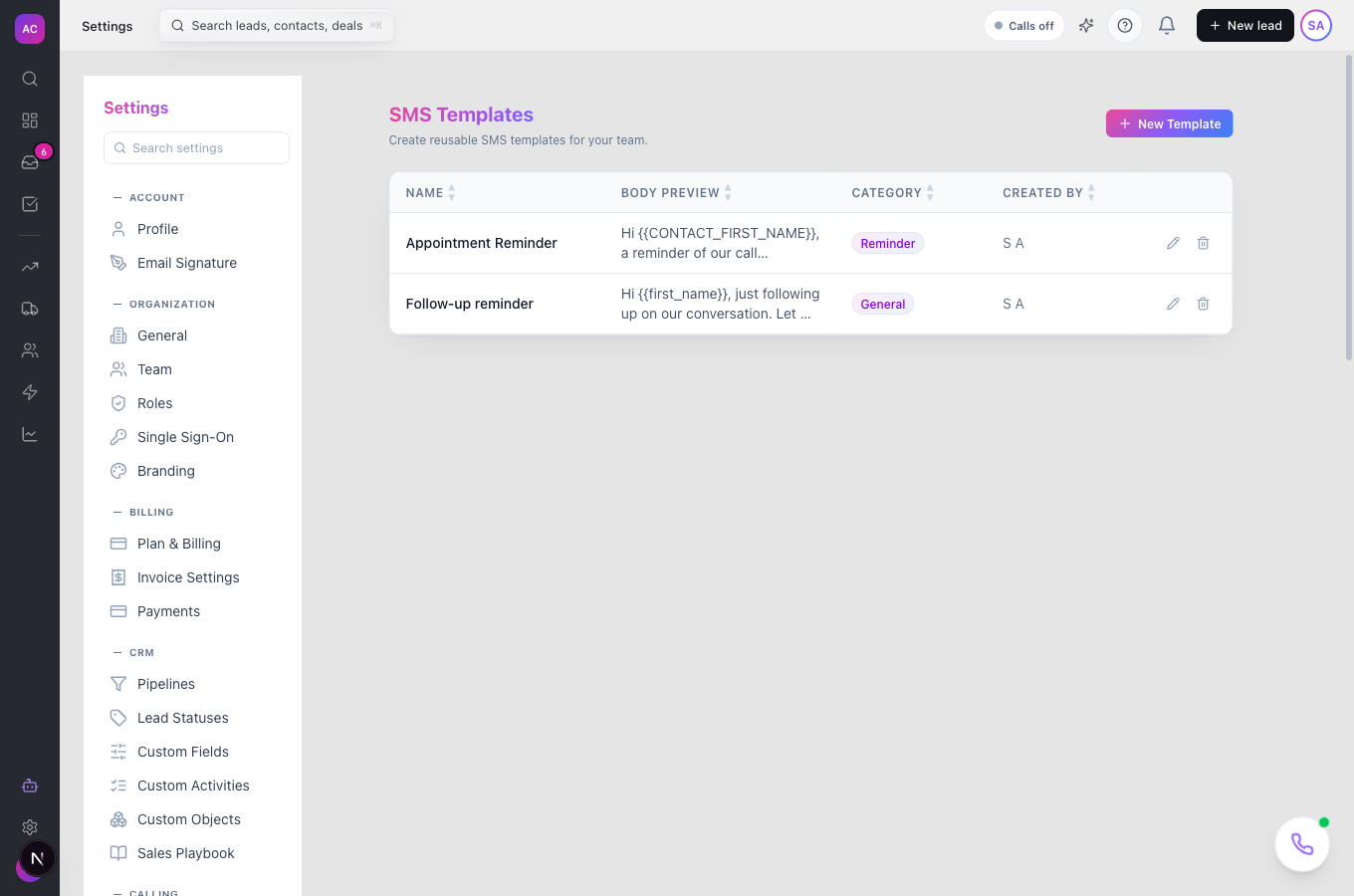
Works the same on mobile, where SMS sits in the lead’s Action menu.
Use it day to day
Section titled “Use it day to day”Send a text
Section titled “Send a text”- Open the lead, for example Meridian Health, and click SMS at the top. The button is greyed out until a contact on the lead has a phone number.
- In the drawer, pick the contact under Send SMS.
- Type your Message, or click Use Template and pick one.
- If this is the first text to this lead, check the Preview (final body) with the opt-out line added.
- Click Send. “SMS sent successfully” confirms it, and the message appears in the thread.
Answer a reply
Section titled “Answer a reply”Replies show in the lead’s SMS Conversation drawer and in Inbox → Messages. Open the lead and reply from the same drawer.
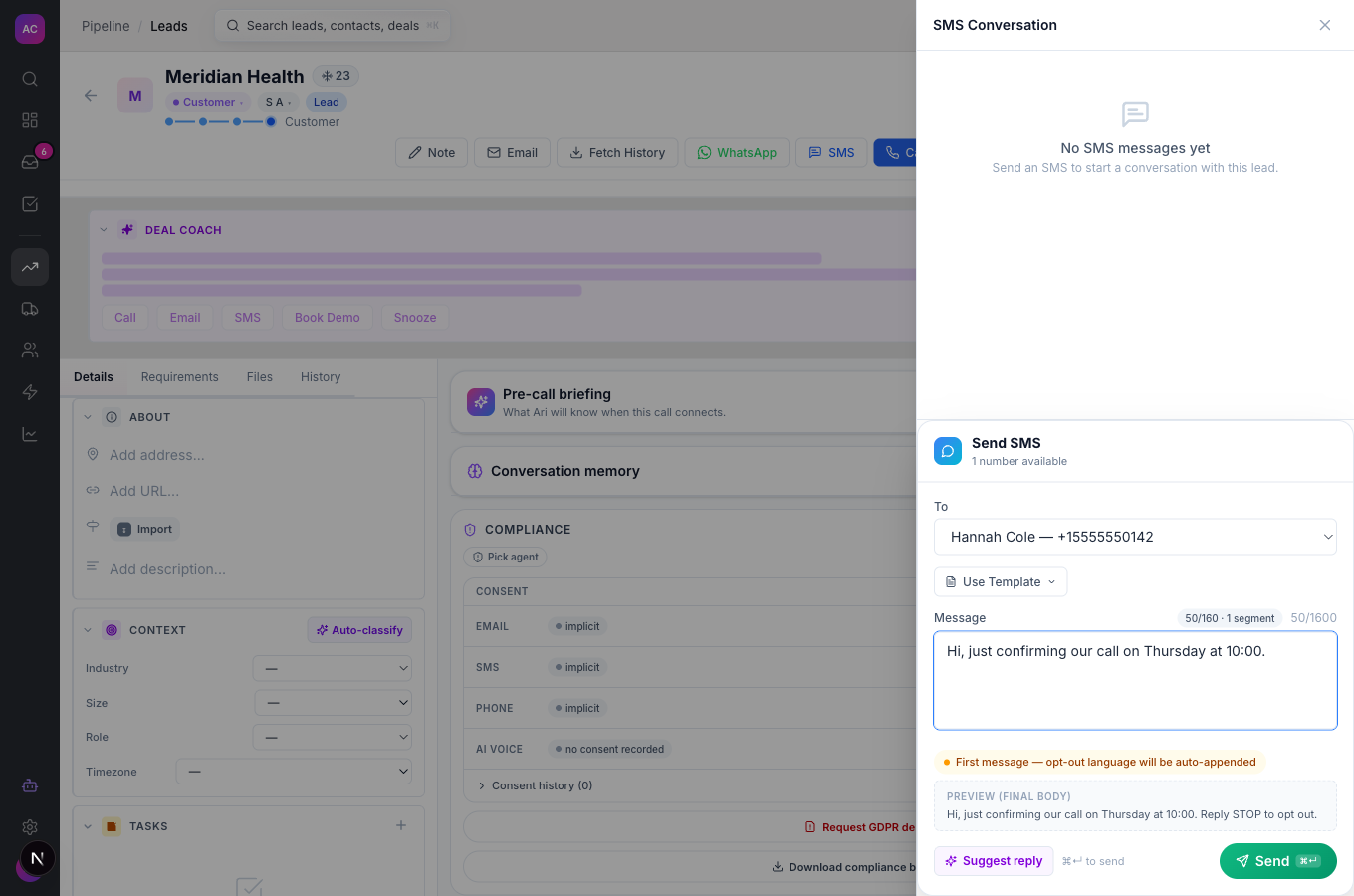
Rules and limits
Section titled “Rules and limits”| Rule | Value |
|---|---|
| Message length | 1 to 1,600 characters; the counter turns amber after 1,400 |
| Opt-out line | added to the first text to a new lead, unless your text already contains “stop” |
| Opt-out suffix | up to 80 characters, default “Reply STOP to opt out.” |
| Opt-out keywords | STOP, STOPALL, UNSUBSCRIBE, CANCEL, END, QUIT, OPTOUT |
| Opt-in keywords | START, UNSTOP, YES |
| US numbers | need an approved A2P 10DLC registration |
| SMS template name | 1 to 100 characters |
| SMS template body | 1 to 1,600 characters |
| Who sees a template | its creator, or everyone when Share with team is ticked |
| Who can send | built-in Admin, Manager and Employee roles |
| Plans | Essentials, Growth and Scale |
Troubleshooting and FAQ
Section titled “Troubleshooting and FAQ”The SMS button is greyed out. No contact on this lead has a phone number. Add one to a contact, then try again.
I do not see an SMS button at all. The button follows the calling permission of your role. Ask an admin to check your role under Roles and permissions.
“No SMS-capable phone number available”. Your organisation has no active number that can send texts. An admin adds or enables one under Settings → Calling.
“A2P 10DLC compliance is required for sending SMS to US numbers”. Your organisation has no approved A2P 10DLC registration. Registration is not available in the app yet; contact support. Texts to non-US numbers are not affected.
“This lead has opted out of SMS. They replied STOP previously.” The lead blocked texts. Only the lead can undo this by replying START.
“Outside the allowed send hours for this lead’s timezone”. Wait until the lead’s local morning and send again.
I edited a template’s text in the composer, but the original template text was sent. When you pick a template, the saved template text is what goes out. To send your own wording, close the drawer, open it again and type the text without picking a template.
My template text arrived with {{ORG_NAME}} in it. Only the contact first name, contact last name and lead name tags are filled in. Type other details directly.