Outreach sequences
In short. A sequence is a series of steps, such as an email today, a call task in two days and a second email after a week. Leads move through it on a timer and drop out when they reply.
Who it is for. Admins and sales managers who design follow-up cadences for the team and want them to run without anyone remembering each step.
- Where it lives
- Insights › Sequences
- Plans
- SoloEssentialsGrowthScale
- Permission
- Sequences
What it does
Section titled “What it does”- Lets you build steps of five kinds: Email, Call Task, LinkedIn Task, Manual Task and Wait, each with a delay in days and hours after the previous step.
- Sends email steps from the mailbox of the person who enrolled the lead, with unsubscribe headers, and creates task steps for the lead’s owner.
- Sends only inside a daily send window in the sequence’s timezone, skips weekends if you want, and caps how many emails the sequence sends per day.
- Stops a lead’s run when they reply, when an email bounces or when they unsubscribe, and, if you switch it on, when they book a meeting.
- Skips a step when the lead has replied, or when they opened or clicked the previous email, if you tick those conditions.
- Shows enrolled, active, completed, replied, opened, clicked and bounced counts for each sequence.
- Runs A/B tests: split traffic between variants of the steps and compare reply rates with a significance label.
What it does not do
Section titled “What it does not do”- It has no enrol button on the sequence or the lead page yet. Leads join a sequence through a Workflow with an Add to Sequence step, or through the API.
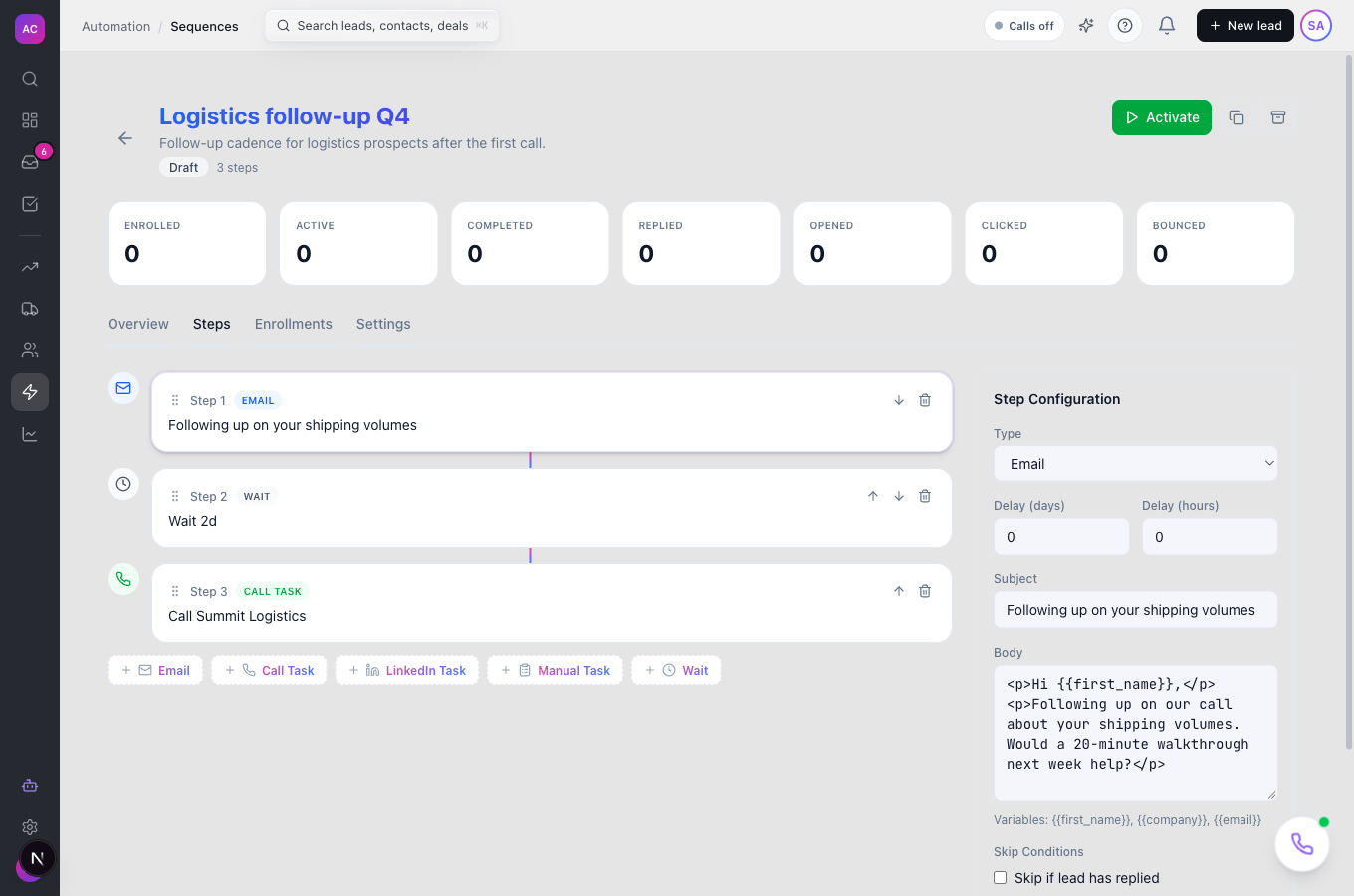
- It does not fill in placeholders. The first email of a new sequence starts with “Hi
{{first_name}},” and that text is sent as written. Replace it with wording that works without a name. - It does not use your saved email templates. Write each email step’s subject and body in the step.
- It does not send SMS or WhatsApp messages, and it does not place calls. Call and LinkedIn steps create tasks for a person to do.
Set it up
Section titled “Set it up”You need a connected mailbox before email steps can send. See Email.
- Click Sequences in the sidebar, then New Sequence.
- Enter a Name, for example “Logistics follow-up Q4”, and optionally a Description (optional). Click Create Sequence. The sequence opens with one email step.
- Open the Steps tab. Click the first step and, under Step Configuration, replace the Subject and Body.
- Add more steps with the Email, Call Task, LinkedIn Task, Manual Task and Wait buttons. For each, set Delay (days) and Delay (hours), and tick any Skip Conditions. Changes save as you type.
- Open the Settings tab. Set the Send Window, the Timezone (for example “America/New_York”), Max Emails Per Day, and the three switches. Click Save Settings.
- Click Activate. A sequence needs at least one email step to activate.
- Build a workflow that enrols leads: add an Add to Sequence step and pick this sequence. Only active sequences appear in that list.
Works the same on mobile.
Use it day to day
Section titled “Use it day to day”Watch a sequence
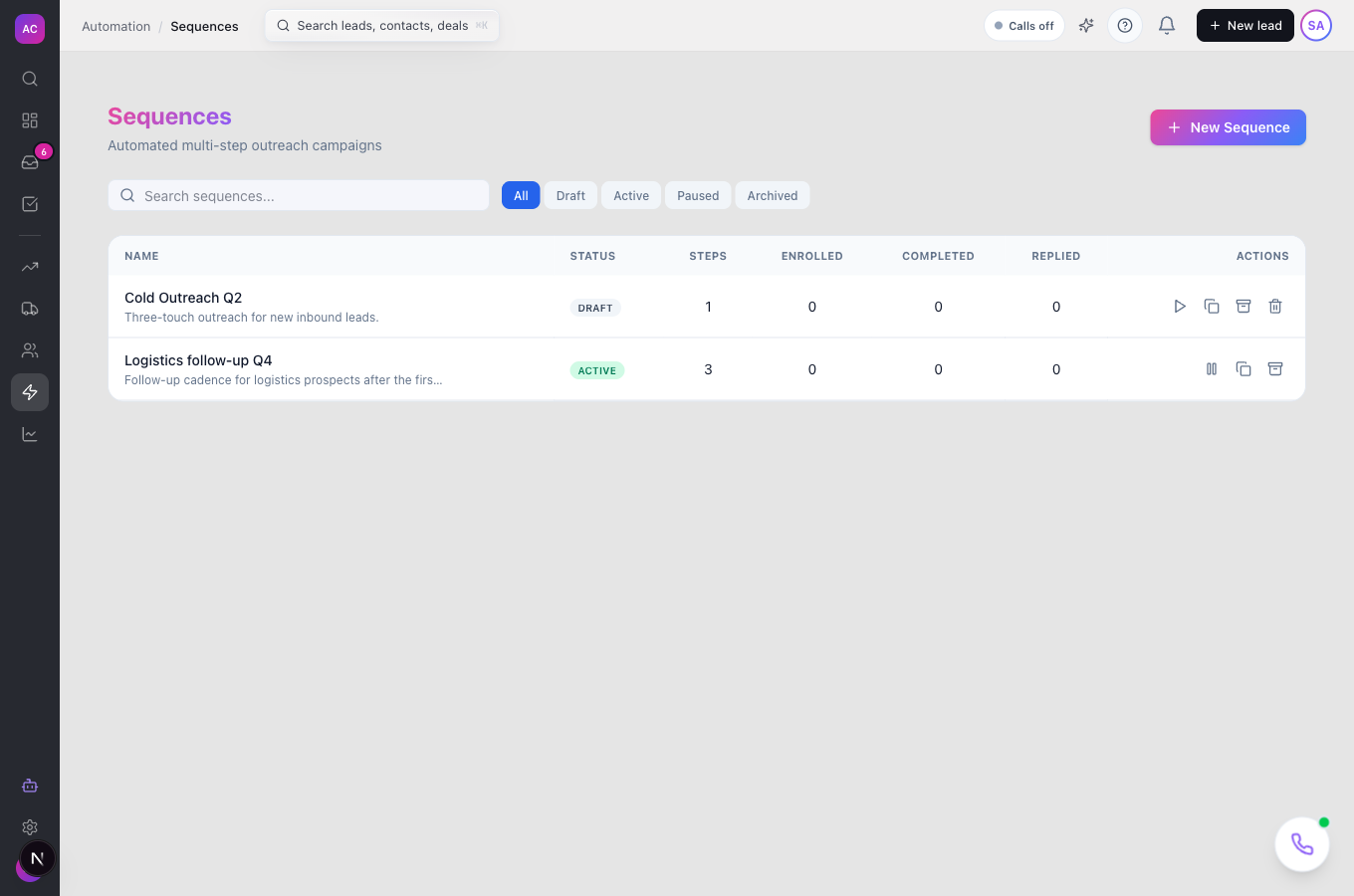
Section titled “Watch a sequence”Open the sequence from the Sequences list. The bar at the top shows the counts. The Enrollments tab lists each lead with its status, its progress through the steps and when the next step is due. For example, after Raj Malhotra’s workflow enrols Summit Logistics, the row shows it as active with its next step date.
Take a lead out
Section titled “Take a lead out”On the Enrollments tab, click Unenroll on the lead’s row. The lead stops receiving steps.
Pause, resume or retire a sequence
Section titled “Pause, resume or retire a sequence”- Pause stops new steps from going out; Resume carries on.
- Duplicate makes a draft copy named “(Copy)” to experiment with.
- Archive freezes a sequence: it can no longer be edited. Unarchive returns it to draft.
- Delete appears for draft and archived sequences only, and works only if no lead was ever enrolled. There is no confirmation step.
Test two versions
Section titled “Test two versions”On the Steps tab, click Enable A/B Test. Use Add Variant and Traffic Split to decide how many leads see each version, then edit each variant’s steps. The A/B Test Performance table compares reply rates and marks results as inconclusive until each variant has 50 enrolments.
Rules and limits
Section titled “Rules and limits”| Rule | Value |
|---|---|
| Steps per sequence | 1 to 50 |
| Step delay | 0 to 365 days plus 0 to 23 hours |
| Email subject | up to 500 characters |
| Email body | up to 50,000 characters |
| Default send window | 09:00 to 17:00, UTC, weekends excluded |
| Max emails per day | 1 to 500 per sequence, default 50 |
| Leads per enrolment request | up to 500 |
| A lead in the same sequence | once at a time |
| How often steps run | checked every minute |
| Organisation email cap | 100 per hour, 500 per day, shared with all email |
| Plans | Essentials, Growth and Scale |
| Default roles | Admin: full access. Manager: view and create only. Employee: none |
Troubleshooting and FAQ
Section titled “Troubleshooting and FAQ”“Sequence must have at least 1 email step to activate”. Add an Email step, then click Activate again.
I cannot find how to add a lead to my sequence. Use a workflow with an Add to Sequence step. There is no enrol button in the app yet.
The workflow says “No active sequences found”. The sequence is still a draft or is paused. Open it and click Activate or Resume.
An email step was skipped. The lead has no contact with an email address, the person who enrolled the lead has no connected mailbox, the address unsubscribed, or a skip condition matched. Connect a mailbox under Settings → Email and check the contact.
Leads received “Hi {{first_name}},”. Placeholders are not replaced in sequence emails yet. Edit the step’s body to a greeting without a placeholder.
As a manager I created a sequence but cannot edit or activate it. The built-in Manager role can create sequences but not edit them. Ask an admin to add Edit for Sequences to your role under Roles and permissions.
Steps keep showing “Sequence updated”. Each change in the step panel saves straight away. The message is a confirmation, not an error.