AI Team
In short. The AI Team is four AI employees who work your outbound pipeline: one finds and researches prospects, one writes and sends emails, one reads replies, one books meetings. Anything risky stops in an inbox for a human to approve.
Who it is for. Sales managers and admins, who approve drafts, set the rules and hand over won meetings to the humans who run them.
- Where it lives
- CRM › AI Team › InboxCRM › AI Team › StatsCRM › AI Team › OnboardingCRM › AI Team › ProposalsCRM › AI Team › Draft ReviewCRM › AI Team › SettingsCRM › AI Team › Overview
- Plans
- SoloEssentialsGrowthScale
- Permission
- No special permission needed
What it does
Section titled “What it does”- Gives you four named agents you can see on the Overview page. By default they are Vansh (sourcing and research), Piya (outreach emails), Sneha (reply classification) and Aarav (meetings and handoff). You can rename them and set how they introduce your company.
- Works each prospect through one pipeline: Vansh finds and researches, Piya writes the first email and follow-ups, Sneha reads the reply, Aarav books the meeting and writes a handoff dossier for the person who takes it.
- Checks every draft before sending. A banned-phrase net catches prices, percentages, discounts, guarantees, contract and legal wording, delivery promises and named-client claims; a risk classifier grades the rest. Safe drafts send, borderline ones send and are logged for review, risky ones wait for you.
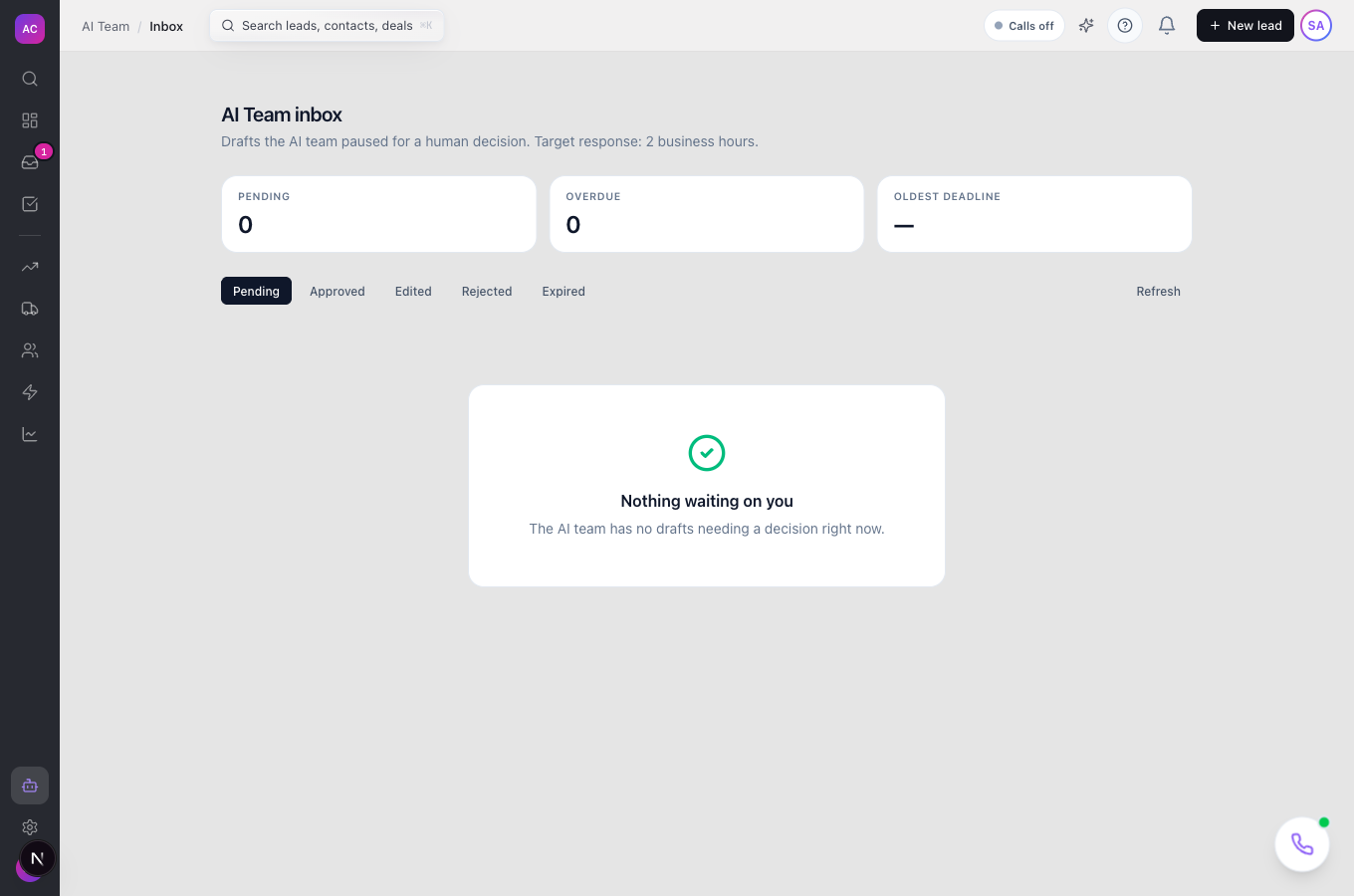
- Holds gated drafts in the AI Team inbox with a two-business-hour target, where you can Approve as written, Edit and approve, Reject, Take over the conversation, or Hand back to AI.
- Sends only from an agent’s own connected mailbox, never from a human’s, inside working hours in the prospect’s time zone, under a daily cap.
- Learns from you: every verdict in Draft Review and every edit feeds the next drafts, and the agents put their own suggestions (knowledge-base answers, prompt changes, style variants, scoring weights) into Proposals for your approval.
- Reads your website during Onboarding to build a profile of what you do and draft knowledge-base entries, which go live only when you approve them.
- Reports on Stats: sourced, sent, reply rate, meetings, gate exceptions, SLA compliance, mailbox health and cost.
What it does not do
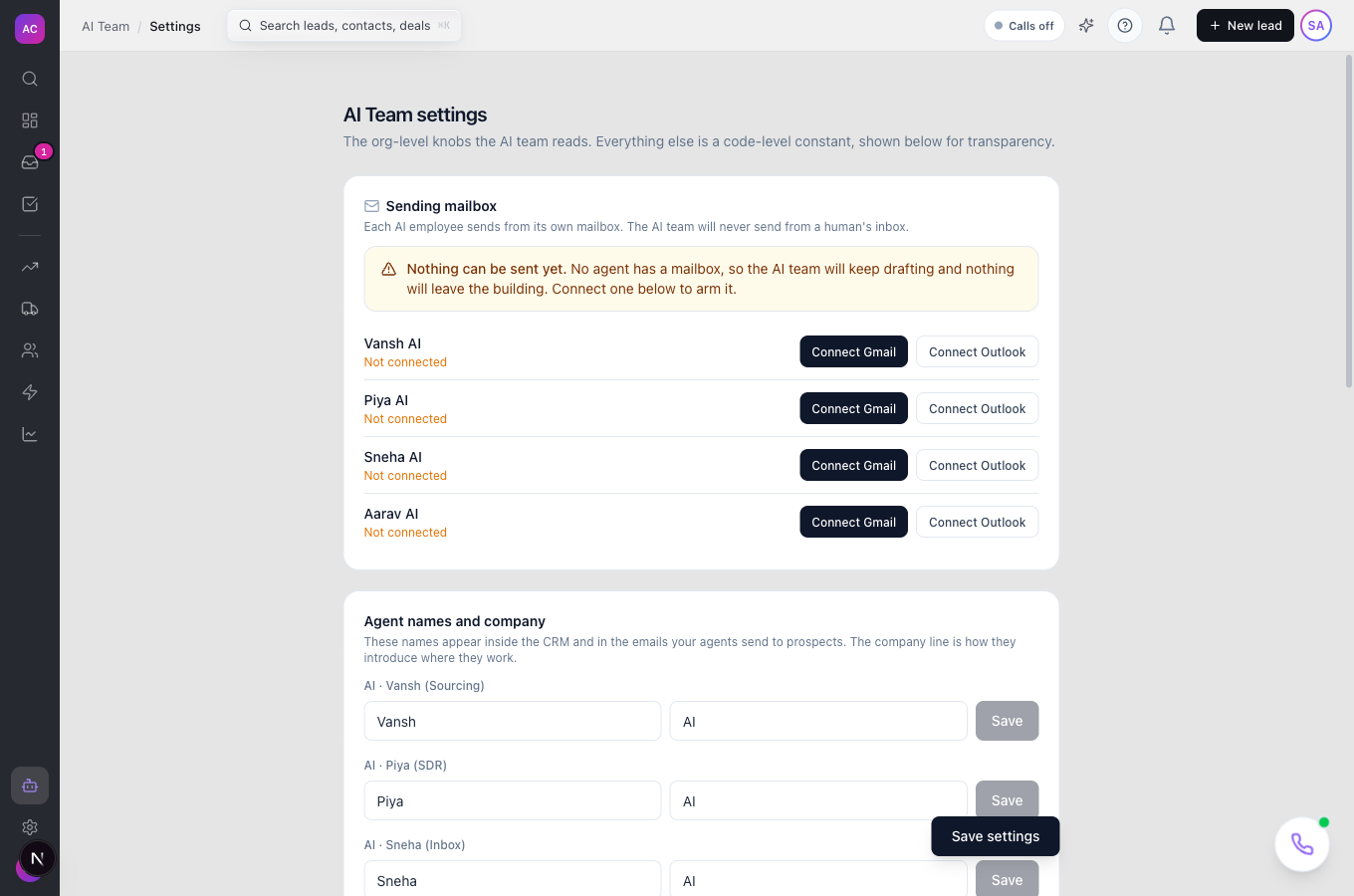
Section titled “What it does not do”- It does not send anything until an agent mailbox is connected. Until then the team drafts and waits.
- It does not quote prices, promise delivery dates, compare you with competitors, answer legal or security questionnaires, or name clients you have not approved. Those drafts stop for a human every time.
- It does not place calls on its own. A call is proposed in the inbox and only happens after you approve it.
- It does not send LinkedIn messages. It drafts them for a human to send.
- It does not let you raise its own limits. The daily cap, touch cap, approval SLA and confidence floor are fixed and shown read-only in Settings.
- It is not included in any plan by default. It is enabled per workspace as an add-on.
Set it up
Section titled “Set it up”- Open AI Team → Settings. In the mailbox section, click Connect Gmail or Connect Outlook for the agent that sends, and finish the sign-in in the popup. The banner changes from “Nothing can be sent yet” to the number of agents that can send.
- Under Agent names and company, keep the default names or type your own first and last name for each agent, then Save. Set Company name in emails and an optional one-line description; the preview shows how Piya will introduce herself. Click Save settings.
- Choose the Escalation recipient, the person who gets risky conversations and the tasks they create. The workspace owner is the default.
- Add Competitor names. Any reply mentioning them is held for a human.
- Open AI Team → Onboarding, enter your website and click Build profile. After about a minute, open the run, read the profile, then review the drafted knowledge-base entries under Proposals → Onboarding drafts.
Works the same on mobile.
Use it day to day
Section titled “Use it day to day”- Clear the inbox. Open AI Team → Inbox. The cards show how many drafts are pending, overdue and the oldest deadline. Open a draft, read the matched phrases that stopped it, and approve, edit or reject. Rejecting hands the conversation to you; the AI stops working it.
- Grade what went out. Draft Review lists sent drafts awaiting your verdict. A thumbs up or down, with an optional reason, teaches the agents.
- Approve improvements. Proposals holds knowledge-base candidates, prompt patches, style variants and scoring weights. Each one explains what happens if you approve; prompt changes run a test set first and only go live if it passes.
- Watch the numbers. Stats with a 7, 14 or 30-day window. “Gate and SLA” tells you whether humans are keeping up.
- Hand off a meeting. When Aarav books one, the dossier is on the lead’s timeline for whoever takes the call.
Rules and limits
Section titled “Rules and limits”| Rule | Value |
|---|---|
| Emails per day across the team | 25 |
| Touches per prospect | 5, then the prospect rests |
| Sending hours | 09:00 to 17:00 on weekdays, in the prospect’s time zone |
| Approval target | 2 business hours, Monday to Friday 09:00 to 17:00 |
| Auto-send confidence floor | 60 percent; below it a human decides |
| Quality sample | 2 percent of safe drafts are pulled into review anyway |
| Out-of-office replies | the prospect is parked for 5 days |
| Recently contacted | prospects contacted in the last 90 days are skipped |
| Pricing pressure | a third pricing question escalates to the escalation recipient |
| Call proposals | at most 5 calls a day, one call per prospect per 7 days |
| Agent names | 1 to 40 characters each; first names unique across the four agents |
| Competitor names | up to 50 |
Troubleshooting and FAQ
Section titled “Troubleshooting and FAQ”The page says “AI Team is not enabled”. The add-on is switched on per workspace. Contact your administrator or support.
“You do not have access to the AI Team”. The pages need team-level Email visibility; Settings needs the settings permission. Ask an admin to adjust your role.
Nothing is being sent. Check the banner on Settings. Either no agent mailbox is connected, the daily cap is reached, it is outside sending hours, or an admin pulled the outbound kill switch.
A draft I edited was refused with “This edit cannot be sent”. Your edit added a phrase the net blocks, such as a price or a guarantee. Reword it.
I rejected a call but emails are still going. Rejecting a call only cancels the call. Use Take over on the conversation to stop the emails too.
Can I rename the “AI Team” menu? Not yet. You can rename the four agents and the company line they use.