Projects
In short. A project holds the work you sold: milestones, tasks, the team and the time they log. You bill it from the Invoicing tab, by milestone, by a set amount, or by the hours worked.
Who it is for. Project managers who run the work after a deal closes, team members who log time and work through tasks, and admins who keep project templates.
- Where it lives
- Delivery › Projects
- Plans
- SoloEssentialsGrowthScale
- Permission
- Projects
What it does
Section titled “What it does”- Lists every project under Delivery → Projects, with search, a status filter and a Filters panel for member, client, dates and archived projects.
- Creates a project for a lead, from scratch or from a template that adds milestones and tasks for you.
- Creates the project from a signed contract with Create Project, or automatically when the client signs, if an admin turns that on. The contract’s value becomes the budget, and the project bills at a fixed price. See Contracts & e-signature.
- Shows progress on Overview: total and billable hours, budget used, and overall progress.
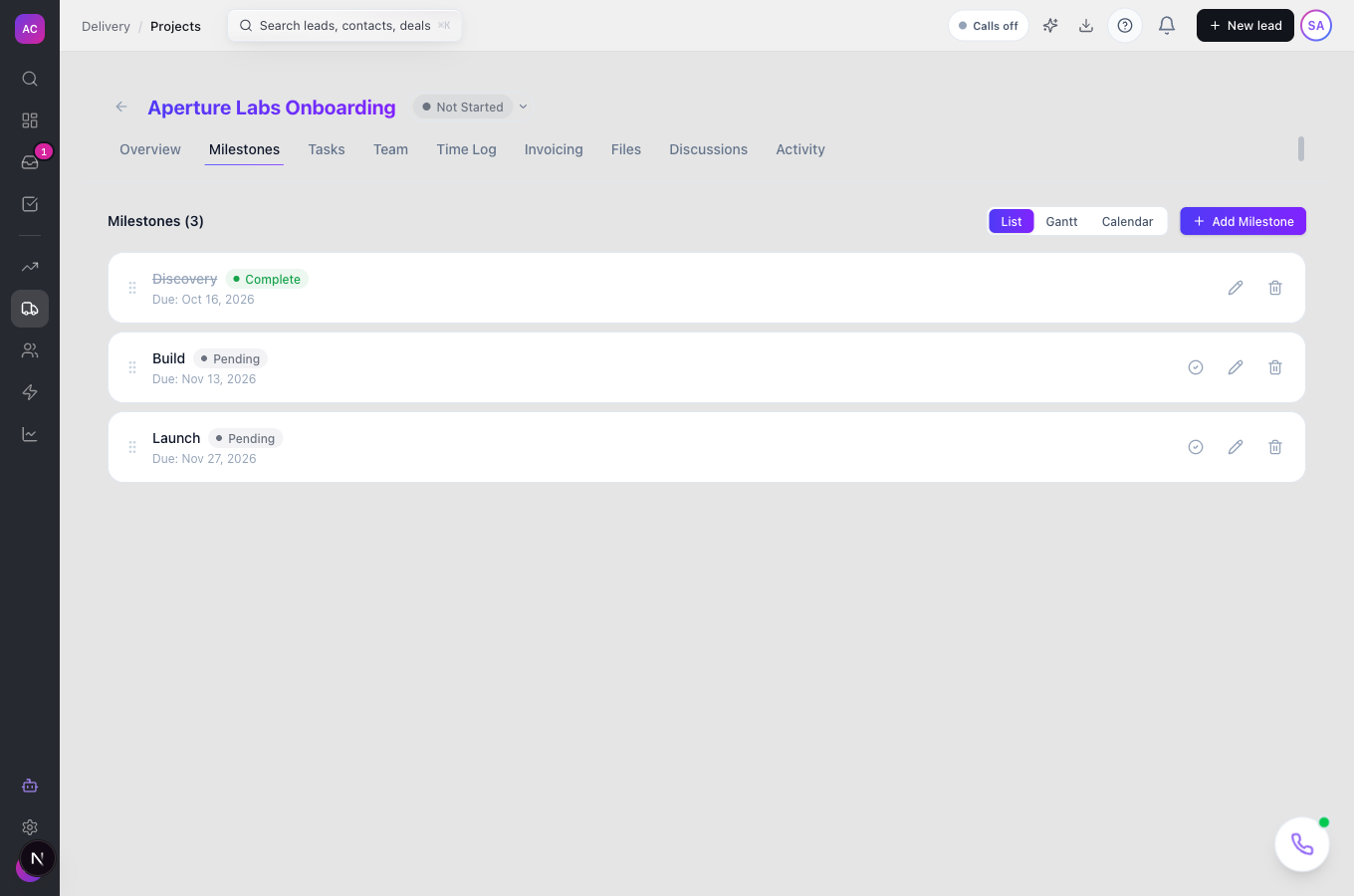
- Plans the work as Milestones, shown as a list, a Gantt chart or a calendar. Each milestone can carry an amount to bill.
- Tracks Tasks in a list or on a Kanban board with the columns Todo, In Progress, In Review, Blocked and Done.
- Keeps a Team with a role (Manager, Member or Viewer) and an hourly rate for each person.
- Logs time with a running timer or manual entries on Time Log. See Timesheets.
- Bills from Invoicing: completed milestones, a deposit or progress amount against the budget, or unbilled hours. See Invoices.
- Shares Files with the client portal when you mark them visible, and keeps team Discussions with @mentions.
What it does not do
Section titled “What it does not do”- It does not let you choose or change a project’s billing type on the project. New projects bill by the hour, unless they come from a template with another billing type or from a signed contract with a value, which bills at a fixed price.
- It does not take a currency. The budget is in US dollars.
- It does not let you set a default hourly rate for a person or for the organisation in the app. Set the rate per person on the project’s Team tab.
- It does not let you invoice more than the remaining budget. If the scope grows, raise the budget first.
- It does not exist without a lead. Every project belongs to a lead.
Set it up
Section titled “Set it up”There is nothing to switch on for your team. Projects are included on Essentials and above.
To save time on repeat work, an admin can create templates:
- Open Settings → Project Templates and click New Template.
- Enter a Name, such as “Standard Onboarding”, and choose a Billing type.
- Click Add Milestone for each phase. Set when it is due, in days after the project start.
- Under each milestone, click Add Task, then set the estimated hours, whether it is billable, and an optional checklist.
- Click Create Template.
To create projects from signed contracts automatically, open Settings → General, turn on Auto-create the delivery project when a contract is signed under Automation, and click Save Changes.
Works the same on mobile.
Use it day to day
Section titled “Use it day to day”Create a project
Section titled “Create a project”- Open Delivery → Projects and click New Project.
- Optionally pick a template under Apply template (optional).
- Enter the Project Name, pick the Lead (for example Aperture Labs), and set the Start Date, Due Date and Budget (USD).
- Add Team Members and click Create Project, or Create From Template if you picked one.
Run the work
Section titled “Run the work”- Status. Use the status menu to move the project between Not Started, In Progress, On Hold, Completed and Cancelled. A completed or cancelled project can only go back to In Progress.
- Milestones. Click Add Milestone, give it a title and, if you bill by milestone, an amount. Tick it complete when it is done.
- Tasks. Click New Task and fill in the title, assignee, due date and priority. Drag cards between columns on the Kanban view.
- Team. Click Add Member, pick a person, a role and an hourly rate. Hours they log are valued at that rate.
- Files. Drop files on Files. Click Make visible to client to show one in the client portal.
Bill the project
Section titled “Bill the project”Open Invoicing.
- By milestone. Under Fixed-price billing, tick the completed milestones and click Invoice followed by the total. You can tick an unfinished milestone to bill it up front as a deposit; a warning reminds you.
- By amount. Under Bill an amount, enter an amount and a description, such as “25% deposit”, and click Create invoice. You can bill up to what is left of the budget.
- By time. Under Time & materials, click Generate Invoice, pick the unbilled entries and create the invoice. Only approved time can be billed; see Timesheets.
Each invoice opens as a draft, due in 30 days. Send it from Invoices.
Finish or tidy up
Section titled “Finish or tidy up”- Archive a finished project from the list menu to hide it; tick Show archived projects under Filters to see it again, and Unarchive to restore it.
- Permanently delete removes a project for good. Only people with the delete permission see it.
Rules and limits
Section titled “Rules and limits”| Rule | Value |
|---|---|
| Plans | Essentials, Growth and Scale |
| Who can create and edit | Admin, Super User, Manager and Employee by default |
| Who can see projects | also Restricted users, for their own projects |
| Who can delete | Admin and Super User by default |
| Who can bill from a project | anyone with the Invoices create permission |
| Lead | required for every project |
| Project name | 1 to 500 characters |
| Description | up to 5,000 characters |
| Team roles | Manager, Member, Viewer |
| Files | up to 25 MB each |
| Milestone billing | needs an amount; each milestone is billed once |
| Billing by amount | more than zero and not above the budget left to bill |
| Invoice due date | 30 days after it is created |
| Projects per signed contract | one |
Troubleshooting and FAQ
Section titled “Troubleshooting and FAQ”“Milestone … has no amount set.” Edit the milestone and enter a billing amount, then invoice it.
“Only … of the … budget is left to bill.” The amount is more than the remaining budget. Lower it, or raise the project budget if the scope changed.
“Cannot invoice unapproved time entries.” Some of the picked entries have not been approved. Approve them under Delivery → Timesheets → Pending approvals, then generate the invoice again.
The status menu will not let me pick a status. Some moves are not allowed. For example, a project on hold can go back to In Progress or be cancelled, but not straight to Completed.
I cannot find Permanently delete. Only people with the Projects delete permission see it. Archive the project instead.
Hours are valued at zero. The person has no hourly rate on this project and no default rate. Open Team, edit the member and set Hourly Rate.
A contract was signed but no project appeared. Automatic projects are off by default. Open the contract and click Create Project, or ask an admin to turn on the switch under Settings → General → Automation.