Webhooks
In short. Webhooks work in two directions. Outbound webhooks tell your server when something happens in the CRM. Inbound webhooks give a form or ad tool a URL to post leads into the CRM.
Who it is for. Admins and developers who connect Pitch2Sale to their own systems or to tools that are not in the Integrations directory.
- Where it lives
- Settings › LEAD CAPTURE › Google Lead AdsSettings › DEVELOPER › Inbound WebhooksSettings › LEAD CAPTURE › Meta Lead AdsSettings › DEVELOPER › Webhooks
- Plans
- SoloEssentialsGrowthScaleEvery plan
- Permission
- Webhooks
What it does
Section titled “What it does”Outbound (Settings → Webhooks)
- Sends an HTTPS POST to your endpoint when events happen, such as a lead being created, an opportunity won or an invoice paid.
- Signs every delivery with an HMAC-SHA256 signature so your server can check it came from Pitch2Sale.
- Retries failed deliveries up to three times, with growing gaps between attempts.
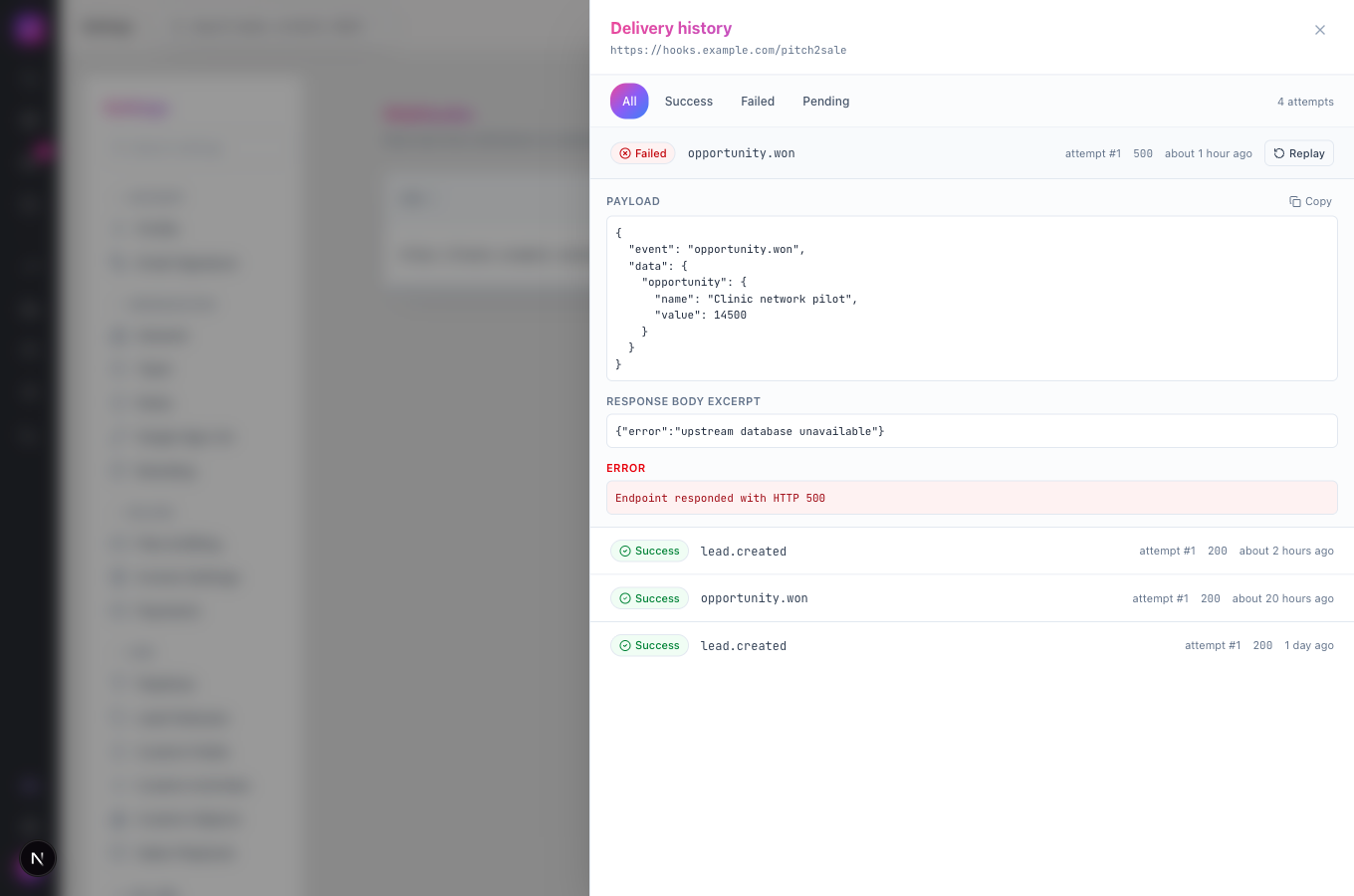
- Shows the last delivery time and success rate for each endpoint, and a Delivery history with the payload, the response and any error. You can Replay a delivery.
- Lets you switch an endpoint off and on without deleting it.
Inbound (Settings → Inbound Webhooks)
- Gives you a private receive URL for each source, such as a landing page or a Zapier zap.
- Maps fields from the incoming data to lead and contact fields, then de-duplicates, scores and routes the new lead like any other.
- Checks an optional signature on each request, and ignores repeats when you name an idempotency field.
What it does not do
Section titled “What it does not do”- It does not create outbound webhooks from the settings screen yet, and the Test button does not send a test event. Create outbound webhooks through the API; see the developer site.
- Outbound webhooks do not send to plain HTTP addresses. HTTPS only.
- Webhooks do not change data in other systems for you. Your server decides what to do with each event.
Set it up
Section titled “Set it up”Receive leads from another tool (inbound)
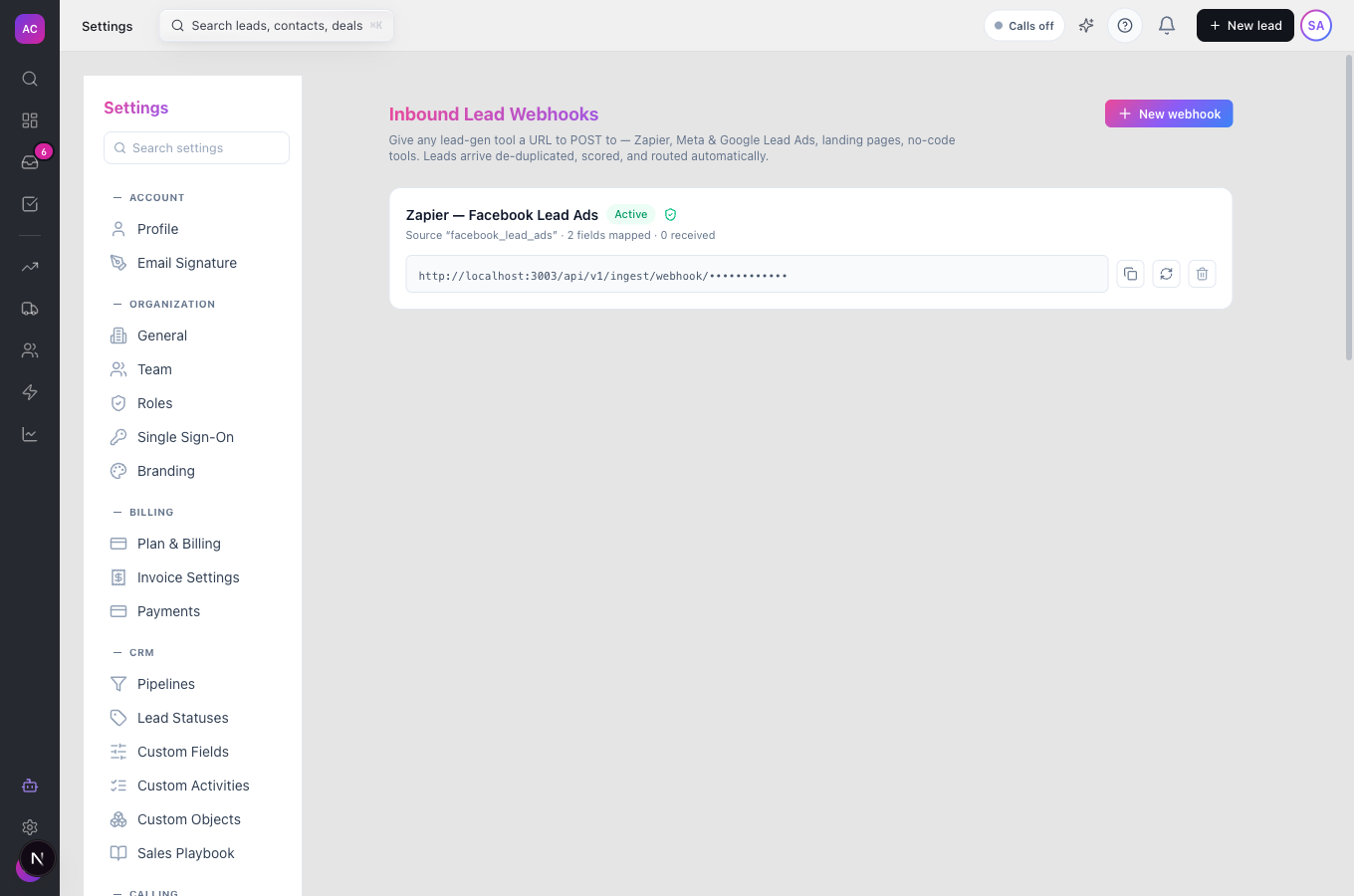
Section titled “Receive leads from another tool (inbound)”- Open Settings → Inbound Webhooks under Developer and click New webhook.
- Enter a Name, for example “Zapier Facebook Lead Ads”, and optionally a Source key (optional) for reporting. It defaults to “webhook”.
- Under Field mapping, type the incoming field path on the left, for example
data.contact.email, and pick where it goes on the right, for example Contact · Email. Add a row for each field. - Choose what happens On duplicate: Update existing lead, Always create new or Skip (keep existing), and what to Match on: Email, Phone, Email or phone or Lead name.
- Optionally fill in Idempotency field (optional), for example
leadgen_id, and a signing secret. - Click Create. Copy the Receive URL and paste it into the other tool.
Notify your server (outbound)
Section titled “Notify your server (outbound)”Create the endpoint with the API, giving it a name, your HTTPS URL, the events you want and a secret of at least 16 characters that you choose. Always send your own secret: it is what your server uses to check the signature. The endpoint then appears under Settings → Webhooks, where you can watch deliveries.
Works the same on mobile.
Use it day to day
Section titled “Use it day to day”Check deliveries
Section titled “Check deliveries”- Open Settings → Webhooks.
- Look at Last Triggered and Success Rate for each URL.
- Click Deliveries to open the Delivery history. Each attempt shows Success, Failed or Pending, the payload sent, and the start of your server’s reply.
- After you fix a problem on your server, click Replay on a failed delivery to send it again.
Pause or remove an endpoint
Section titled “Pause or remove an endpoint”Use the toggle on the row to disable or enable it. Click the bin and confirm to delete it for good.
Rotate an inbound URL
Section titled “Rotate an inbound URL”If a receive URL leaks, click Rotate URL on the card and confirm. The old URL stops working at once; paste the new one into your source tool.
Rules and limits
Section titled “Rules and limits”| Rule | Value |
|---|---|
| Outbound URL | HTTPS only |
| Outbound secret | 16 to 256 characters |
| Signature header | X-CRM-Signature: HMAC-SHA256 of the raw body, hex |
| Event header | X-CRM-Event |
| Outbound timeout | 15 seconds per attempt |
| Outbound attempts | 3, with exponential backoff starting at 10 seconds |
| Delivery history | 25 attempts per page |
| Inbound request size | up to 1 MB |
| Inbound rate | 60 requests per minute from one sending IP address |
| Inbound signature header | X-Ingest-Signature: sha256= followed by the hex HMAC |
| Who can manage webhooks | built-in Admin role |
| Plans | Essentials, Growth and Scale |
Troubleshooting and FAQ
Section titled “Troubleshooting and FAQ”“Webhook name is required” when I click Create Webhook. Outbound webhooks cannot be created from the settings screen yet. Create the endpoint through the API, which accepts a name.
The Test button shows an error. The Test button does not send a test event yet. Trigger a real event instead, for example create a test lead such as Aperture Labs, and check Deliveries.
My server rejects the signature. Compute the HMAC-SHA256 of the exact raw request body with your secret and compare it, as hex, with X-CRM-Signature. Do not re-serialise the JSON first.
Leads from my inbound webhook are missing fields. Check the Field mapping paths against what the tool really sends. Paths are case-sensitive and use dots for nesting.
The same lead arrived twice. Set On duplicate to Update existing lead with a suitable Match on, and name an Idempotency field if the source retries.
Which events can I subscribe to? Leads, contacts, opportunities, activities, tasks, calls, emails, texts, forms, proposals, contracts, invoices and workflows. The full list is on the developer site.