Workflow automation
In short. A workflow watches for something to happen to a lead, such as a status change or a signed contract, and then runs the steps you drew: send an email, wait two days, check a condition, create a task. You build it visually, test it on a sample lead, and switch it on.
Who it is for. Admins and managers who want follow-up, onboarding, overdue reminders or ticket handling to happen without anyone remembering.
- Where it lives
- Insights › WorkflowsSettings › AUTOMATION › Workflows
- Plans
- SoloEssentialsGrowthScale
- Permission
- Workflows
What it does
Section titled “What it does”- Starts from a trigger: Manual, Lead Status Changed, Opportunity Stage Changed, Contact Created, Call Completed, Form Submitted, Contract Signed, Invoice Overdue, Proposal Accepted, Ticket events, and Goal events. Each trigger can carry conditions, such as a particular status or a minimum deal value.
- Runs steps in order: Send Email, Send SMS, Call Task, Wait, Condition, A/B Test, Wait for Event, Webhook, Create Project, Assign Account Manager, Send Survey, AI Summarize, Add to Sequence, and the ticket steps Assign Ticket, Change Ticket Status, Send Canned Reply and Escalate to User.
- Branches on conditions (equals, contains, is empty, greater than and so on, including custom fields) and splits traffic with an A/B Test.
- Waits for a reply, an open, a completed call, a form or a booked meeting, with a timeout, so the next step reacts to what the person did.
- Stops a run as Goal Met when the goal happens, for example a reply or a won deal, and cancels the remaining steps.
- Respects a Send Window: days, hours and time zone outside which steps are held until the window opens.
- Keeps every version from each activation, with Restore, and shows Stats, a Run Log per lead and an Analytics tab with success rate and step bottlenecks.
- Starts you fast with six templates or Generate from prompt, where you describe the automation in plain English.
What it does not do
Section titled “What it does not do”- It does not enrol leads that already match when you activate. Only new events from that moment on start runs.
- It does not include approval steps. A run cannot pause for a human sign-off.
- It does not send workflow emails from your connected Gmail or Outlook. They go out from the app’s own sending service, with unsubscribe handling built in.
- It does not let you edit steps, trigger, goals or the send window while the workflow is active. Deactivate, change, reactivate; active runs finish on the old version.
- It does not pause a single run. You can cancel an active run, not resume it.
Set it up
Section titled “Set it up”- Open Automation → Workflows and click Create your first workflow, or From Template, or Generate from prompt.
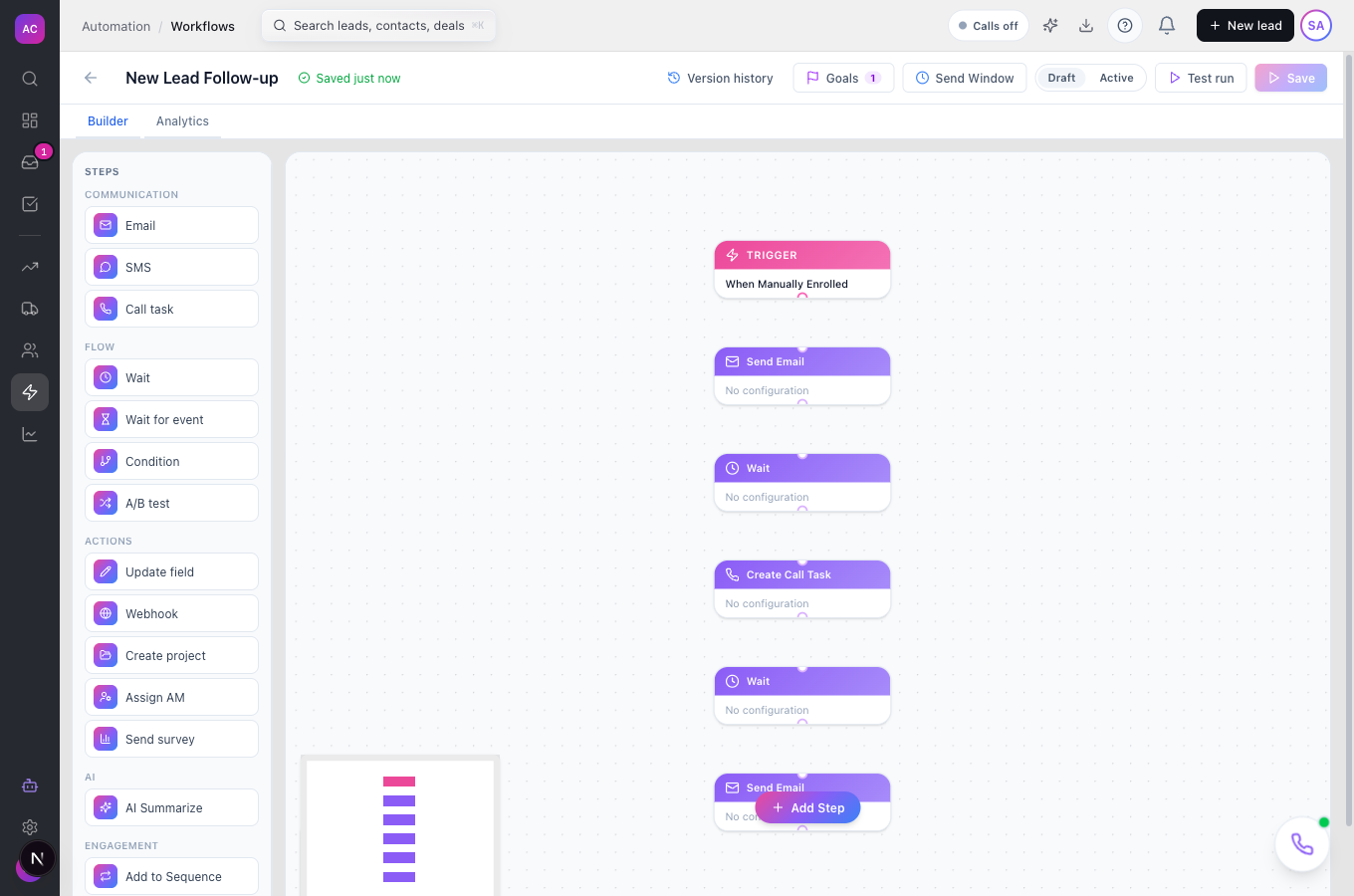
- Name it, for example “New lead follow-up”, then Choose a Trigger. Set its conditions in the side panel, such as To Status: Qualified.
- Click Add Step and build the chain. A typical first workflow: Send Email, Wait 2 days, Condition on “replied”, then a Call Task on the no branch.
- Open Goals and pick what counts as success, for example Reply Received. Open Send Window if emails must stay inside working hours.
- Click Test run, fill in a fixture lead or paste a real lead’s ID, and read the preview of every step. Nothing is sent during a test.
- Toggle Activate workflow and confirm. The status chip turns from Draft to Active.
Works the same on mobile, though the builder is easier on a wide screen.
Use it day to day
Section titled “Use it day to day”- Watch it run. Open the workflow and use Stats for totals, goal met, active, completed and failed, and Run Log to see each lead’s current step.
- Dig into one lead. Open a run to see every step with its result, and Cancel Run if the person should drop out.
- Change it safely. Deactivate, make the change, test, reactivate. The previous version stays under Version history.
- Copy a good one. The row menu’s Duplicate creates an inactive copy named “(Copy)” with fresh stats.
- Clean up. Deactivate first, then Delete. There is no archive.
Rules and limits
Section titled “Rules and limits”| Rule | Value |
|---|---|
| Plans | Essentials, Growth and Scale |
| Who can build | Create capability; activating, testing and cancelling runs need Edit |
| Activation | needs at least one step and a valid trigger |
| Steps executed per run | up to 200, then the run stops, which protects against loops |
| Failed steps | retried 3 times, then the run is marked failed |
| Wait step | minutes, hours, days or weeks; default 1 day |
| Wait for Event timeout | 24 hours by default |
| Webhook step | 15-second timeout, optional signed requests |
| Send Window | held steps resume at the next open slot in the window’s time zone |
| Workflow name | up to 200 characters |
Troubleshooting and FAQ
Section titled “Troubleshooting and FAQ”I activated it and nothing happened. Workflows only react to new events. Change a lead’s status now, or use a Manual trigger and enrol through the API, to see the first run.
The email step says completed but no email arrived. The contact had no email address, or the address is on the unsubscribe list. The run log notes which.
Steps are late. Check the Send Window. Every step, not just emails, waits for the window to open.
I cannot edit the steps. The workflow is active. Deactivate it first; active runs are not interrupted.
A lead went through twice. The workflow runs in “multiple” mode. Workflows created in the app default to once per lead; a failed or cancelled run does not block a new one.
Can a workflow trigger on a tag? Not yet. Use a status change or a form submission instead.