Integrations
In short. The Integrations directory under Settings lists the tools Pitch2Sale works with. Open one to see what it does, then connect it with the button at the top of its page.
Who it is for. Admins who decide which outside tools the team uses and hold the accounts for them.
- Where it lives
- Settings › AUTOMATION › Integrations
- Plans
- SoloEssentialsGrowthScaleEvery plan
- Permission
- Integrations
What it does
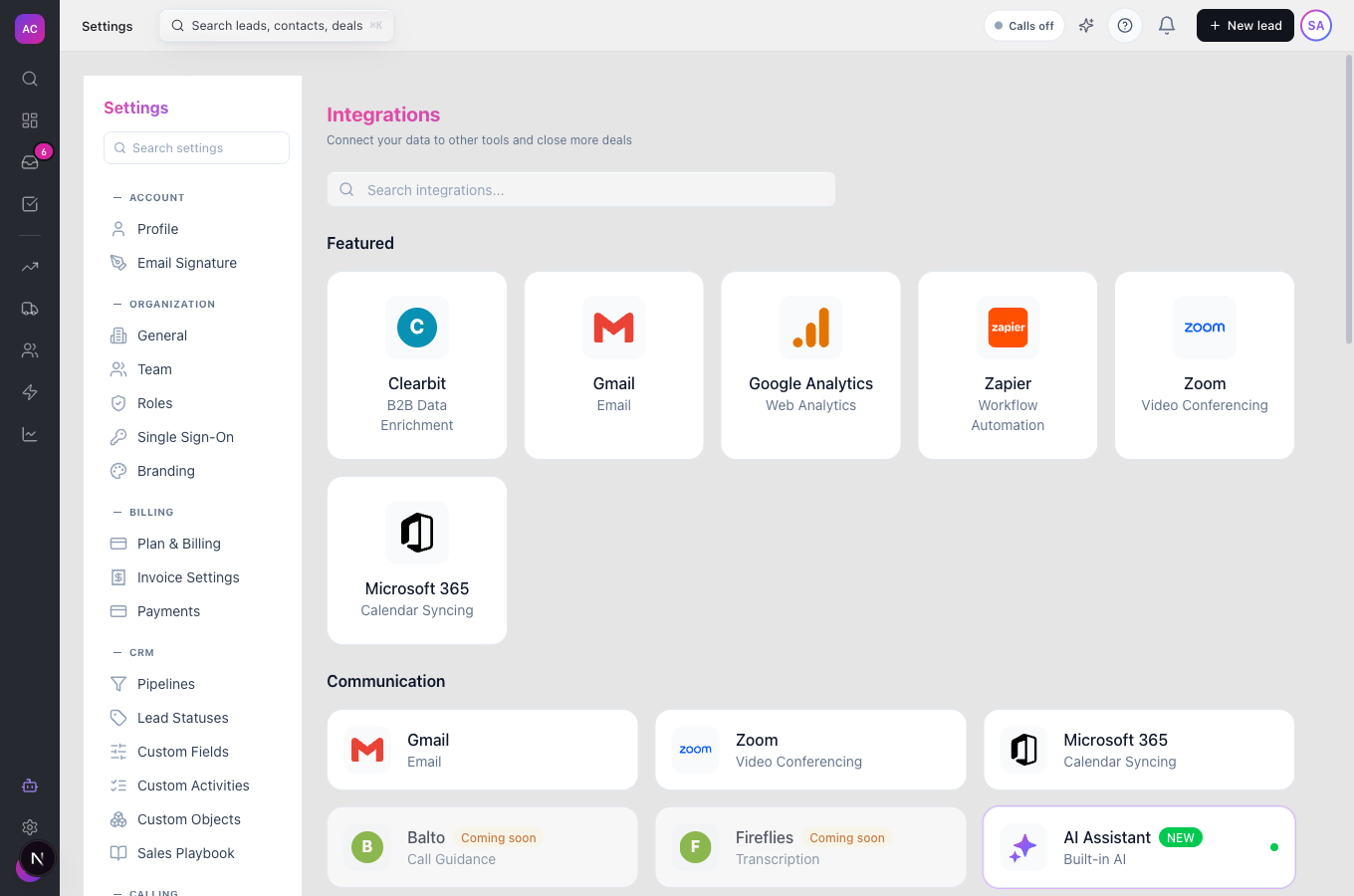
Section titled “What it does”- Shows a searchable directory with a Featured row and sections such as Communication, Analytics & Reporting and Data Enrichment. Cards carry NEW, BETA or Coming soon badges, and connected ones show Connected.
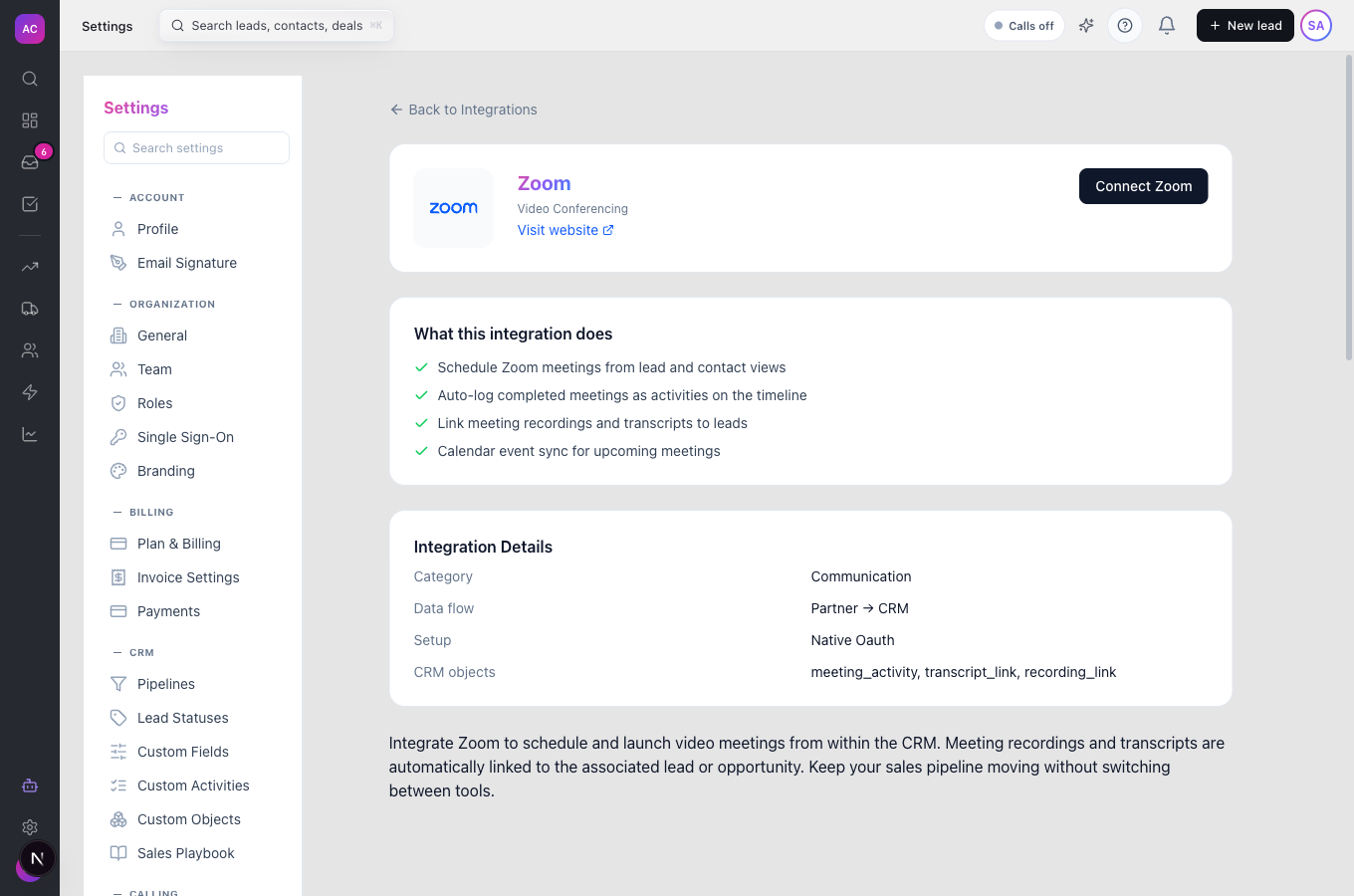
- Gives each integration its own page: what it does, the direction data flows (Partner → CRM, CRM → Partner or Two-way sync), how it is set up, and which CRM records it touches.
- Connects in one of four ways, depending on the tool:
- Sign in with the provider in a pop-up window, for example Connect Zoom. The connection refreshes itself.
- Paste an API key from the other tool. The key is stored encrypted.
- Continue to the partner’s website to finish setup there, for example Continue to Clearbit.
- Enable a built-in option with one click.
- Lets you Disconnect an integration, which removes its stored credentials.
What it does not do
Section titled “What it does not do”- It is not where you connect a mailbox for sending email. Use Settings → Email; see Email. Calendars are connected under Settings → Calendar Accounts.
- For integrations that use Continue to, the card is marked Connected when you click, but the work happens in the partner’s product. Pitch2Sale does not show that partner’s data on your leads yet.
- Tools marked Coming soon, such as Zapier, Make, n8n and Slack Notifications, cannot be connected yet. To push CRM events to other tools today, use Webhooks or the API.
Set it up
Section titled “Set it up”- Open Settings → Integrations under Automation.
- Find the tool in Featured, in its category, or with Search integrations….
- Click the card to open its page and read What this integration does.
- Click the button at the top right. What happens next depends on the tool:
- A sign-in pop-up opens. Sign in and approve access. If nothing opens, allow pop-ups for the app and try again.
- The page shows API Key Configuration. Paste the key from the other tool into Paste your API key… and click Save Key. You see “API key saved and encrypted”.
- The partner’s website opens in a new tab. Finish setup there.
- The integration is enabled straight away.
- Back in the directory, the card now shows Connected.
Works the same on mobile, though sign-in pop-ups may open as a new tab.
Use it day to day
Section titled “Use it day to day”Replace or remove an API key
Section titled “Replace or remove an API key”Open the integration’s page. Under API Key Configuration, paste a new key next to Replace with a new key: and click Save, or remove the key. Removing the key stops the integration until a new one is saved.
Disconnect an integration
Section titled “Disconnect an integration”Open its page and click Disconnect, then confirm. All stored credentials for it are removed. For example, if Tom Fischer leaves and the Zoom account was his, disconnect Zoom and connect it again with the new owner’s sign-in.
Reconnect after an expiry
Section titled “Reconnect after an expiry”If a page says the connection expired, for example “Zoom connection expired.”, click the connect button again and sign in.
Rules and limits
Section titled “Rules and limits”| Rule | Value |
|---|---|
| Who can browse the directory | everyone in the organisation |
| Who can connect | roles with Create for Integrations (built-in Admin) |
| Who can disconnect or remove a key | roles with Delete for Integrations (built-in Admin) |
| API keys | stored encrypted; shown only as “stored”, never displayed again |
| Sign-in connections | refreshed automatically |
| Plans | all plans |
Troubleshooting and FAQ
Section titled “Troubleshooting and FAQ”“Popup was blocked. Allow popups for this site and retry.” Your browser stopped the sign-in window. Allow pop-ups for the Pitch2Sale address and click the button again.
I clicked Continue to and the card says Connected, but nothing changed in the CRM. For partner-site integrations the setup happens on the partner’s side. The card only records that you started it.
As a manager I can open integrations but connecting fails. Connecting needs the Create permission for Integrations, which the built-in Manager role does not have. Ask an admin to add it under Roles and permissions.
I connected Gmail here but cannot send email from a lead. Sending email uses the mailbox connected under Settings → Email. Connect it there as well.
The tool I need is not listed or says Coming soon. Use Webhooks to send CRM events to it, or build a connection with the API.