AI deal coach
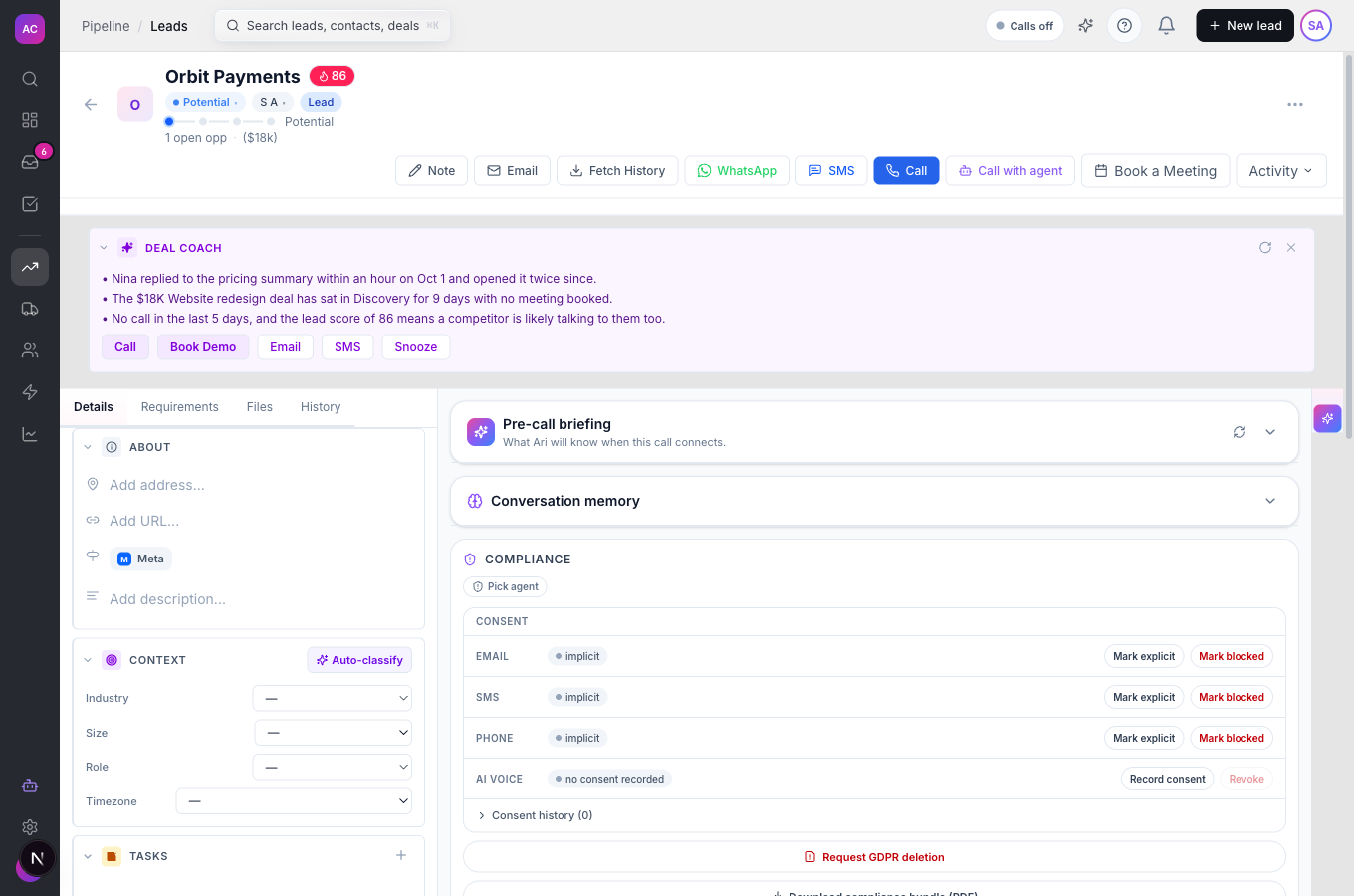
In short. Deal Coach is the panel at the top of a lead page. It reads recent activity and gives three short observations and ranked next steps. Email and SMS steps open an AI draft for you to edit.
Who it is for. Sales reps deciding what to do next on a deal, and managers who want every rep to follow up the same way.
- Where it lives
- Opens from a record or another screen
- Plans
- SoloEssentialsGrowthScale
- Permission
- No special permission needed
What it does
Section titled “What it does”- Shows a Deal Coach panel above the lead’s timeline with three bullets, each marked as engagement, a buying signal or a risk.
- Ranks five next steps (Call, Email, SMS, Book Demo, Snooze) and highlights the one or two it recommends most.
- Drafts the message for you. Click Email and the email composer opens with a subject and body already written; click SMS and the text panel opens with a message of up to 320 characters. Nothing is sent until you send it.
- Keeps itself current. When new activity lands on the lead, or a day has passed, the coach recomputes in the background and the panel updates on its own. A lead with no activity yet gets simple rule-based advice without using AI.
- Lets you Snooze the coach on one lead until tomorrow, in three days, next Monday or a date you pick. Snoozing is personal: your teammates still see it.
- Shows an AI summary of the lead and a suggested next action below the panel.
The same plan feature also switches on Copilot in the top bar and the Today’s briefing card on your dashboard. See AI daily briefings.
What it does not do
Section titled “What it does not do”- It does not send anything by itself. Every draft opens in the composer for you.
- It does not start a call or open a booking link yet. The Call and Book Demo buttons in the panel have no action; use the lead’s own Call button and your scheduling page instead.
- It is not visible to every role yet. Today only the workspace’s main administrator account sees the panel; giving it to other roles is not possible from Settings → Roles yet.
- It does not use premium AI for its automatic updates. The Refresh button uses premium AI, which needs the Scale plan. On other plans it has no effect.
- It is not the AI Team. Deal Coach advises the human working the lead; AI Team agents work their own prospects.
Set it up
Section titled “Set it up”There is nothing to configure. If your plan includes it, the panel appears on lead pages.
- Open any lead with some history, for example Orbit Payments.
- Look for the Deal Coach panel at the top. If it shows grey placeholder lines, it is computing; it fills in within a few seconds.
- To read more of the lead’s history, use the arrow next to Deal Coach to collapse or expand the panel. Your choice is remembered in this browser.
Works the same on mobile.
Use it day to day
Section titled “Use it day to day”Follow the advice. Raj Malhotra opens Aperture Labs. The coach says the champion opened the proposal twice but has not replied in a week, and highlights Email. Raj clicks Email; the composer opens with “AI drafting…” and then a draft follow-up. He edits a line and sends it.
Text instead. Click SMS. The SMS panel opens with a short draft. Edit and send as usual.
Park a lead. Click Snooze, then Tomorrow, In 3 days, Next Monday, or pick a date and click Set. The panel shows “Coach paused until …”. Click Resume to bring it back early.
Hide the panel. The X in the corner hides Deal Coach on every lead in this browser. Use it only if you do not want the coach at all.
Rules and limits
Section titled “Rules and limits”| Rule | Value |
|---|---|
| Plans | Essentials, Growth and Scale |
| Observations per lead | 3, up to 240 characters each |
| Recommended actions | 1 or 2 highlighted out of 5 |
| Automatic refresh | when the lead’s activity changes, or after 24 hours |
| Email draft | subject up to 300 characters |
| SMS draft | up to 320 characters |
| Snooze | per person, per lead |
| Drafting a message | needs the Leads “Edit” permission |
| AI usage | counts toward your workspace’s AI token limit |
Troubleshooting and FAQ
Section titled “Troubleshooting and FAQ”I do not see the Deal Coach panel. Either your plan does not include it, or your account is not the workspace’s main administrator. Visibility for other roles is not available yet.
“Could not draft message — open composer empty”. The AI could not produce a draft. Write the message yourself; the composer is open.
“Your personal AI token limit reached” or “The organization AI token limit reached”. The workspace has used its AI allowance. Ask an administrator to raise the limit.
I clicked Refresh and nothing changed. Refresh uses premium AI, which is part of the Scale plan. On other plans the panel still refreshes on its own when the lead changes.
I dismissed the panel by mistake. It is hidden in this browser only. Clear this site’s stored data in your browser, or use another browser, to see it again.