AI email drafting
In short. AI email drafting writes the first version of a follow-up for you. It reads the lead’s recent activity, writes a subject and body, and opens them in the email composer. You edit, then send. It never sends on its own.
Who it is for. Reps who write many similar follow-ups and want a starting point instead of a blank page.
- Where it lives
- Opens from a record or another screen
- Plans
- SoloEssentialsGrowthScale
- Permission
- No special permission needed
What it does
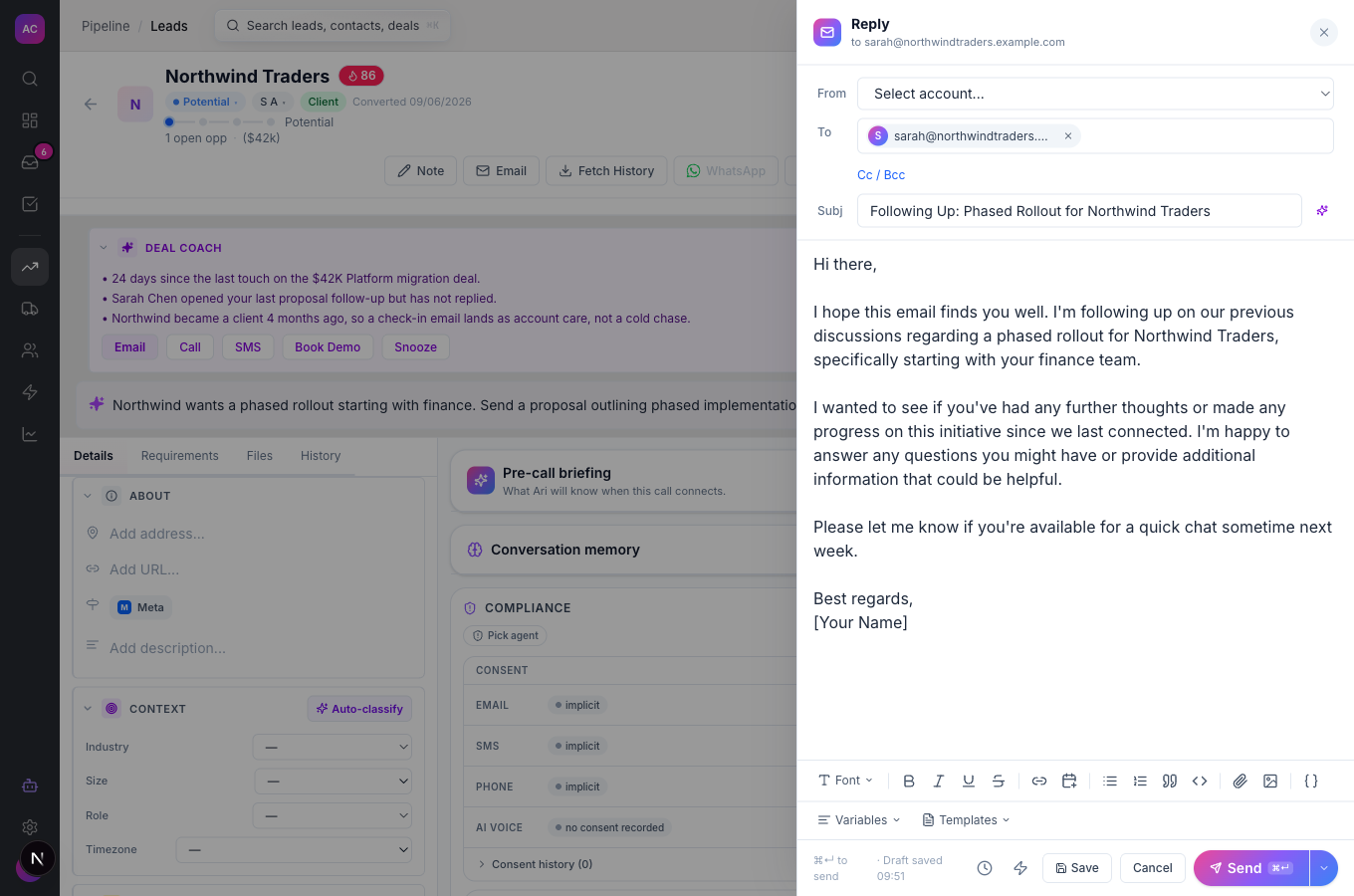
Section titled “What it does”- Drafts a follow-up email from the lead’s recent activity when you click Email in the Deal Coach panel on a lead. The composer opens, shows “AI drafting…”, then fills in the subject and body.
- Drafts a short text message the same way when you click SMS, ready in the SMS panel.
- Fills the draft in only once. As soon as you start typing, the text is yours; the AI does not overwrite your edits.
- Keeps a person in the loop. Every draft is a suggestion in the composer, sent only when you click send.
What it does not do
Section titled “What it does not do”- It does not offer a “write with AI” button inside the email composer, and you cannot choose a tone or give it instructions yet.
- It does not draft a reply to the customer’s last email yet. If a Deal Coach draft fails and you pick Email in the channel chooser, the composer opens blank.
- It does not draft emails inside sequences, templates or workflows.
- It is not the AI Team, which writes and sends outreach from its own mailboxes under its own rules.
Set it up
Section titled “Set it up”There is nothing to configure beyond your plan.
- Make sure your mailbox is connected so you can send from the composer. See Email.
- Open a lead that has some history, for example Northwind Traders, and check that the Deal Coach panel shows at the top. The drafting buttons live there.
Works the same on mobile.
Use it day to day
Section titled “Use it day to day”- Open the lead and read the three Deal Coach bullets so you know what the draft is based on.
- Click Email. The composer opens on the lead’s primary contact (or the first contact with an email address) and shows “AI drafting…”.
- Read the draft. Check names, dates and anything the AI could not know, such as prices you agreed on a call.
- Edit, then send as you would any email. To start over, close the composer and click Email again.
For a text, click SMS instead; the draft is short enough for one or two messages.
Rules and limits
Section titled “Rules and limits”| Rule | Value |
|---|---|
| Plans | Essentials, Growth and Scale |
| Where you start a draft | the Email and SMS buttons in the Deal Coach panel |
| Email subject | up to 300 characters |
| Text message draft | up to 320 characters |
| Sending | always by you, from the composer |
| Permission to draft | Leads “Edit” |
| AI usage | counts toward your workspace’s AI token limit |
Troubleshooting and FAQ
Section titled “Troubleshooting and FAQ”I do not see the Email and SMS buttons. They are part of the Deal Coach panel, which today only shows for the workspace’s main administrator account. See AI deal coach.
“Could not draft message — open composer empty”. The AI could not produce a draft. Write the email yourself in the open composer, or try again later.
“AI draft unavailable — opening blank composer”. There is no AI reply to the last email yet. Write the reply yourself.
“The organization AI token limit reached”. The workspace has used its AI allowance. Ask an administrator to raise it.
Will it send without me? No. Drafts always wait in the composer.