Compliance controls
In short. Compliance controls keep calls, texts and AI-voice campaigns inside the rules. Record consent, set calling hours and disclosures per jurisdiction, see why dials were skipped, and download one audit PDF per lead.
Who it is for. Admins and owners who answer for telemarketing and privacy rules, and managers who review why calls were skipped.
- Where it lives
- Settings › CALLING › Call Compliance
- Plans
- SoloEssentialsGrowthScale
- Permission
- Compliance
What it does
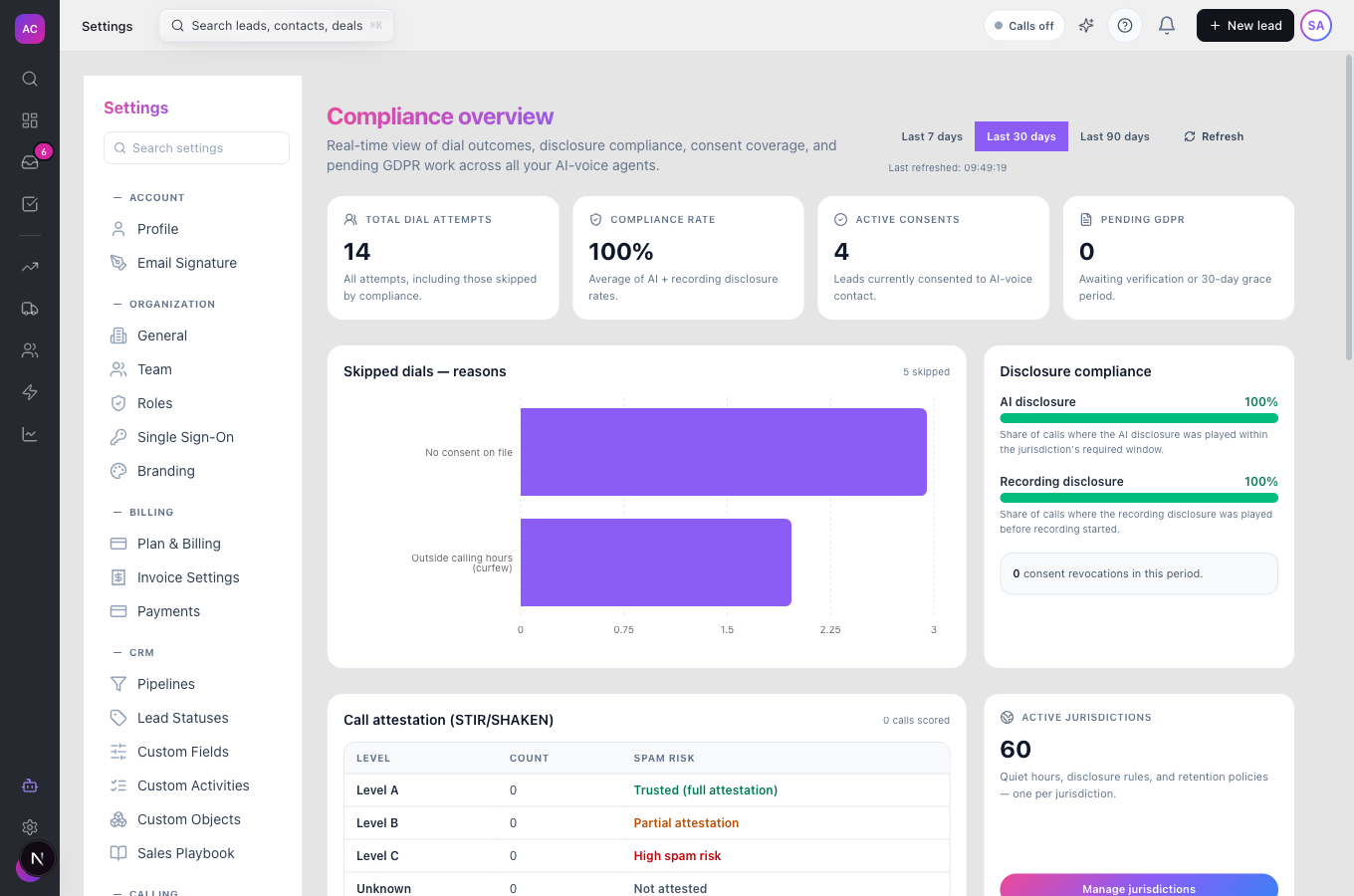
Section titled “What it does”- Shows a Compliance overview under Settings → Call Compliance for the last 7, 30 or 90 days: total dial attempts, compliance rate, active consents, skipped dials by reason, recording disclosure, caller-ID attestation and active jurisdictions.
- Raises banners when something needs attention: AI-voice calls that skipped the disclosure, pending GDPR deletion requests, recordings past their retention period, and calls with low caller-ID attestation.
- Holds one rule set per country, US state and EU member under Compliance jurisdictions: quiet hours, weekend and holiday bans, AI and recording disclosure text, prior written consent, and how long consent records and recordings are kept. Defaults come pre-loaded.
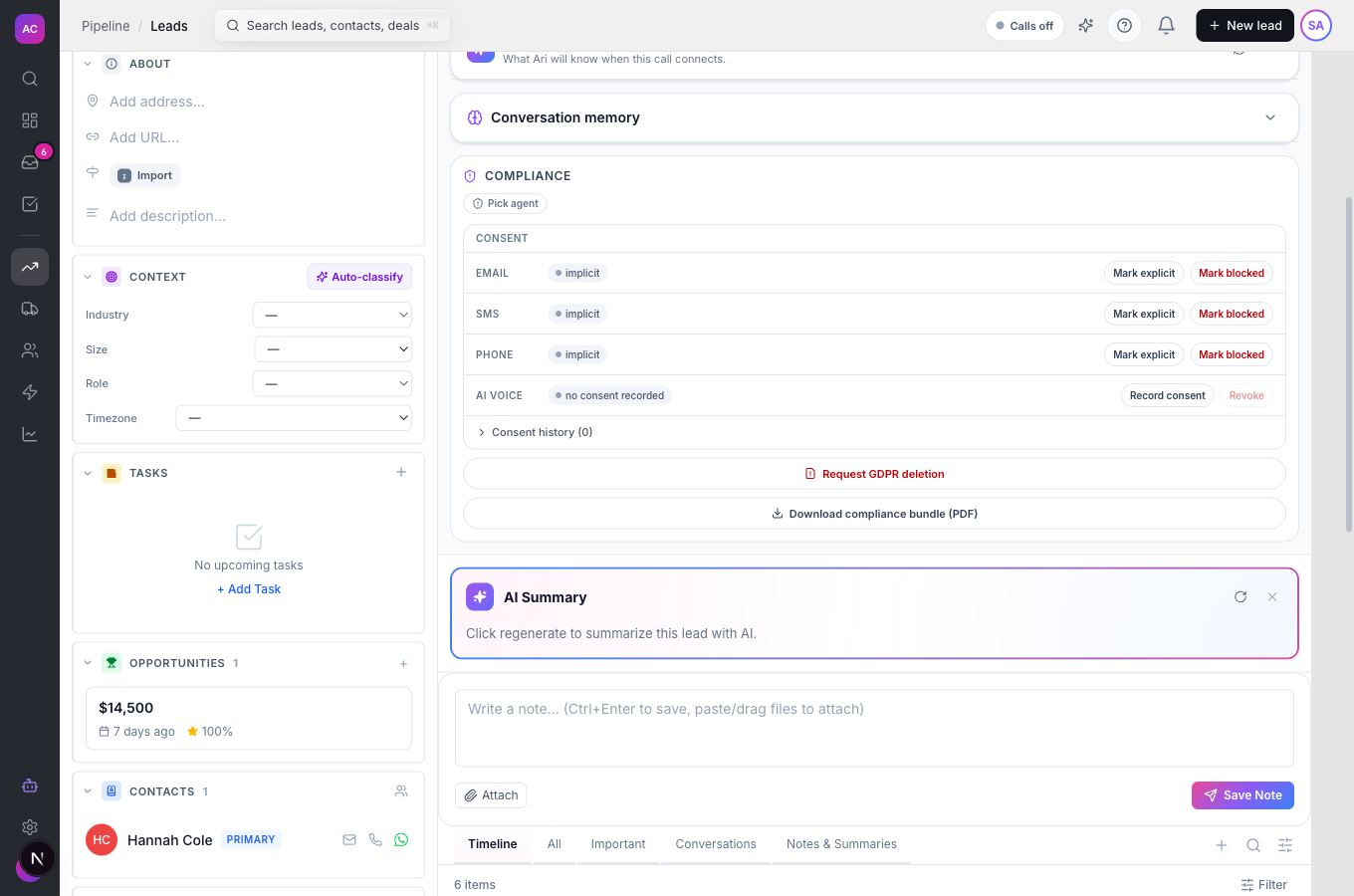
- Tracks consent on each lead in two places. The Consent card on the left records consent by purpose (for example AI Voice (marketing) or Email (marketing)) with its source and the exact wording the lead agreed to. The Compliance panel above the timeline shows the state per channel (Email, SMS, Phone, AI Voice) with a full history.
- Skips calls that break a rule and records why: no consent, outside calling hours, unknown time zone, revoked consent, national do-not-call list, weekend or holiday, blocked jurisdiction.
- Builds a compliance bundle PDF for one lead with its consent records, compliance events and voice-call audits.
- Collects your business details in a Customer Profile for carrier review, which comes before any calling or SMS registration.
What it does not do
Section titled “What it does not do”- It does not give legal advice. The seeded jurisdiction defaults are a starting point; check them with your counsel.
- It does not register US SMS brands (A2P 10DLC), Trusted Calling or regulatory bundles yet. Those cards show “Coming soon.”
- It does not list GDPR requests on their own page. The GDPR requests shortcut on the overview opens the consent audit trail instead. See GDPR tooling for what is available.
- It does not widen calling hours beyond the workspace window described in Calling and power dialer. A jurisdiction can only narrow them.
Set it up
Section titled “Set it up”- Open Settings → Call Compliance. If you see an upgrade message, compliance needs a plan with calling (Essentials or above).
- Click Manage jurisdictions. Search for the places you call, for example “CA” or “DE”, and switch Active on for each one that applies.
- Click a jurisdiction to open Edit jurisdiction. Check Quiet hours start and Quiet hours end, tick No calls on weekends or No calls on holidays if needed, and review the Disclosure text for AI and recorded calls. Click Save. Changes are written to the audit trail.
- If you will call or text in the US, register your business. On Settings → Call Compliance, click the Consent records shortcut, which opens the carrier registration page. Open Customer Profile. Enter your Business legal name, address and an authorised representative, click Save draft, then Submit for review.
- Record consent you already hold. On the Leads list, tick the leads, click Grant Consent, pick the purpose and source and paste the disclosure text they agreed to.
Works the same on mobile.
Use it day to day
Section titled “Use it day to day”Record consent on one lead. Open the lead, for example Helios Energy. In the Consent card click Grant, choose the Purpose, the Source (Web form, API, Phone recording, Bulk import or Manual (admin)), paste the Disclosure text and click Grant consent. To withdraw it, click Revoke on the row.
Change consent for a channel. In the lead’s Compliance panel, click Mark explicit or Mark blocked next to Email, SMS or Phone, or Record consent or Revoke for AI Voice. Add an Audit note explaining why and click Confirm. The change appears under Consent history.
Find out why a call did not happen. Open Settings → Call Compliance and read Skipped dials — reasons. Click View call audits to see individual calls.
Answer a complaint. Tom Fischer gets a letter about a call to Meridian Health. He opens the lead and clicks Download compliance bundle (PDF), which shows when consent was given, what the lead saw, and every call audit.
Rules and limits
Section titled “Rules and limits”| Rule | Value |
|---|---|
| Plans | Essentials, Growth and Scale (needs calling) |
| Consent states per channel | implicit, explicit, blocked |
| Consent purposes | AI Voice (marketing), AI Voice (informational), Human Voice (marketing), SMS (marketing), Email (marketing) |
| Audit note | up to 2,000 characters |
| AI disclosure deadline | 1 to 120 seconds into the call |
| Disclosure text | up to 2,000 characters |
| Retention settings | 1 to 36,500 days |
| Dashboard ranges | last 7, 30 or 90 days |
| Disclosure alert | when fewer than 95 percent of AI-voice calls gave the disclosure |
| Who can do what | Compliance permission: View to see, Edit to change jurisdictions, Submit to change consent and submit the profile, Export for the PDF |
Troubleshooting and FAQ
Section titled “Troubleshooting and FAQ”The Compliance panel does not show on the lead. Your role needs the Compliance “View Own” permission.
I can see consent but the Mark buttons are missing. Changing consent needs the Compliance “Submit” permission. The Grant button on the Consent card needs Leads “Edit” instead.
“No active consent on file. AI-voice marketing campaigns will skip this lead.” Record consent with Grant before adding the lead to an AI-voice campaign.
The profile is locked after I submitted it. It is under carrier review. You can change it again once the review finishes.
The banner says recordings are past retention. Nothing to do: recordings past the jurisdiction’s retention period are deleted automatically on the next sweep.
Why are there two consent sections on a lead? The Consent card records consent by purpose with its proof. The Compliance panel shows the resulting state per channel and lets you override it with an audit note.