In short. Connect your Gmail or Outlook mailbox once, then write to leads from their page. Replies land on the lead’s timeline and in your Inbox, sends can be scheduled and tracked, and the settings page tells you if your domain is set up to deliver.
Who it is for. Every rep who emails prospects. Admins, to connect mailboxes, keep templates and the unsubscribe list, and check domain health before a campaign.
- Where it lives
- Opens from a record or another screen
- Plans
- SoloEssentialsGrowthScaleEvery plan
- Permission
What it does
Section titled “What it does”- Connects Gmail and Outlook accounts with a sign-in popup. New mail syncs about every three minutes, and you can pull in history for the last 7 to 400 days.
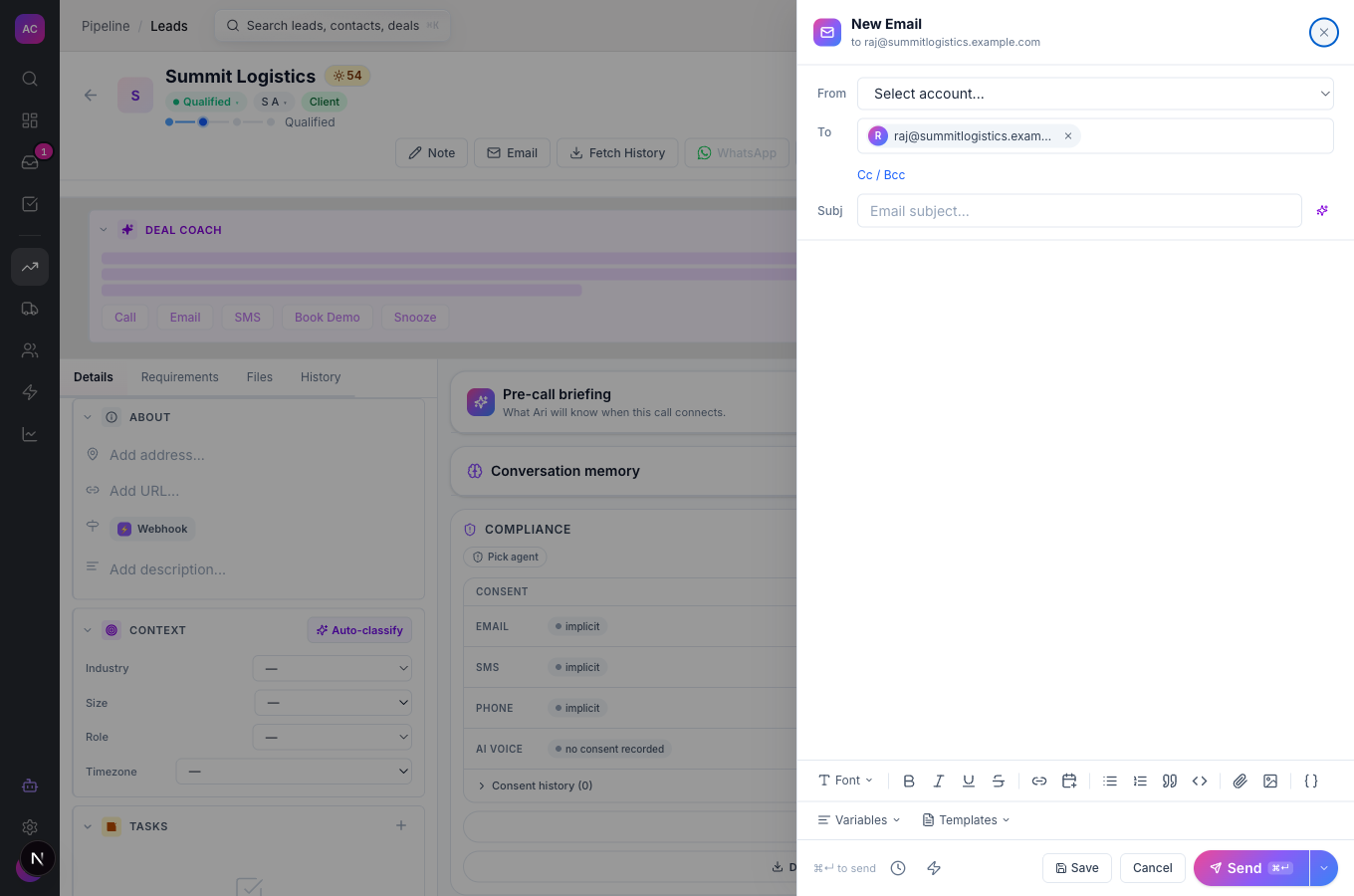
- Opens a full composer on any lead: From account, To, Cc and Bcc with contact search, subject, rich text, templates, variables, attachments, images, a booking link, and the signature for the chosen account inserted automatically.
- Sends now or later: tomorrow at nine, Monday at nine, or any date and time within the next 30 days.
- Sets a follow-up reminder with If no reply follow-up. A task is created for the day you choose and completes itself when the reply arrives.
- Tracks opens and clicks for 90 days and shows them on the lead’s timeline and in Reporting.
- Enrols the lead in a Workflow on send, if you pick one in the composer.
- Collects everything that needs you in the Inbox: unread emails, calls, messages, tasks and reminders, with keyboard shortcuts.
- Checks your sending domain’s SPF, DKIM and DMARC records and grades them Good, Needs attention or At risk.
- Keeps an unsubscribe list. Unsubscribed, bounced and complaining addresses are blocked from future sends.
What it does not do
Section titled “What it does not do”- It does not connect generic IMAP or SMTP mailboxes. Gmail and Outlook only.
- It does not send one email to a whole list from this screen. Bulk outreach runs through Sequences, which add an unsubscribe link automatically. The bulk action on the Leads list syncs email history; it does not send.
- It does not list or cancel scheduled emails in the app yet. Check the time carefully before you confirm a scheduled send.
- It does not share one mailbox across the team. Each person connects their own account and sends as themselves.
Set it up
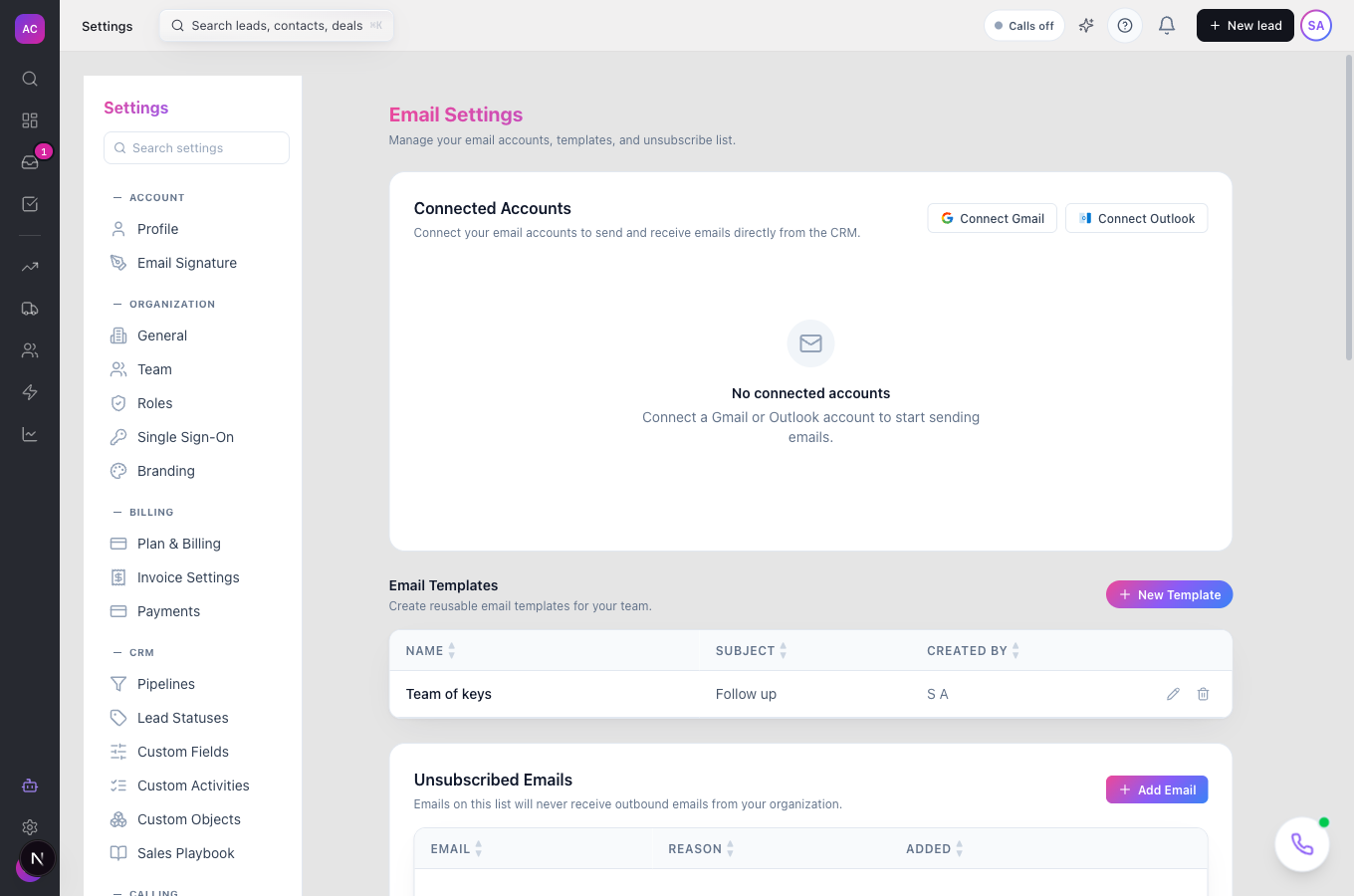
Section titled “Set it up”- Open Settings → Messaging → Email.
- Under Connected Accounts, click Connect Gmail or Connect Outlook and finish the sign-in in the popup. Allow popups for the app if nothing opens.
- The account appears with a Syncing badge and the last 7 days of mail start syncing. To bring in more history, open the account’s menu and pick Last 30 days, 90 days, 180 days or 400 days.
- Scroll to Sending Domain Health. Each check shows Passing, Warning or Failing; fix any failing record in your domain’s DNS before running sequences.
- Add your signature under Settings → Email Signatures. Click Add signature, name it, write it, and pick which account it belongs to. The composer inserts it for you.
Works the same on mobile.
Use it day to day
Section titled “Use it day to day”- Write to a lead. Open the lead, start an email from the timeline or a contact’s Email icon. Pick the From account, add recipients (search starts after two characters), write, and press Send or ⌘↵. Drafts save on their own while you type.
- Reuse good emails. Click Insert template, pick one, then personalise. Admins create templates under Settings → Email → Templates.
- Offer a time. Click Insert booking link to drop your scheduling page into the email. If you have no scheduling page yet, the app points you to Settings → Calendar.
- Send at the right moment. Open More send options and choose a preset or Schedule for later…. Scheduled sends must be at least five minutes away.
- Never lose a thread. Turn on If no reply follow-up and set the days. If the person replies, the reminder closes itself; if not, the task appears on the due day.
- Work the Inbox. Open Inbox, use the Emails tab, and press ? for shortcuts: j and k to move, e to reply, s to snooze, c to complete.
Rules and limits
Section titled “Rules and limits”| Rule | Value |
|---|---|
| Providers | Gmail and Outlook |
| Sending cap | 100 emails per hour and 500 per day for the whole organisation |
| Recipients | one To, up to 20 Cc and 20 Bcc |
| Subject | up to 500 characters |
| Attachments | up to 10 per email, 25 MB each |
| Scheduled send | at least 5 minutes ahead, at most 30 days |
| Follow-up reminder | 1 to 90 days or hours |
| Open and click tracking | recorded for 90 days |
| First sync and history | 7 days at connection; backfill up to 400 days |
| Inbound sync | about every 3 minutes, 20 messages per account per pass |
Troubleshooting and FAQ
Section titled “Troubleshooting and FAQ”The account shows “Needs Reconnect”. Your provider revoked the token, usually after a password change. Click the account and reconnect; nothing else changes.
I hit “Email sending limit exceeded”. The organisation sent 100 emails in the last hour or 500 today. Wait, or move the campaign to a Sequence spread over days.
Domain health says “At risk” for a Gmail address. Free mailboxes have DNS managed by the provider. Send from a custom domain for anything beyond personal volume.
My email went out without a signature. Signatures belong to an account. Add one for the account you chose in From, or mark one as default.
Opens look too high. Some mail apps open every email in advance. Treat opens as a hint and clicks as the real signal.
Someone asked to be removed. Add their address under Settings → Email → Unsubscribes. Removing them later from the same list allows sending again.