Custom fields
In short. Custom fields hold the facts your business tracks that Pitch2Sale does not have out of the box, such as Industry, Contract Size or Renewal Date. An admin defines them once; reps fill them in on the lead page.
Who it is for. Admins who shape the data model, and reps who keep those fields up to date on their leads.
- Where it lives
- Settings › CRM › Custom Fields
- Plans
- SoloEssentialsGrowthScaleEvery plan
- Permission
- Custom Fields
What it does
Section titled “What it does”- Adds fields to four kinds of record, one tab each: Leads, Contacts, Opportunities and Activities.
- Offers these types: Text, Number, Date, Boolean, Choice, Multi Choice, URL, Email and Phone.
- Checks every value against its type, so a Number field only takes numbers and a Choice field only takes one of its choices.
- Can mark a field Required, give it a Default Value, and limit who may change it with Restrict Editing.
- Shows lead fields in the Custom Fields section of every lead page, where you click a value to change it.
- Lets a Workflow step set a field’s value, and lets the API and integrations read and write it.
What it does not do
Section titled “What it does not do”- It does not show contact, opportunity or activity fields in the app yet. You can define them, and the API and integrations can fill them, but only lead fields appear on screen today.
- It does not let you change a field’s type after you create it. Delete the field and create a new one instead.
- It does not let you reorder fields from the settings page. Fields keep the order they were created in.
- It does not create Date/Time fields yet. The type is listed in the dialog but cannot be saved. Use a Date field instead.
- It does not let you edit Multi Choice values on the lead page yet. The values display, but a change cannot be saved there.
- It does not hide a field from some roles from the settings page. Restrict Editing limits who can change a value; everyone who can see the record can still read it.
Set it up
Section titled “Set it up”- Open Settings → Custom Fields.
- Pick the tab for the record type, for example Leads.
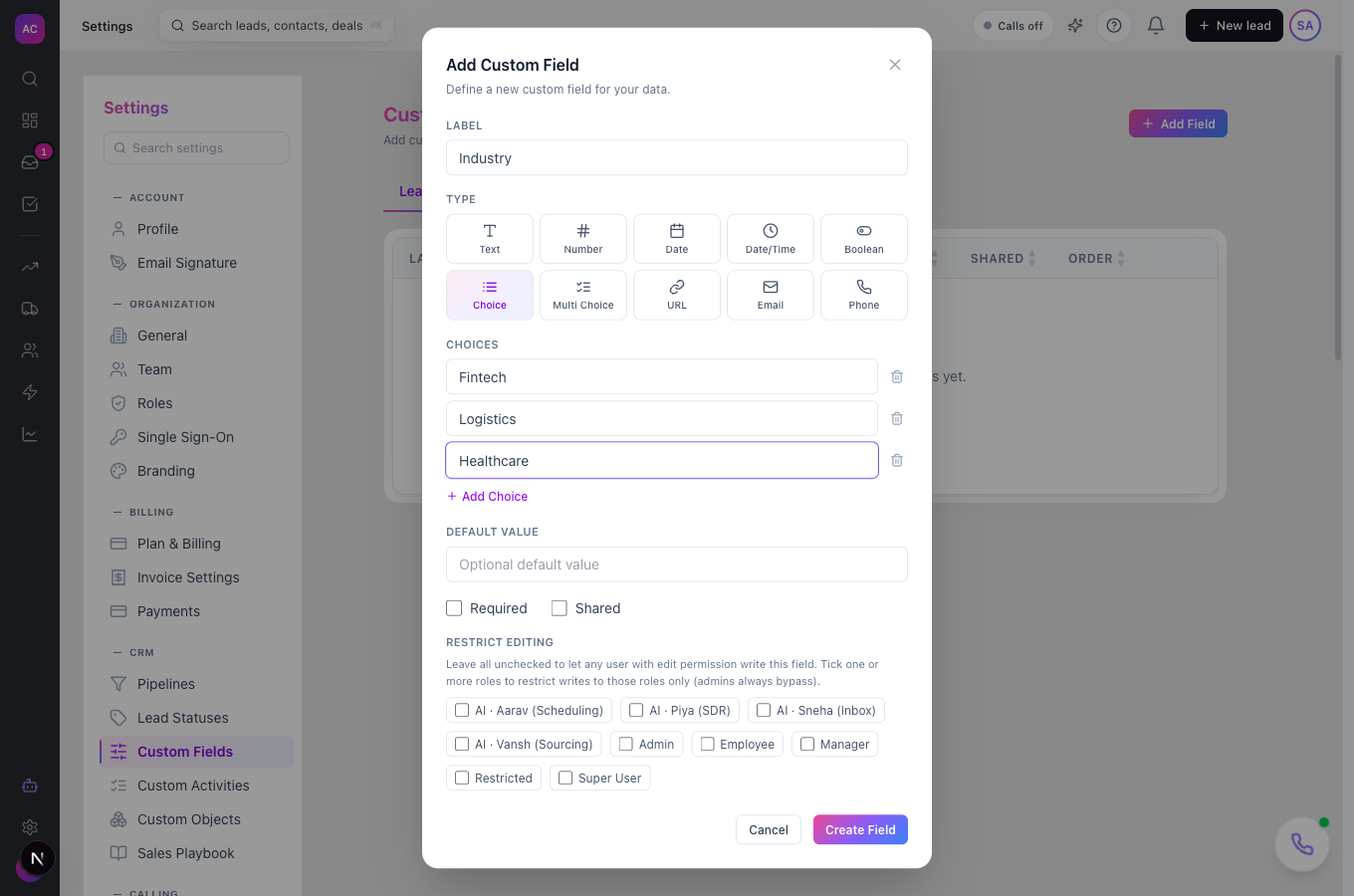
- Click Add Field. The Add Custom Field dialog opens.
- Type a Label, for example “Industry”. Pitch2Sale builds the field’s key from the label, such as “industry”, and keeps that key even if you rename the label later.
- Pick a Type. For Choice or Multi Choice, click Add Choice for each option, for example “Fintech”, “Logistics” and “Healthcare”.
- Optionally enter a Default Value, tick Required, and under Restrict Editing tick the roles that may change this field.
- Click Create Field. A “Custom field created” message confirms it, and the field appears in the table.
Think twice before ticking Required on a lead field. The New Lead dialog does not show custom fields yet, so a required lead field stops anyone from creating leads there until it is unticked.
Works the same on mobile.
Use it day to day
Section titled “Use it day to day”Fill in a field on a lead. Raj Malhotra opens Summit Logistics and scrolls to the Custom Fields section. He clicks the empty Industry value, picks “Logistics”, and the value saves. Press Enter to save a text value, or Escape to cancel.
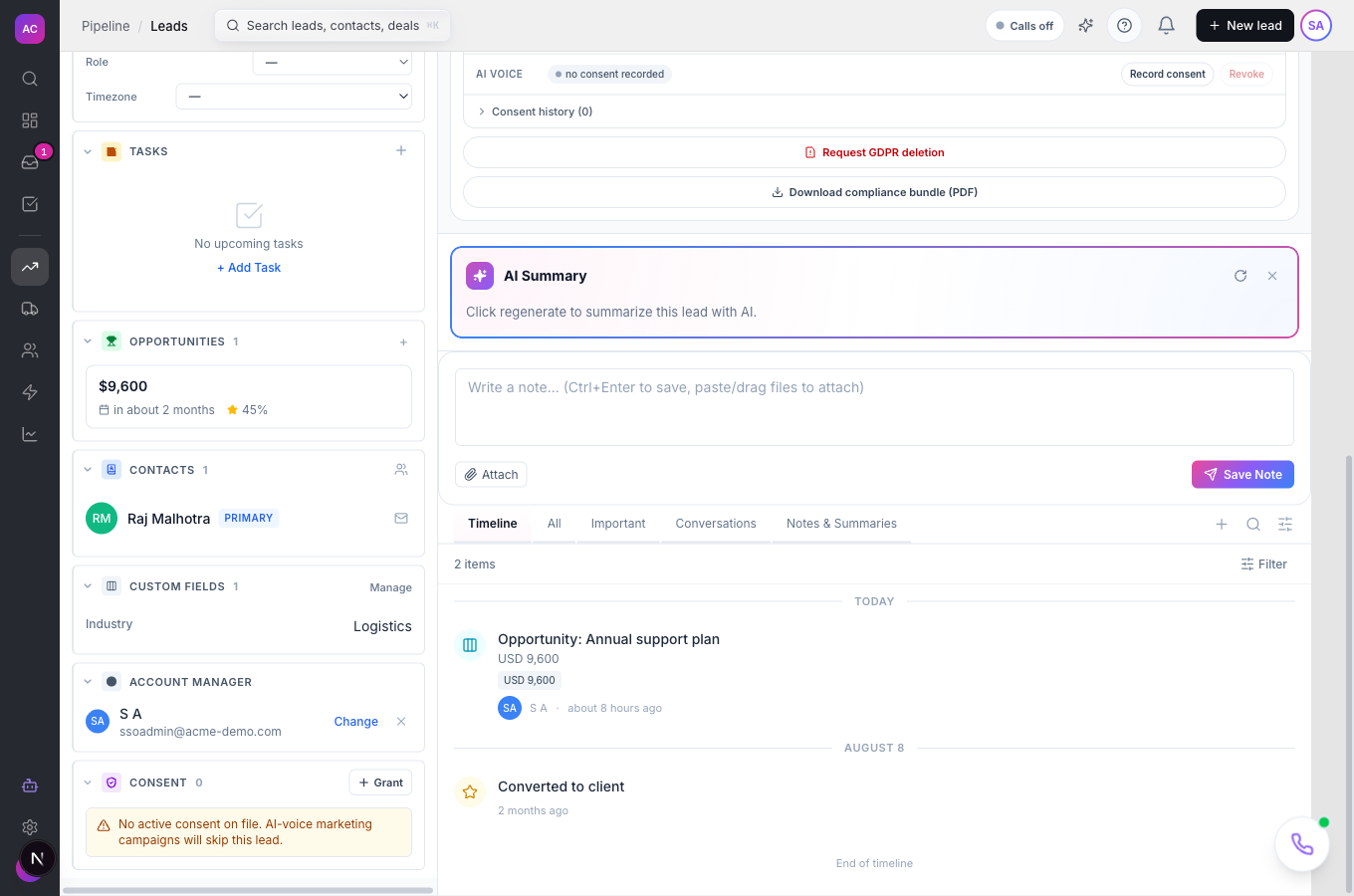
Jump to the settings. Admins can click the gear in the section header, Manage custom fields, to open the settings page.
Change a field. In Settings → Custom Fields, click the pencil on its row. You can change the label, choices, default value, the Required and Shared boxes, and the roles under Restrict Editing. Click Update Field.
Remove a field. Click the bin on its row and confirm Delete. The field disappears from every record.
Fill fields automatically. Add a step to a Workflow that updates a field, for example set Industry when a web form names it. See Workflows.
Rules and limits
Section titled “Rules and limits”| Rule | Value |
|---|---|
| Plans | Solo, Essentials, Growth, Scale |
| Record types | Leads, Contacts, Opportunities, Activities |
| Label length | 1 to 100 characters in the dialog |
| Field key | made from the label; unique per record type; never changes |
| Choice and Multi Choice | at least one choice |
| Type after creation | cannot be changed |
| Required | enforced when a lead is created, and whenever field values are saved |
| Restrict Editing | only the ticked roles can change the value; admins always can |
| Who can add, edit or delete fields | roles with the Custom Fields Create, Edit or Delete permission |
| Restrict Editing box visible to | users who can view roles |
Troubleshooting and FAQ
Section titled “Troubleshooting and FAQ”“Custom field “Industry” is required” when creating a lead. A lead field is marked Required and the New Lead dialog has no place to fill it. Untick Required on that field, or create leads through import or the API with the value set.
“A custom field with key … already exists”. Another field on the same tab already uses that key. Pick a different label.
“Failed to create custom field” on a Date/Time field. Date/Time is not supported yet. Choose Date instead.
The Key and Order columns are empty. The settings page does not show these values yet. The keys exist and work in Workflows and the API.
Someone cannot change a field value. The field has roles ticked under Restrict Editing and their role is not one of them. An admin can add the role, or clear all boxes to let anyone with edit rights change it.
What does Shared do? It has no effect yet. The box is saved with the field, but no screen uses it.