Timesheets
In short. Log the hours you spend on a project, with a timer or by hand. Submit them for approval, and see the week at a glance on the Timesheets page. Approved hours can then be billed.
Who it is for. Everyone who logs time on projects, and the managers who approve or reject submitted hours.
- Where it lives
- Opens from a record or another screen
- Plans
- SoloEssentialsGrowthScale
- Permission
- Timesheets
What it does
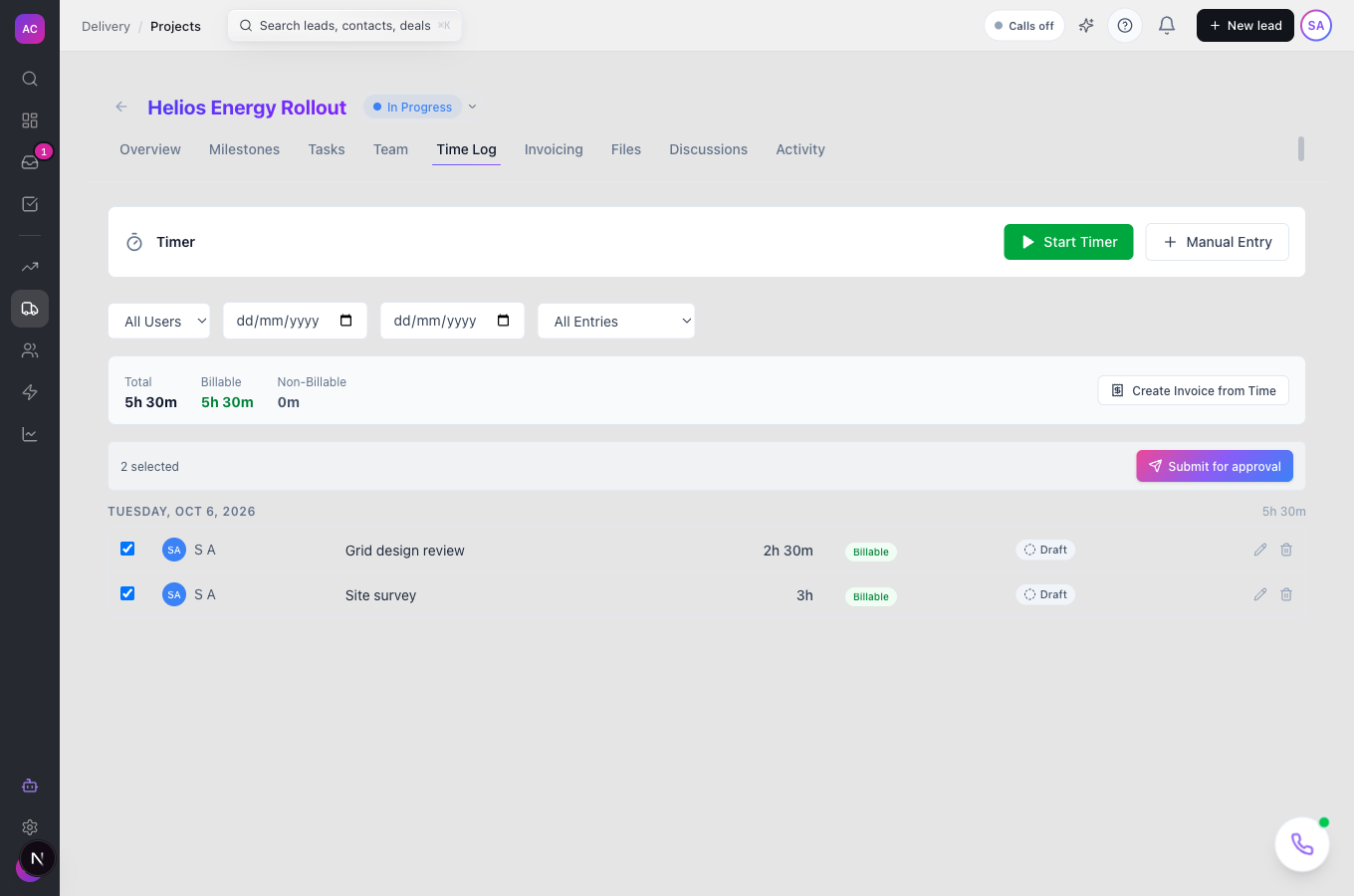
Section titled “What it does”- Logs time on a project’s Time Log tab, either with Start Timer and Stop or with a Manual Entry.
- Shows a running timer in the sidebar while it counts, so you can stop it from any page.
- Marks each entry billable or not, and values billable hours at the person’s hourly rate on that project.
- Sends your draft entries for approval with Submit for approval. Each entry shows Draft, Submitted, Approved or Rejected.
- Collects submitted entries on Pending approvals, where an approver approves them one by one or in bulk, or rejects them with a reason.
- Summarises a week on the Timesheets page: total, billable and non-billable hours and the billable amount. You can group by project, task, person or day, and export to CSV.
- Lets approved hours be turned into an invoice from the project. See Projects.
What it does not do
Section titled “What it does not do”- It does not log time outside a project. Every entry belongs to a project.
- It does not let you run two timers at once.
- It does not let you edit an entry once it has been billed.
- It does not invoice hours that are not approved yet.
- It does not show managers their team’s hours on the weekly page by default. That needs the Reports “view timesheets” permission, which only Admin and Super User have out of the box.
Set it up
Section titled “Set it up”There is nothing to switch on. Timesheets are included on Essentials and above, together with Projects.
- Make sure each person has an hourly rate on the projects they work on. Open the project, go to Team, and set Hourly Rate.
- Decide who approves. By default, Admin, Super User and Manager roles can approve, and so can anyone added to a project as its Manager. An admin can change this under Roles and permissions.
Works the same on mobile.
Use it day to day
Section titled “Use it day to day”Log time
Section titled “Log time”- Open the project, for example Helios Energy Rollout, and go to Time Log.
- Click Start Timer when you begin and Stop when you finish. The entry is saved when you stop.
- Or click Manual Entry. Fill in Description, Date, Start Time and End Time (or Duration (minutes)), tick Billable if the client pays for it, and save.
Submit for approval
Section titled “Submit for approval”- On Time Log, tick your draft entries. The bar shows how many can be submitted.
- Click Submit for approval. The entries change to Submitted.
- If an entry comes back Rejected, read the reason, fix the entry and submit it again.
Approve time
Section titled “Approve time”- Open Delivery → Timesheets and click Pending approvals.
- Click Approve on an entry, or tick several and click Approve selected.
- To send one back, click Reject, write what needs to change under Reason (required), and confirm.
Review the week
Section titled “Review the week”On Delivery → Timesheets, move between weeks with the arrows. Choose By Project, By Task, By User or By Day. Click Export CSV to download the week.
Rules and limits
Section titled “Rules and limits”| Rule | Value |
|---|---|
| Plans | Essentials, Growth and Scale |
| Who can log time | Admin, Super User, Manager and Employee by default; Employees and Managers edit and delete only their own entries |
| Who can approve | Admin, Super User and Manager by default, plus project Managers |
| Who sees everyone’s hours on the weekly page | Admin and Super User by default; others see their own |
| Who can export | people with the Reports export permission |
| Running timers per person | one |
| Description | up to 2,000 characters |
| Entries per submit or bulk approve | up to 500 |
| Rejection reason | required, up to 1,000 characters |
| Billable amount | hours × the person’s hourly rate on the project |
| Billed entries | cannot be edited |
| Invoicing time | approved entries only |
Troubleshooting and FAQ
Section titled “Troubleshooting and FAQ”“You already have a running timer. Stop it before starting a new one.” Stop the timer shown in the sidebar, then start the new one.
“Cannot invoice unapproved time entries.” Some of the entries you picked are not approved. Ask an approver to approve them on Pending approvals, then generate the invoice again.
“Cannot edit a billed time entry.” The entry is already on an invoice. Change the invoice instead.
Export CSV fails. You need the Reports export permission. Ask an admin to add it to your role.
I am a manager but I only see my own hours. The weekly page shows everyone’s hours only to roles with the Reports “view timesheets” permission. Ask an admin to grant it, or use Pending approvals to review submitted time.
My billable amount is zero. You have no hourly rate on that project. Ask the project manager to set one on the Team tab.