Team management
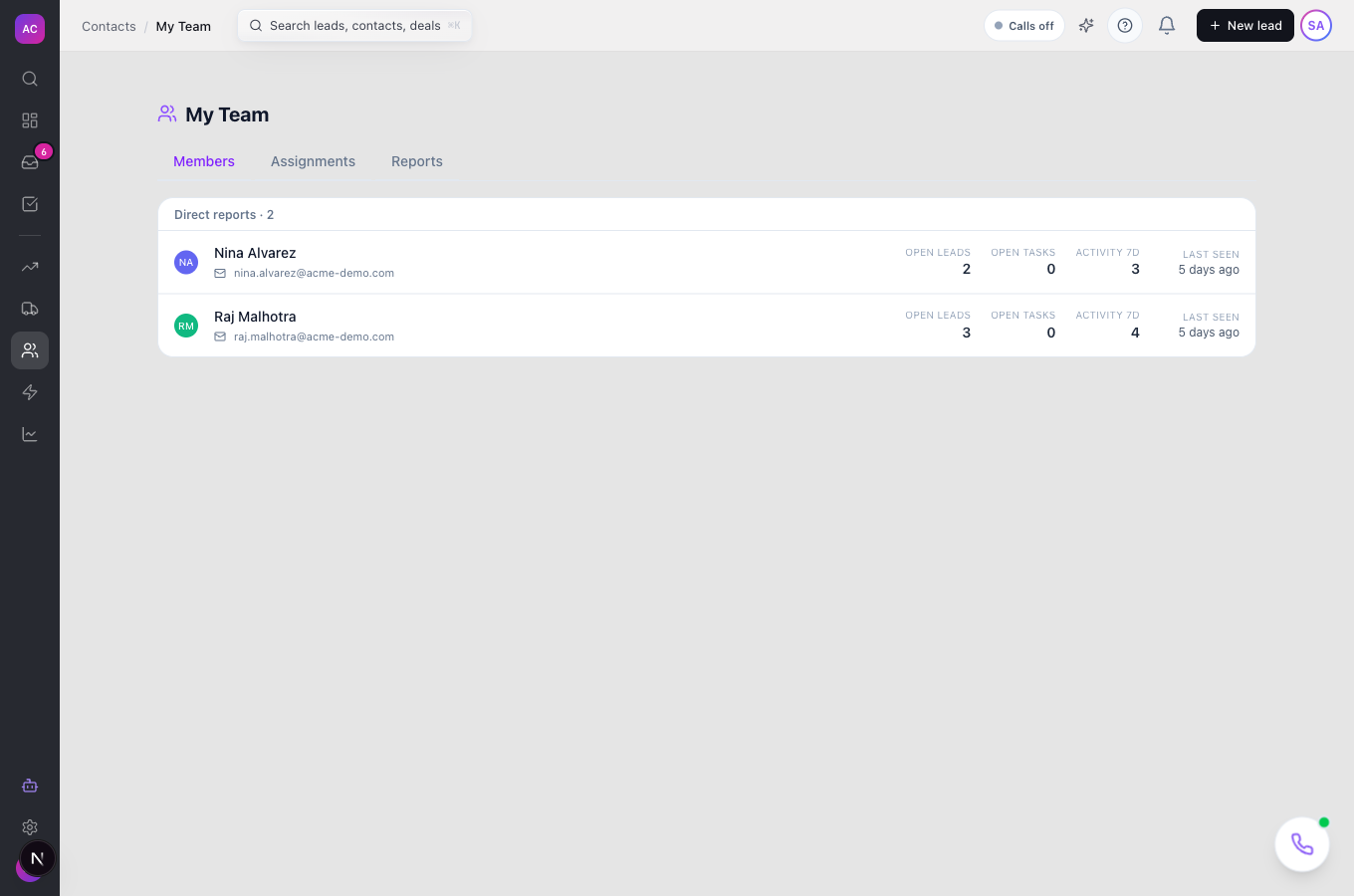
In short. An admin sets each person’s manager. Managers then get a My Team page that shows their reps’ open leads, open tasks and last week’s activity, and lets them hand out a batch of leads round-robin.
Who it is for. Sales managers who look after a group of reps, and the admin who sets up the reporting lines.
- Where it lives
- Opens from a record or another screen
- Plans
- SoloEssentialsGrowthScaleEvery plan
- Permission
- Manager Dashboard
What it does
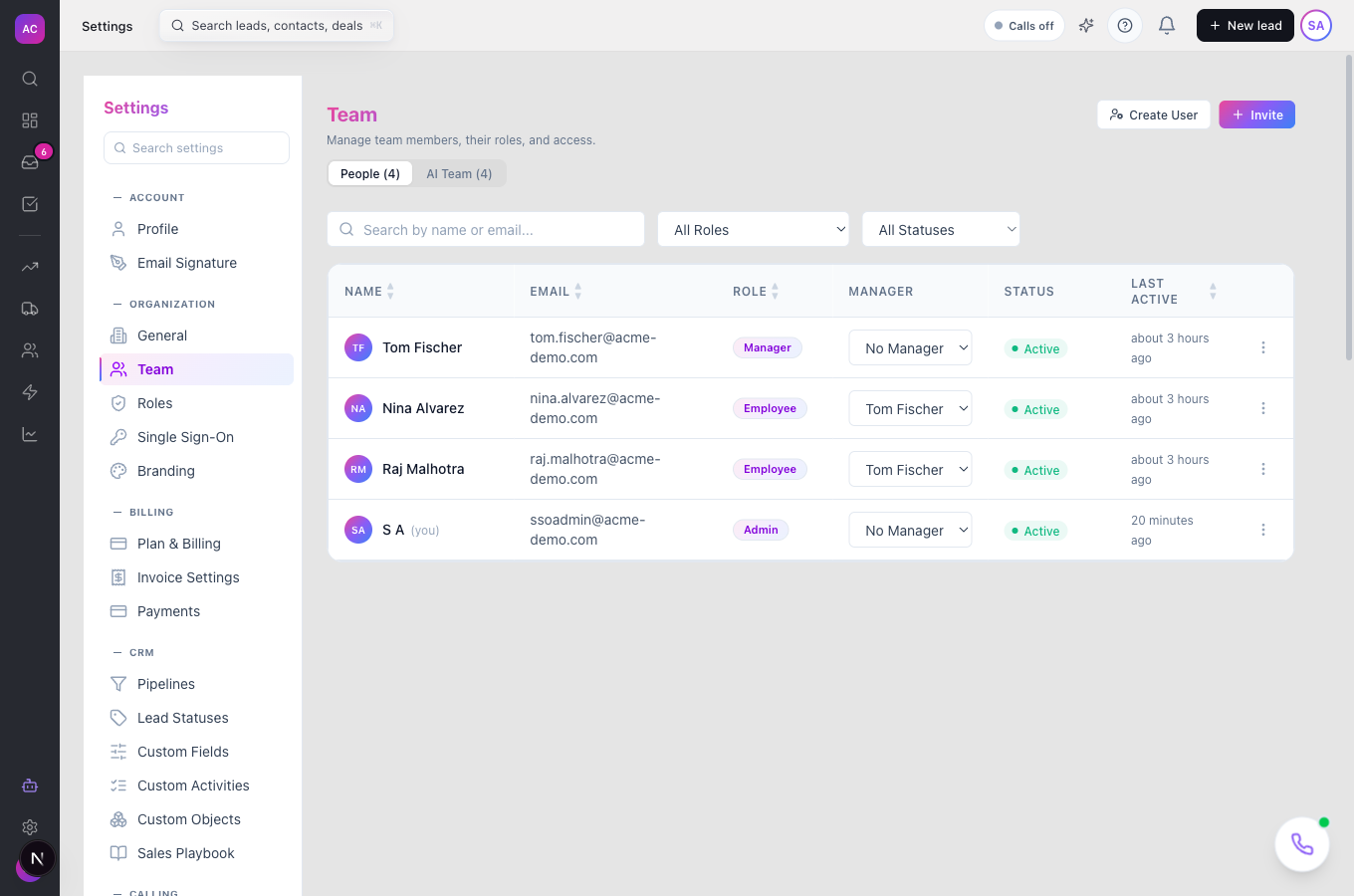
Section titled “What it does”- Records a manager for each user in Settings → Team, building a reporting tree. Pitch2Sale blocks loops, such as two people managing each other.
- Lists your Direct reports on My Team, with Open leads, Open tasks, Activity 7d and Last seen for each, and lets you show the people who report to them as well.
- Ranks your team on two simple charts under Reports: activity in the last 7 days (calls, emails, SMS and notes) and open leads owned right now.
- Spreads a list of leads across the team members you tick, round-robin, under Assignments.
What it does not do
Section titled “What it does not do”- It does not let you pick leads to distribute from a list. You paste lead IDs; the ID is the 24-character code at the end of a lead’s web address. There is no copy-ID action in the Leads row menu yet, although the hint on the page mentions one.
- It does not move all of one rep’s leads to another from this page. Use the Leads list: filter by owner, select the leads and use Assign Owner in the bulk bar. See Leads.
- It does not create teams with names. The structure is one manager per person.
- It does not invite or remove users. That happens in Settings → Team; see Invite your team.
Set it up
Section titled “Set it up”- Open Settings → Team.
- In the Manager column, choose each person’s manager from the list. For example, set Tom Fischer as the manager of Nina Alvarez and Raj Malhotra. A “Manager updated” message confirms each change.
- Open Settings → Roles, pick the managers’ role, and under Manager Dashboard tick View and a scope (Own, Team or All). Tick Distribute Leads for managers who hand out leads.
Works the same on mobile.
Use it day to day
Section titled “Use it day to day”Check on your reps. Tom Fischer opens My Team in the sidebar. Under Members he sees Nina and Raj with their open leads, open tasks and activity over the last 7 days. If his reps have reports of their own, he clicks Show N indirect reports.
Compare activity. Click Reports to see who was most active this week and who holds the most open leads.
Hand out new leads. Click Assignments. Paste the lead IDs, one per line or separated by commas. The counter shows how many are valid. Under Distribute to, tick the reps who should receive them, then click Distribute N leads. The leads are shared out in turn, and a message confirms how many moved.
Rules and limits
Section titled “Rules and limits”| Rule | Value |
|---|---|
| Plans | Solo, Essentials, Growth, Scale |
| Managers per person | one |
| Hierarchy rules | nobody can manage themselves; no loops |
| Who can set managers | roles that can edit users in Settings → Team |
| Who can open My Team | roles with Manager Dashboard → View |
| Who can distribute leads | roles with Manager Dashboard → Distribute Leads |
| Leads per distribution | 1 to 500 |
| Reps per distribution | 1 to 50, all in your team |
| Activity window | last 7 days: calls, emails, SMS and notes |
Troubleshooting and FAQ
Section titled “Troubleshooting and FAQ”“You have no direct reports.” Nobody has you as their manager yet. Ask an admin to set it in the Manager column of Settings → Team.
“Cannot create circular management hierarchy”. The person you chose as manager already reports, directly or indirectly, to the person you are editing. Pick someone higher up.
“All target users must be in your team”. You can only distribute leads to people below you in the reporting tree.
My Team shows an error. Your role can see the page but lacks Manager Dashboard → View. Ask an admin to tick it.
Where do I find a lead’s ID? Open the lead. The ID is the 24-character code at the end of the address in your browser.