Proposals
In short. Write a proposal for a lead, with sections, a price table and an attached document. Email the client a link where they can accept with a signature or decline. Then turn the accepted proposal into a draft contract.
Who it is for. Sales reps who send quotes and scopes of work, and admins who decide whether accepted proposals create contracts and invoices on their own.
- Where it lives
- Billing › Proposals
- Plans
- SoloEssentialsGrowthScale
- Permission
- Proposals
What it does
Section titled “What it does”- Lists every proposal under Billing → Proposals with its lead, status, value, and created and sent dates. You can search and filter by status.
- Builds a proposal from sections you can reorder, rename and write in a rich-text editor. You can also let AI Generate draft them from the lead’s calls, emails, notes and opportunities.
- Adds a Pricing & line items table. You can mark items optional, so the client includes or excludes them, or let the client change the quantity.
- Holds the final proposal document (PDF, DOC or DOCX) under Proposal document. A proposal cannot be sent without one.
- Emails the client a link to a public page. That page shows the proposal, the price table, and Accept proposal and Decline buttons. Accepting takes a typed or drawn signature.
- Tracks status: Draft, Sent, Viewed, Accepted, Declined, Expired.
- When the client accepts, it records the accepted value from the items they kept. If the proposal is linked to an opportunity, that opportunity moves to its pipeline’s won stage.
- Turns an accepted proposal into a draft contract with Generate Contract, or does it automatically if an admin turns that on.
What it does not do
Section titled “What it does not do”- It does not let you set an expiry date in the app. Proposals that have one expire on their own, but the editor has no field for it.
- It does not have a currency picker. Proposals are in US dollars unless the currency was set through the API.
- It does not send a contract for signature by itself. Even with automation on, the contract it creates stays a draft until someone sends it.
- It does not let you edit an accepted or declined proposal. Duplicate it and work on the copy.
Set it up
Section titled “Set it up”There is nothing to switch on for your team. Proposals are included on Essentials and above. To send proposal emails, connect your mailbox first; see Connect email and calendar.
An admin can decide what happens when a client accepts:
- Open Settings → General and scroll to Automation.
- Turn on Auto-draft the contract when a proposal is accepted to create a draft contract as soon as the client accepts.
- Turn on Auto-create invoice when proposals or estimates are accepted to create an invoice and email the client a payment link on acceptance.
- Click Save Changes.
Both switches are off by default. While they are off, the next step happens only when someone clicks a button.
Works the same on mobile.
Use it day to day
Section titled “Use it day to day”Create a proposal
Section titled “Create a proposal”- Open Billing → Proposals and click New Proposal.
- Search for the lead, for example Orbit Payments, and pick it.
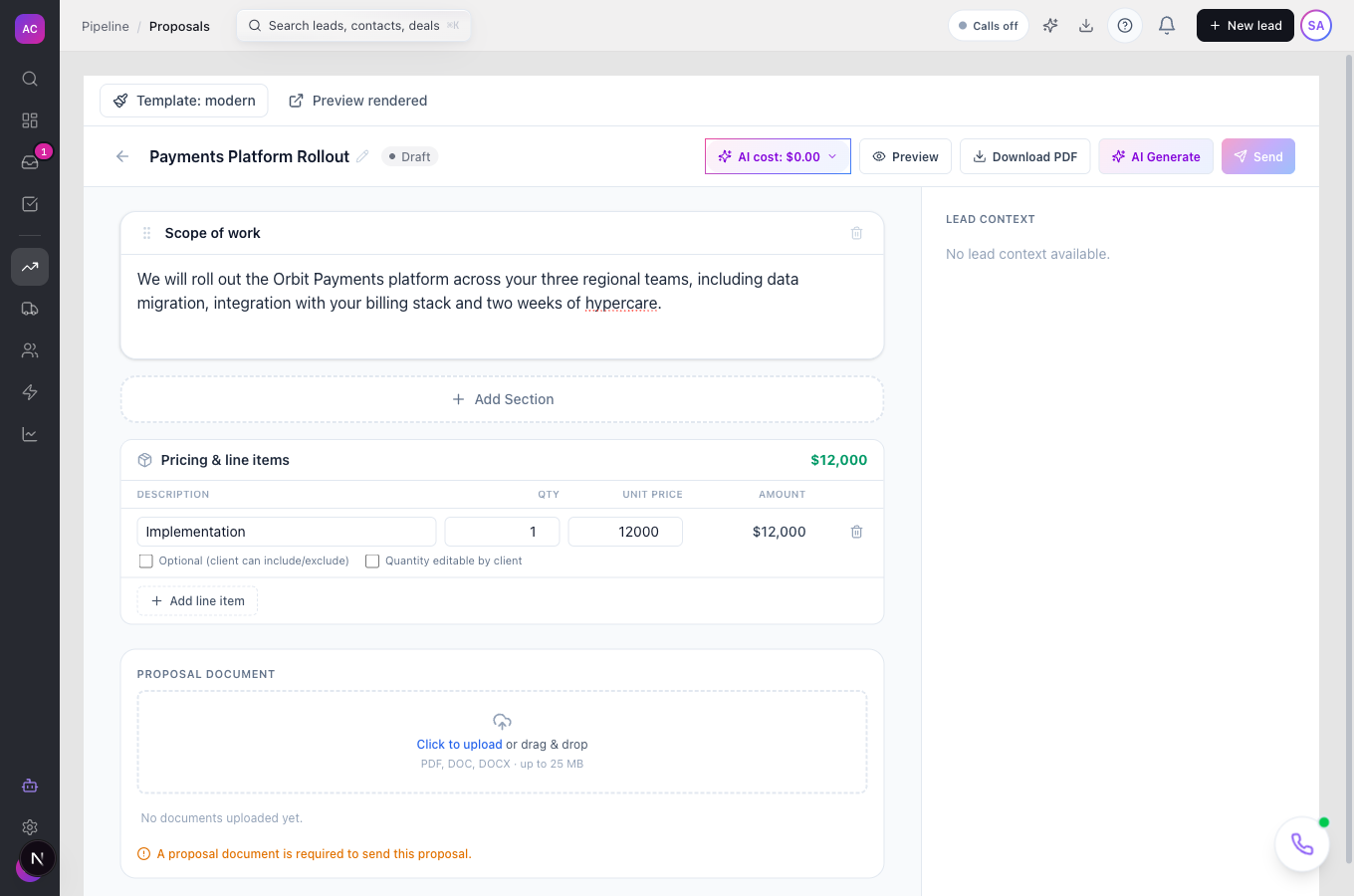
- Type a Proposal Title, such as “Payments Platform Rollout”, and click Create Proposal. The editor opens on a draft.
Write it
Section titled “Write it”- Click AI Generate to draft the sections from the lead’s history. Add a project scope, pricing tier, timeline and start date if you have them, then click Generate Proposal. If the AI asks follow-up questions, answer them and click Generate with Answers, or click Skip — generate anyway.
- Edit any section directly. Use Regenerate with AI on a single section, or Add Section to write a new one. Changes save as you type.
- Under Pricing & line items, click Add line item for each item, then enter the description, quantity and unit price. Tick Optional (client can include/exclude) or Quantity editable by client where it fits.
- Pick a look with Template:, for example Modern or Executive. Use Preview or Download PDF to check the result.
- Under Proposal document, upload the final PDF, DOC or DOCX. The note changes to “Proposal document attached — this proposal can be sent.”
Send it
Section titled “Send it”- Click Send. It is greyed out until a document is attached.
- Check To, Subject and Message, then send. The status changes to Sent.
- When the client opens the link, the status changes to Viewed.
If the email cannot go out, the proposal is still marked Sent and a warning tells you why. Copy the public link and share it yourself.
After the client answers
Section titled “After the client answers”- Accepted. The status changes to Accepted and the client’s signature is kept on the proposal. Click Generate Contract, then Create contract in the confirmation. A draft contract named “Contract for …” opens, carrying the accepted value. Continue on Contracts & e-signature.
- Declined. The status changes to Declined, with the client’s reason if they gave one. Use Duplicate from the list to start a revised version.
Rules and limits
Section titled “Rules and limits”| Rule | Value |
|---|---|
| Plans | Essentials, Growth and Scale |
| Who can create and edit | Admin, Super User, Manager and Employee by default |
| Who can delete | Admin and Super User by default |
| Who can send | anyone with edit rights on proposals |
| Who can generate a contract | anyone with the Contracts create permission |
| Proposal title | 1 to 500 characters |
| Document required to send | at least one PDF, DOC or DOCX, up to 25 MB each |
| Statuses that can be sent | Draft only |
| Statuses the client can act on | Sent and Viewed |
| Line item quantity | 0 to 1,000,000 |
| Line item unit price | 0 to 100,000,000 |
| Decline reason | up to 2,000 characters |
| Contracts per proposal | one; clicking again opens the same contract |
| Expiry check | hourly, with a reminder to the client 24 hours before |
Troubleshooting and FAQ
Section titled “Troubleshooting and FAQ”Send is greyed out. No proposal document is attached. Upload a PDF, DOC or DOCX under Proposal document.
“Proposal marked sent, but no email account is connected — share the public link manually.” Connect your mailbox, or send the link yourself. The proposal already counts as sent.
Filtering by Viewed or Expired shows an error. The list filters by Draft, Sent, Accepted or Declined only. Use All Statuses and sort by status instead.
I cannot edit an accepted proposal. Accepted and declined proposals are locked. Duplicate the proposal to make changes.
I do not see Generate Contract. The button shows only on accepted proposals, and only if you can create contracts.
The client accepted but no contract appeared. Automatic contracts are off by default. Click Generate Contract, or ask an admin to turn on the switch under Settings → General → Automation.