Surveys & CSAT
In short. Build a survey with NPS, rating, yes/no, choice and text questions, pick who should get it, and send it by email. Each contact gets a personal link, and the survey page shows scores and answers as they come in.
Who it is for. Account managers and admins who want feedback from customers after a deal, a project or a support ticket.
- Where it lives
- Opens from a record or another screen
- Plans
- SoloEssentialsGrowthScale
- Permission
- Surveys
What it does
Section titled “What it does”- Builds surveys with seven question types: Short text, Long text, Rating (1-5), NPS (0-10), Yes / No, Single choice and Multi choice. Mark any question Required.
- Splits a survey into pages and shows a question only when an earlier answer matches (Show if… equals, does not equal or contains).
- Sends to one audience: All contacts, Specific leads, Customers (clients), Post-deal (won opportunities), Tickets closed (last 30 days), Project completed (last 30 days), or Event triggered (workflow only).
- Emails each recipient a personal link. Only contacts with an email address receive it.
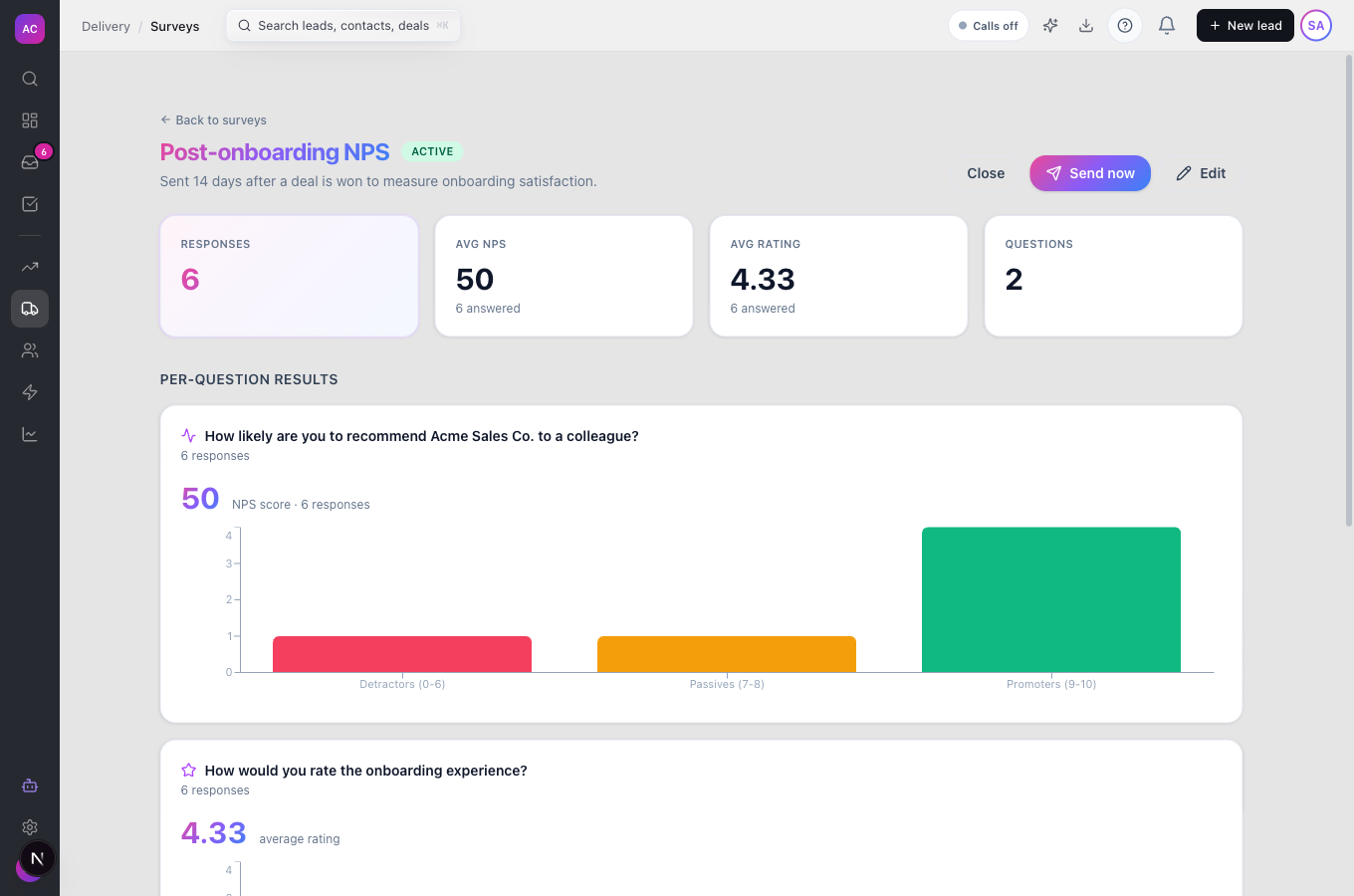
- Shows results on the survey page: responses and completion rate, average NPS, average rating, a chart per question and the most recent responses, each of which opens in full.
- Lets a Workflow send a survey to a lead’s primary contact or all of its contacts with the Send Survey step. See Workflows.
- Closes the loop on support: closing a ticket sends a separate one-question satisfaction survey, reported under Tickets → Customer satisfaction. See Support tickets.
What it does not do
Section titled “What it does not do”- It does not offer a lead picker for Specific leads yet. You paste lead IDs, one per line.
- It does not offer a survey picker in the Workflow Send Survey step yet. You type the survey’s ID.
- It does not give you a public link to post on a website or in a newsletter. Every link is personal to one recipient.
- It does not schedule repeat sends from the app. You send with Send now each time.
- It does not let you edit the thank-you message or allow anonymous answers from the builder.
Set it up
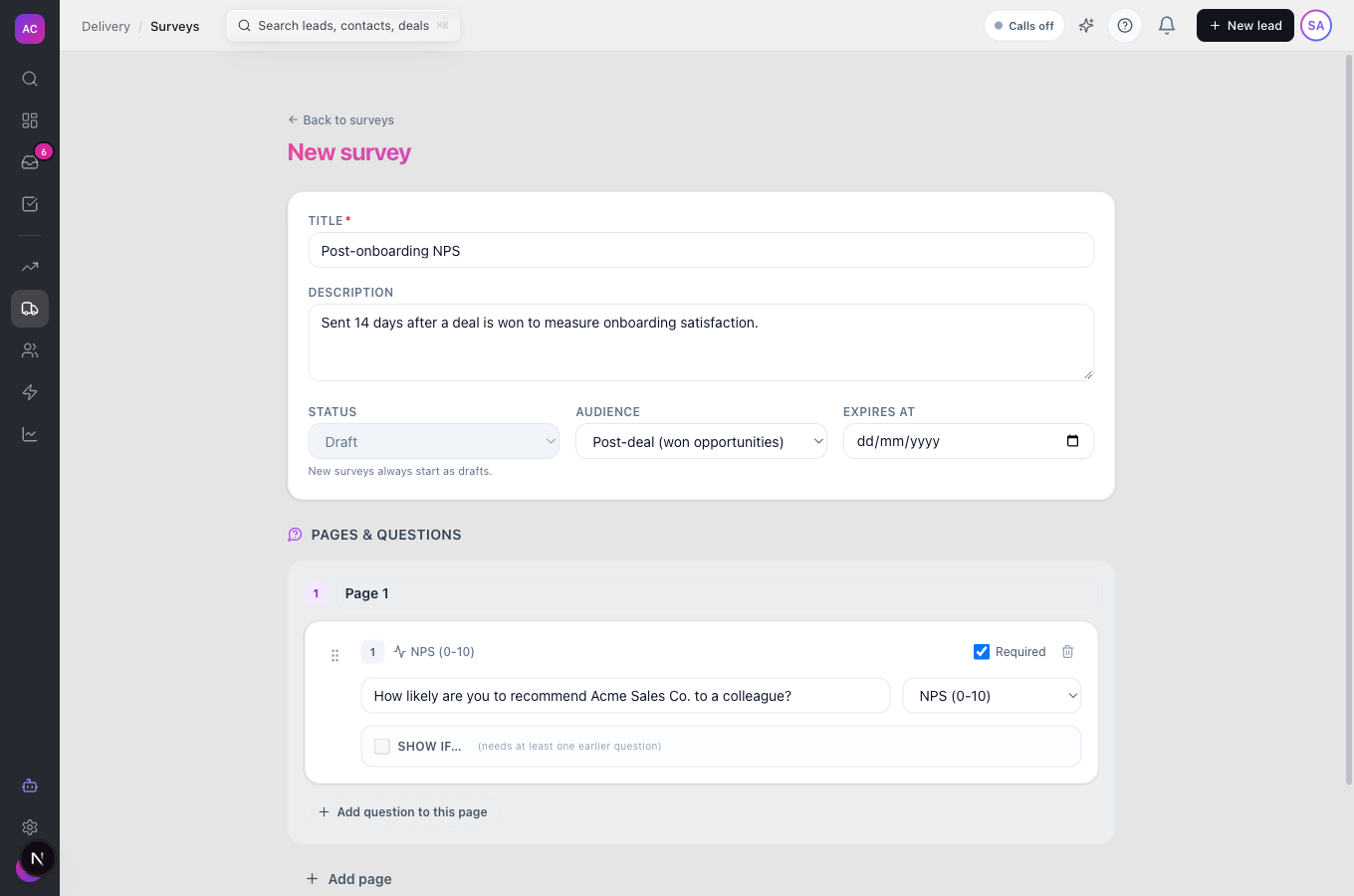
Section titled “Set it up”- Open Surveys in the sidebar and click New survey.
- Enter a Title, such as “Post-onboarding NPS”, and an optional Description that respondents see.
- Pick the Audience. For example, Raj Malhotra picks Post-deal (won opportunities) to ask every newly won customer. Set Expires at if answers should stop after a date.
- Under Pages & questions, click Add question to this page, choose the type and write the prompt. For choice questions add at least two options with Add option. Use Add page to split a long survey.
- Click Create survey. New surveys always start as drafts.
Works the same on mobile.
Use it day to day
Section titled “Use it day to day”- Go live. Open the survey and click Activate.
- Send it. Click Send now and confirm Send this survey now?. The toast tells you how many emails were queued, or “No contacts matched this survey audience.” if nobody qualifies.
- Read the results. The cards show responses, completion, average NPS and average rating. Scroll to Per-question results for charts and to Recent responses to open one answer set.
- Stop collecting. Click Close. Links already sent then show “This survey is no longer accepting responses.”
- Send from a workflow. For Event triggered (workflow only) surveys, add a Send Survey step to a Workflow, paste the survey ID and choose Primary contact only or All contacts.
Rules and limits
Section titled “Rules and limits”| Rule | Value |
|---|---|
| Plans | Growth and Scale |
| Statuses | Draft, Active, Closed |
| Questions | at least 1; choice questions need at least 2 options |
| Title length | up to 500 characters |
| Question text | up to 2,000 characters |
| Who receives it | contacts in the audience who have an email address |
| Send now | available on active surveys, not on workflow-only surveys |
| Expiry | answers are refused after the Expires at date |
| Public submissions | 5 per minute from one network address |
| Who can do what | the role’s Surveys permission; Activate, Close and Send now need Edit |
Troubleshooting and FAQ
Section titled “Troubleshooting and FAQ”There is no Send now button. The survey is still a draft (click Activate), it is closed, or its audience is Event triggered (workflow only), which only sends from a Workflow.
“No contacts matched this survey audience.” Nobody in the chosen audience has an email address, or the audience is empty, for example no opportunity was won yet.
“Question 2 needs prompt text.” Every question needs its prompt filled in before you can save.
A customer says the link shows “This survey has expired.” The Expires at date has passed. Edit the survey and move the date; the link they already have works again.
The Surveys page shows an upgrade message. Surveys are part of Growth and Scale.
Where do ticket satisfaction scores appear? On Tickets → Customer satisfaction, not on the Surveys page.