Custom activity types
In short. A custom activity type is a form for work that is not a call, email or meeting, such as a site visit. An admin defines its fields; reps log it on the lead’s timeline.
Who it is for. Admins who want the same details captured every time, and reps who log that work on their leads.
- Where it lives
- CRM › Activities
- Plans
- SoloEssentialsGrowthScaleEvery plan
- Permission
- Custom Activities
What it does
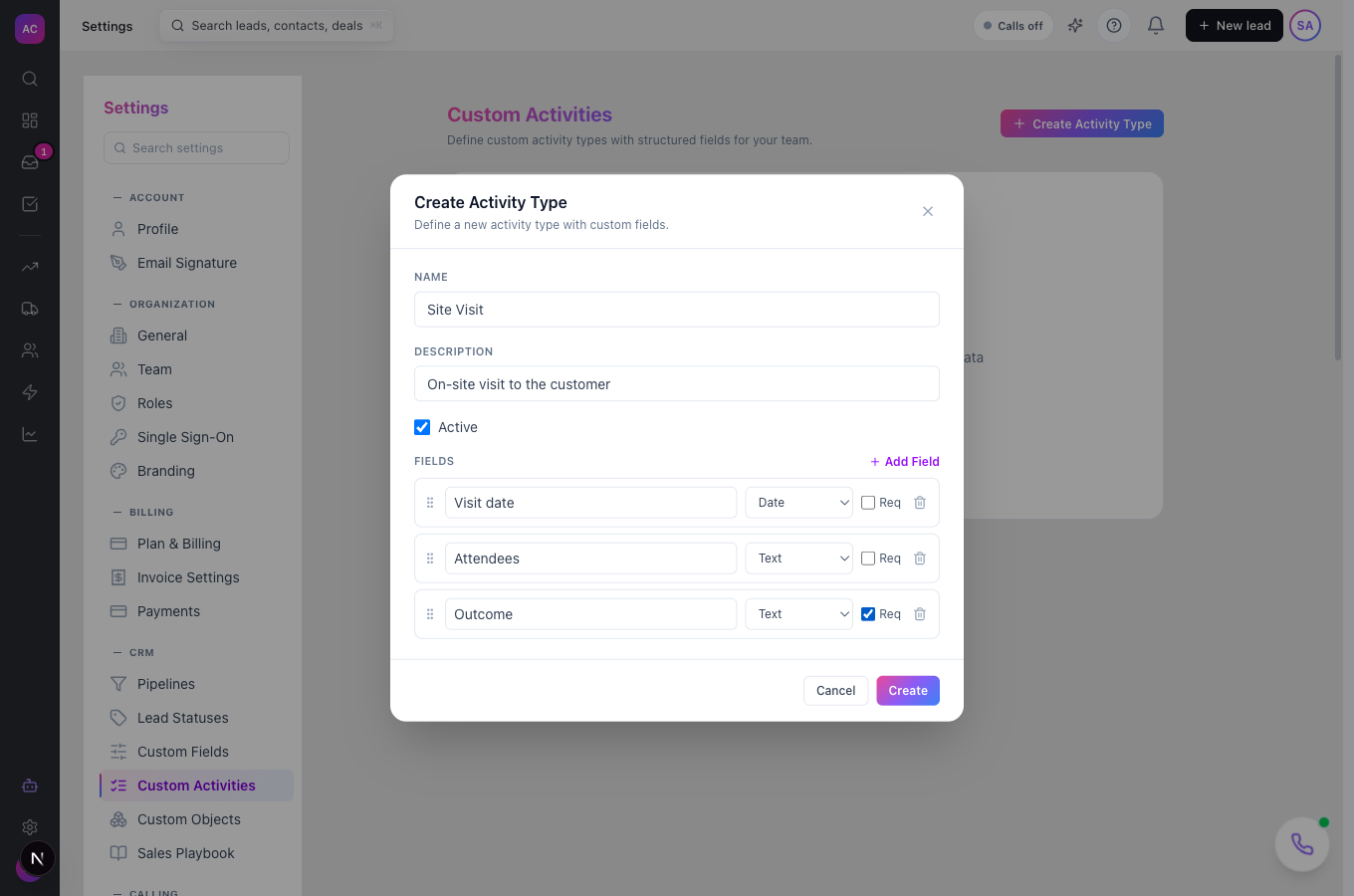
Section titled “What it does”- Lets an admin create activity types with a name, a description and a list of fields, such as “Site Visit” with Visit date, Attendees and Outcome.
- Supports these field types: Text, Number, Date, Boolean, URL, Email and Phone, each with an optional Req (required) tick.
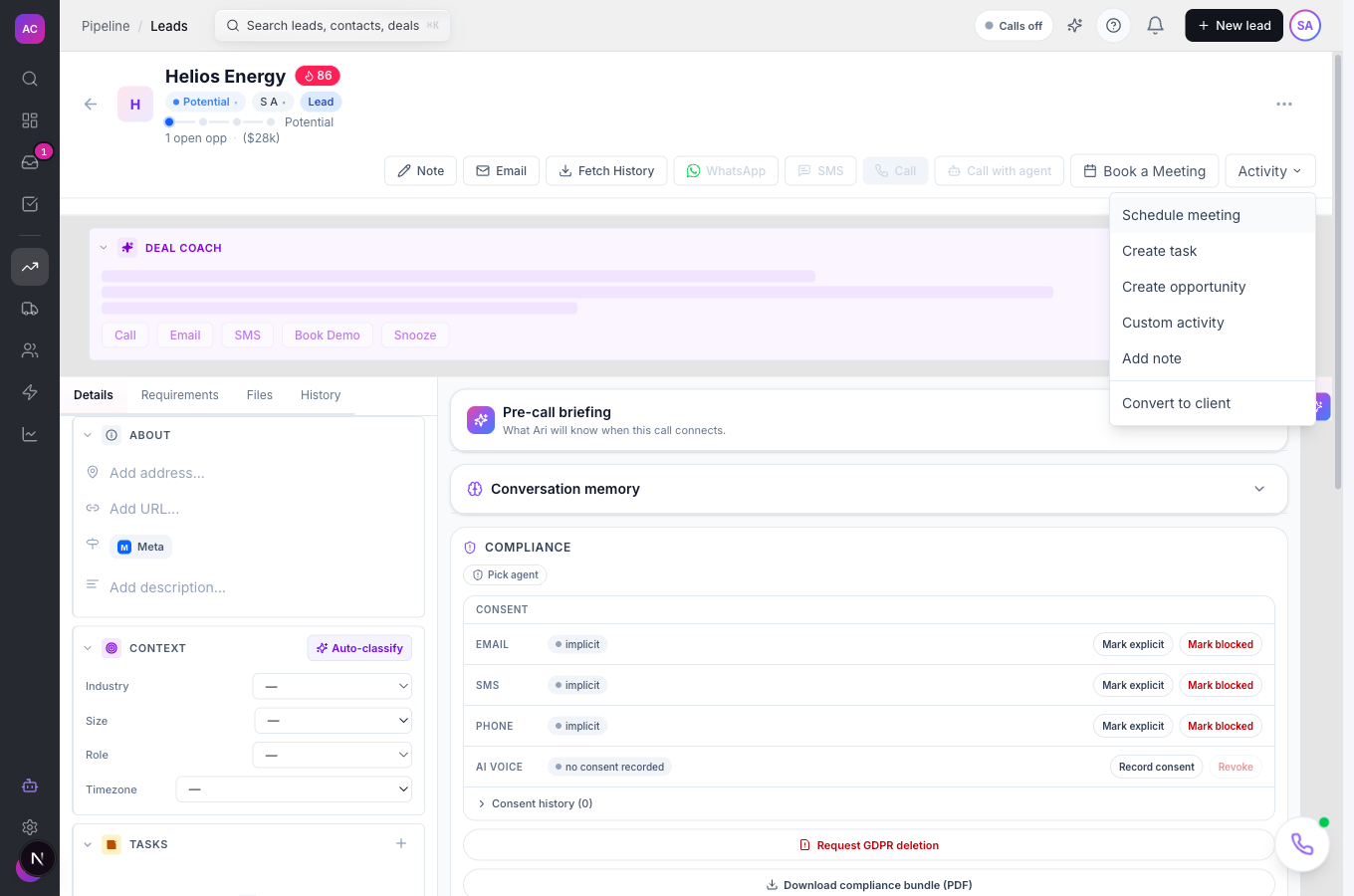
- Adds a Custom activity entry to the Activity menu on every lead page, where reps pick the type, an optional contact, fill the fields and add a note.
- Puts each logged activity on the lead’s timeline with who logged it and when.
- Lists every logged custom activity across all leads under Activities → Custom Activities, with search and a date range.
- Lets you switch a type off with Deactivate so nobody can log it any more, while keeping the history.
What it does not do
Section titled “What it does not do”- It does not support Choice, Multi Choice or Date/Time fields yet. They appear in the field type list, but a type that uses them cannot be saved. Use Text or Date fields instead.
- It does not delete a type that has been used. Once anyone has logged an activity of that type, use Deactivate instead.
- It does not show the custom fields as columns on the Activities page yet. The list shows the lead, the user and the date; open the lead to see the details.
- It is not available on the Solo plan, even though the Activities item appears in the sidebar. Upgrade to Essentials or above to define and log custom activity types.
Set it up
Section titled “Set it up”- Open Settings → Custom Activities.
- Click Create Activity Type.
- Enter a Name, for example “Site Visit”, and an optional Description. Leave Active ticked.
- Click Add Field for each detail you want captured. Type the field label, pick its type, and tick Req if it must be filled in. Drag the handle to change the order.
- Click Create. The type appears in the list with its field count.
Works the same on mobile.
Use it day to day
Section titled “Use it day to day”Log an activity on a lead. Tom Fischer visits Helios Energy. He opens the lead, clicks Activity in the action bar and chooses Custom activity. In the Log Custom Activity panel he picks Site Visit as the Activity Type, chooses the contact he met, fills in the fields and a Note, then clicks Add activity. A “Site Visit activity logged” message confirms it, and the entry appears on the timeline.
Review the team’s activity. Open Activities in the sidebar and click Custom Activities. Search, or set a Start date and End date to see what was logged in a week. Click the lead name in a row to open that lead at the activity.
Change a type. In Settings → Custom Activities, click Edit on the type. You can rename it, add fields, reorder them and change the Req ticks. You cannot remove a field that existing activities already use.
Retire a type. Click the toggle to Deactivate it. It disappears from the Activity Type list on leads, and past entries stay on the timelines. Click Activate to bring it back.
Rules and limits
Section titled “Rules and limits”| Rule | Value |
|---|---|
| Plans | Essentials, Growth, Scale |
| Name length | 1 to 50 characters in the dialog |
| Description length | up to 200 characters in the dialog |
| Field labels | must be unique within a type |
| Required fields | checked when you click Add activity |
| Inactive types | hidden from the lead page; cannot be logged |
| Removing a used field | refused while activities use it |
| Deleting a used type | refused; deactivate instead |
| Who can manage types | roles with the Custom Activities Create, Edit or Delete permission |
| Who can log an activity | anyone who can create leads and view the activity types |
| Rows per page on the Activities list | 50 |
Troubleshooting and FAQ
Section titled “Troubleshooting and FAQ”“Cannot delete custom activity type … Deactivate instead.” Someone has logged an activity of that type. Use the toggle to Deactivate it; the history stays.
“Cannot remove field(s) … they are used in N existing activities.” That field holds data on past activities. Keep the field, or rename it if its meaning has changed.
Saving a type fails after adding a Choice or Date/Time field. Those field types cannot be saved from this screen yet. Change the field to Text or Date and save again.
A rep cannot see Custom activity types in the panel. Their role needs to view the Custom Activities settings at the All level. Ask an admin to check it under Settings → Roles.
I am on Solo and the Activities page shows nothing for Custom Activities. Custom activity types need the Essentials plan or above. See Settings → Plan & Billing.