Custom objects
In short. A custom object is a record type you design yourself, such as Properties, Vehicles or Licences. An admin defines its fields once; your team then creates, searches and edits records on its own list page.
Who it is for. Admins who need the CRM to hold something besides leads, contacts and deals, and the team members who keep those records up to date.
- Where it lives
- CRM › Custom ObjectsSettings › CRM › Custom Objects
- Plans
- SoloEssentialsGrowthScale
- Permission
- Custom Objects
What it does
Section titled “What it does”- Lets an admin create object types with a singular and plural name, such as “Licence” and “Licences”, and a permanent API identifier.
- Supports eleven field types: Text, Number, Date, Boolean, Choice, Multi Choice, Rich Text, URL, Email, Phone and Reference.
- Links records to a lead, contact or opportunity, or to another custom object, with a Reference field.
- Gives each field behaviour flags: Required, Unique, Filterable, Indexed, Sortable and Searchable, plus Restrict Editing by role.
- Adds a Custom Objects page to the sidebar with one card per object type, and a list page per type with search, filters, sorting and paging.
- Archives instead of deleting, for both object types and records, so nothing is lost by accident.
What it does not do
Section titled “What it does not do”- It does not show linked custom records on the lead, contact or opportunity page yet. Open the custom object’s list to find records that point at a lead.
- It does not let you restore an archived record from the app yet. Archived object types can be restored; archived records stay hidden.
- It does not keep a timeline, notes or tasks on a custom record in the app yet.
- It does not change an API identifier after creation. Pick it carefully.
- It is not on the Solo or Essentials plans.
Set it up
Section titled “Set it up”- Open Settings → Custom Objects and click New Object Type.
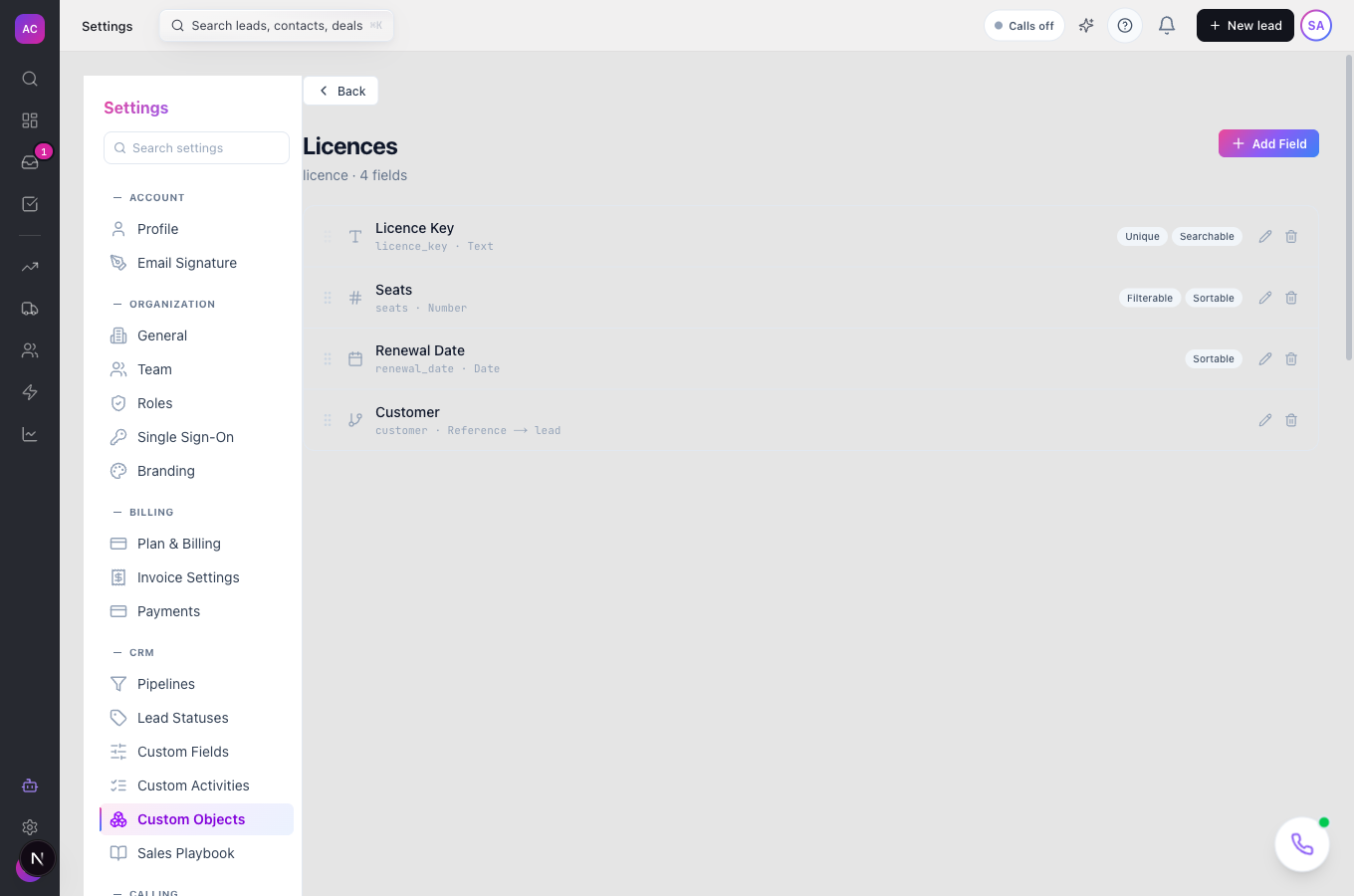
- Fill in Singular Label (“Licence”), Plural Label (“Licences”) and API Identifier (“licence”). Optionally add an Icon and a Description. Click Create.
- Click the new card to open its fields, then click Add Field.
- Enter a Label, for example “Licence Key”, and pick a Type. For a Reference field, choose a Reference Target: a standard entity such as Lead, or another custom object.
- Under Behaviour, tick the flags you need. Tick Searchable on the fields people will type into the search box, and Filterable on the ones they will filter by. Click Add Field.
- Repeat for each field. Use the up and down arrows to set the order.
Works the same on mobile.
Use it day to day
Section titled “Use it day to day”Create a record. Nina Alvarez sells Orbit Payments a software licence. She opens Custom Objects in the sidebar, clicks Licences, then New Licence. She fills in the fields, picks Orbit Payments in the Customer reference field, and saves. A “Record created” message confirms it.
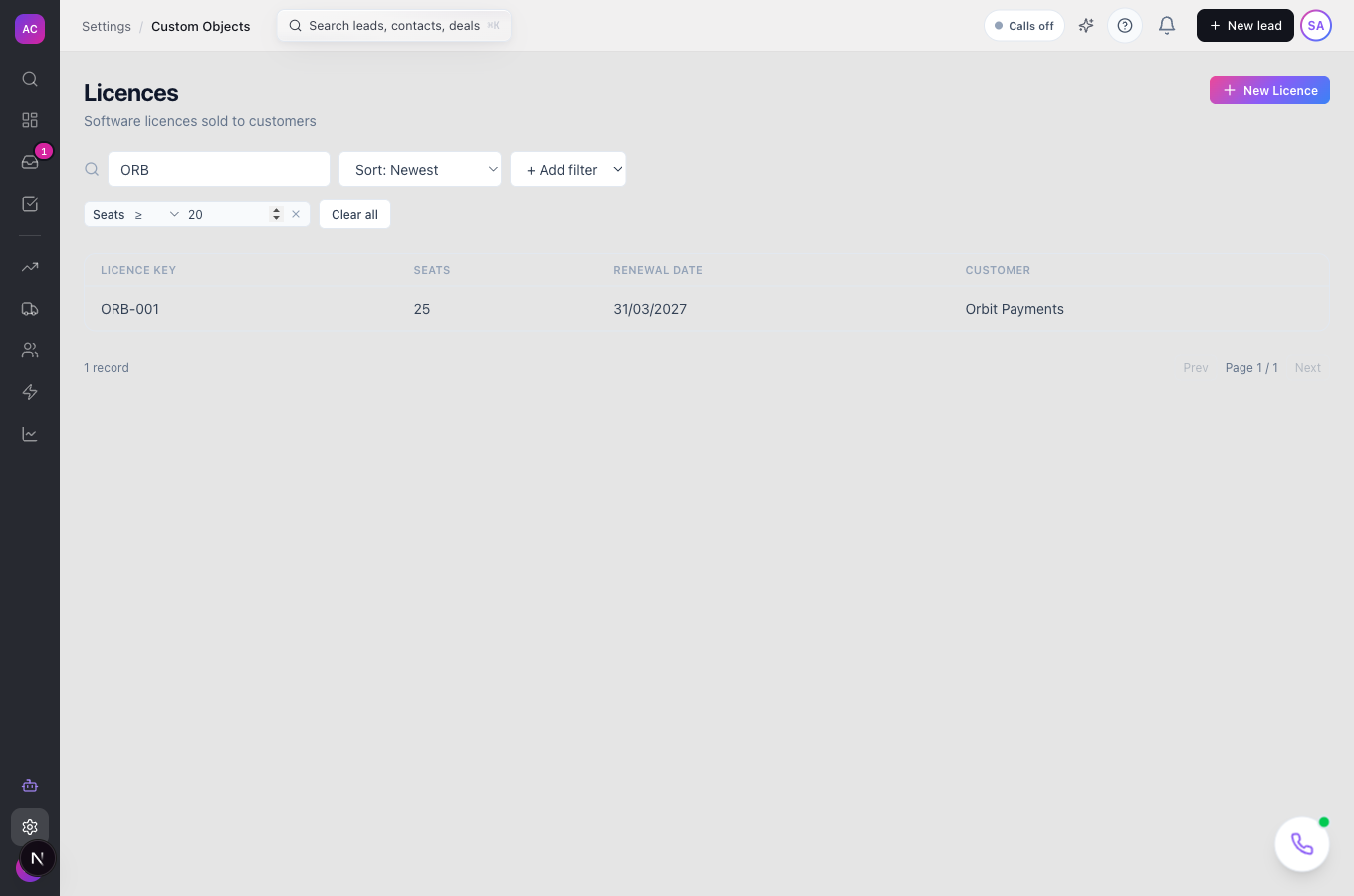
Find records. On the list page, type in Search… to match searchable fields, use + Add filter to narrow by a filterable field, and change Sort: Newest to sort by a sortable field. Clear all removes the filters.
Edit a record. Click a row, then Edit. Change the values and save.
Archive a record. Open it and click Archive, then confirm. It disappears from the list.
Retire an object type. In Settings → Custom Objects, click Archive on its card. Its records become read-only and the type leaves the sidebar page. Click Restore to bring it back.
Rules and limits
Section titled “Rules and limits”| Rule | Value |
|---|---|
| Plans | Growth, Scale |
| API identifier | 3 to 50 characters, lowercase letters, digits and underscores, starts with a letter; cannot be changed; common names such as lead or contact are reserved |
| Singular and plural labels | up to 100 characters |
| Fields per object type | up to 200 |
| Indexed fields per object type | up to 20 (Filterable fields count, because they are always indexed) |
| Choices per field | up to 500 |
| Reference targets | Lead, Contact, Opportunity or another custom object; one record per field |
| Records per page | 25 |
| Who can design object types | roles with the Custom Objects Manage Schema permission |
| Who can work with records | roles with the Custom Objects view, Create, Edit and Delete permissions |
Troubleshooting and FAQ
Section titled “Troubleshooting and FAQ”I cannot tick Searchable or Sortable on a field. Some types cannot be searched or sorted. The reason shows in small text under the box, for example “Only text-like fields can be searched”.
My API identifier is refused. It breaks the pattern or uses a reserved name. Use lowercase letters, digits and underscores, start with a letter, and avoid names the CRM already uses.
The list says no records match, but I know there are some. A filter or search is still applied. Click Clear all.
I archived a record by mistake. It is not deleted, but there is no restore button yet. Contact support to bring it back.
The Custom Objects page will not load for a teammate. Listing object types needs the Custom Objects view permission at the All level. Check their role under Settings → Roles.