Import leads
In short. Click Import on the Leads page, drop in your spreadsheet, match its columns to CRM fields, pick a duplicate rule, and the leads appear with their contacts and tags. Coming from another CRM? There is a separate tool under Settings.
Who it is for. Whoever holds the spreadsheet. Anyone who can create leads can import.
Prepare the file
Section titled “Prepare the file”- CSV or Excel (.xlsx), up to 10 MB and 10,000 rows.
- One row per lead. A Lead Name column is required; everything else is optional.
- Columns you can map: Lead Name, Contact Email, Contact Phone, Contact First Name, Contact Last Name, Contact Title, Website, Source, Description, Tags (comma-separated), Street Address, City, State / Province, Zip / Postal Code, Country.
- Headers named sensibly, such as “email”, “phone”, “company” or “first name”, are matched for you.
Run the import
Section titled “Run the import”- Open Leads and click Import.
- Drag your file onto Drag and drop your CSV or Excel file here, or click Choose File.
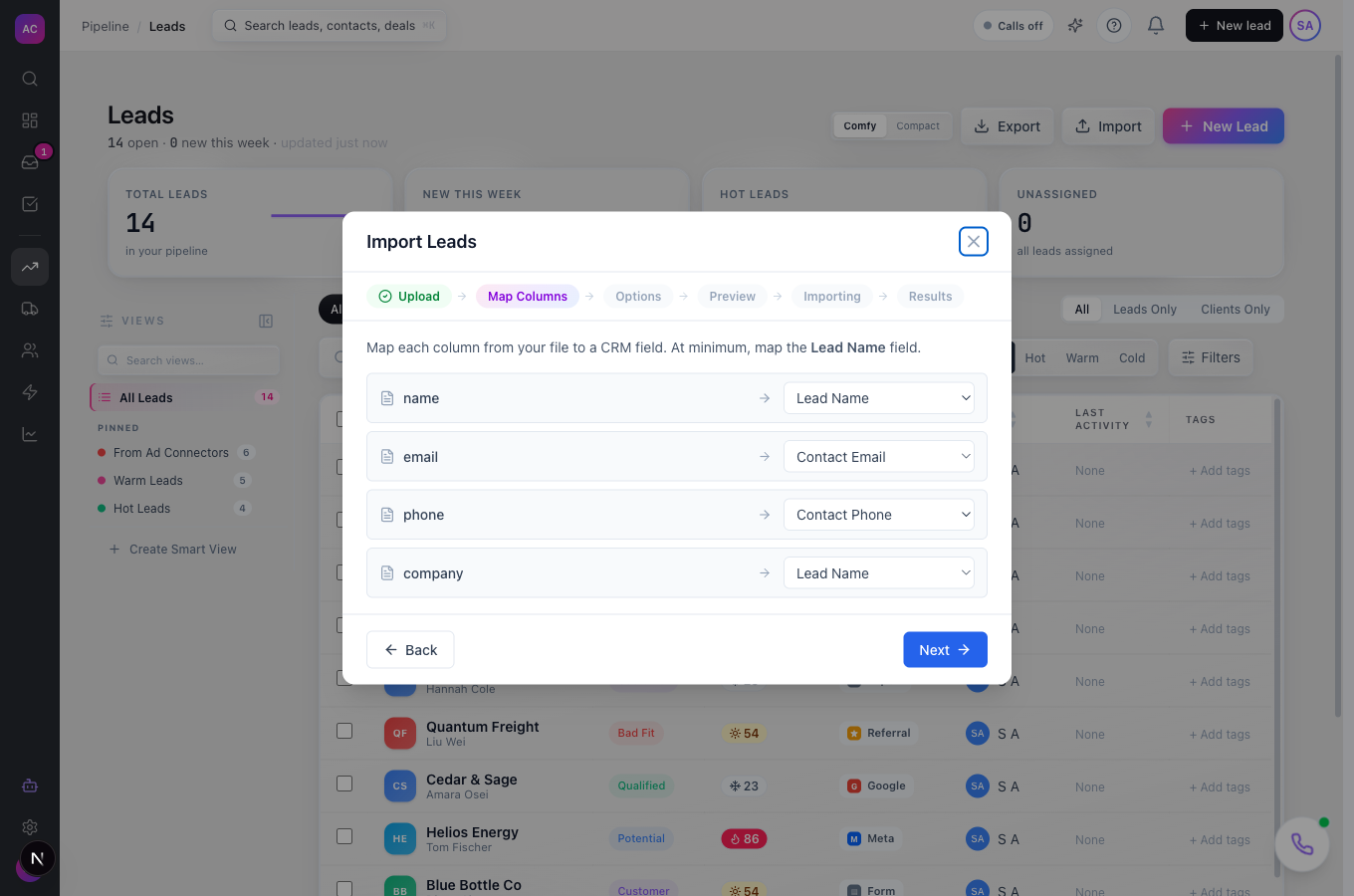
- Mapping. Each column shows the CRM field it will fill. Fix any that say – Skip this column – if you need them, and make sure Lead Name is mapped.
- Options. Choose what happens When a duplicate is found (by email or phone): Skip the row, Update existing to overwrite that lead’s fields, or Create new to import everything without checking. Pick a Default Lead Status and a Default Lead Owner.
- Preview shows the first five rows as they will land. Click Start Import.
- Watch Importing leads… count the rows. The Import Complete screen shows Imported, Updated, Skipped and Errors, with a row-by-row table and Download Error Report.
How duplicates are found
Section titled “How duplicates are found”A row counts as a duplicate when its contact email matches an existing contact exactly (case does not matter), or, failing that, when the phone number matches after ignoring spaces and punctuation. Company names are never used for matching, so two rows with the same company and different emails become two leads.
Rules and limits
Section titled “Rules and limits”| Rule | Value |
|---|---|
| File | CSV or .xlsx, 10 MB, 10,000 rows |
| Required column | Lead Name |
| Imported contact | one per row, marked as the lead’s primary contact |
| Tags | created if they do not exist yet |
| Errors kept | the first 1,000; others still stop their own row only |
| Undo | none; choose Skip for duplicates when unsure, and export first if you plan to use Update existing |
Coming from another CRM
Section titled “Coming from another CRM”Settings → Import from CRM connects to your old system with an API key, tests the connection, and imports leads, secondary contacts, activities, tasks and opportunities. Imports can be rerun without creating duplicates. Today the tool supports Close; other systems are listed but not yet enabled. Activities and opportunities can take 30 to 60 minutes to arrive.
Troubleshooting
Section titled “Troubleshooting”“File contains no column headers”. The first row must be the header row. Remove any title rows above it.
“At least the name field must be mapped”. Map one column to Lead Name on the mapping step.
Many rows show Skipped. They matched existing contacts by email or phone and your duplicate rule was Skip. Rerun with Update existing if you want their fields refreshed.
Phones did not match as duplicates. Numbers shorter than seven digits are ignored for matching.