AI voice agents
In short. An AI voice agent is a phone agent, running on Retell, that you set up with a prompt, a voice and rules. It calls one lead on demand, or works through a list in a paced outbound campaign.
Who it is for. Admins who set up the agents and the provider connection, and sales managers who run and watch outbound campaigns.
- Where it lives
- CRM › Campaigns
- Plans
- SoloEssentialsGrowthScale
- Permission
- No special permission needed
What it does
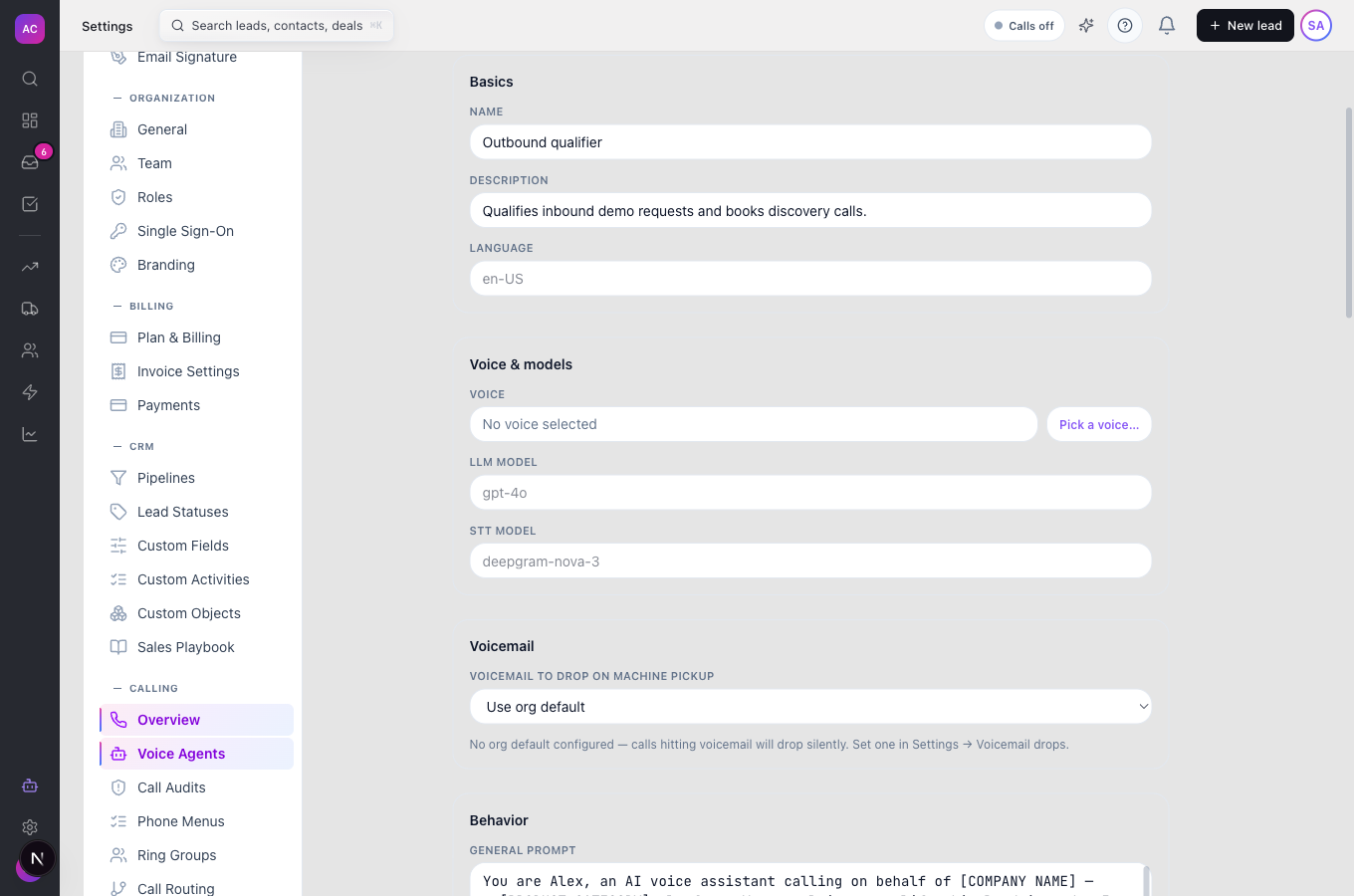
Section titled “What it does”- Lets you create agents under Settings → Voice Agents with a name, language (one, several, or Automatic detection), voice, language model, speech-to-text model, a General prompt and a Begin message.
- Shapes how the agent behaves: hang up when the conversation is done, hang up after a silence, cap the call length, how easily the caller can interrupt, booking rules, transfer rules for hot calls, fallback lines when something fails, and pacing and voice style.
- Drops a recorded voicemail when the call reaches an answering machine.
- Creates a pipeline deal for the lead when a call ends qualified or with a booked meeting, if you turn on Create a pipeline deal on a qualified call.
- Places a single live call from the lead page with Call with agent, and a Test call to your own phone from the editor.
- Runs outbound Campaigns over a smart view or a fixed list of leads, with a call goal, a purpose (marketing, informational or transactional), a calling window, a concurrency limit, a calls-per-minute limit, optional adaptive pacing and automatic pause when too many calls are abandoned.
- Skips any call that breaks a rule: no AI-voice consent for a marketing campaign, outside the calling window, do-not-call, or a blocked jurisdiction. See Compliance controls.
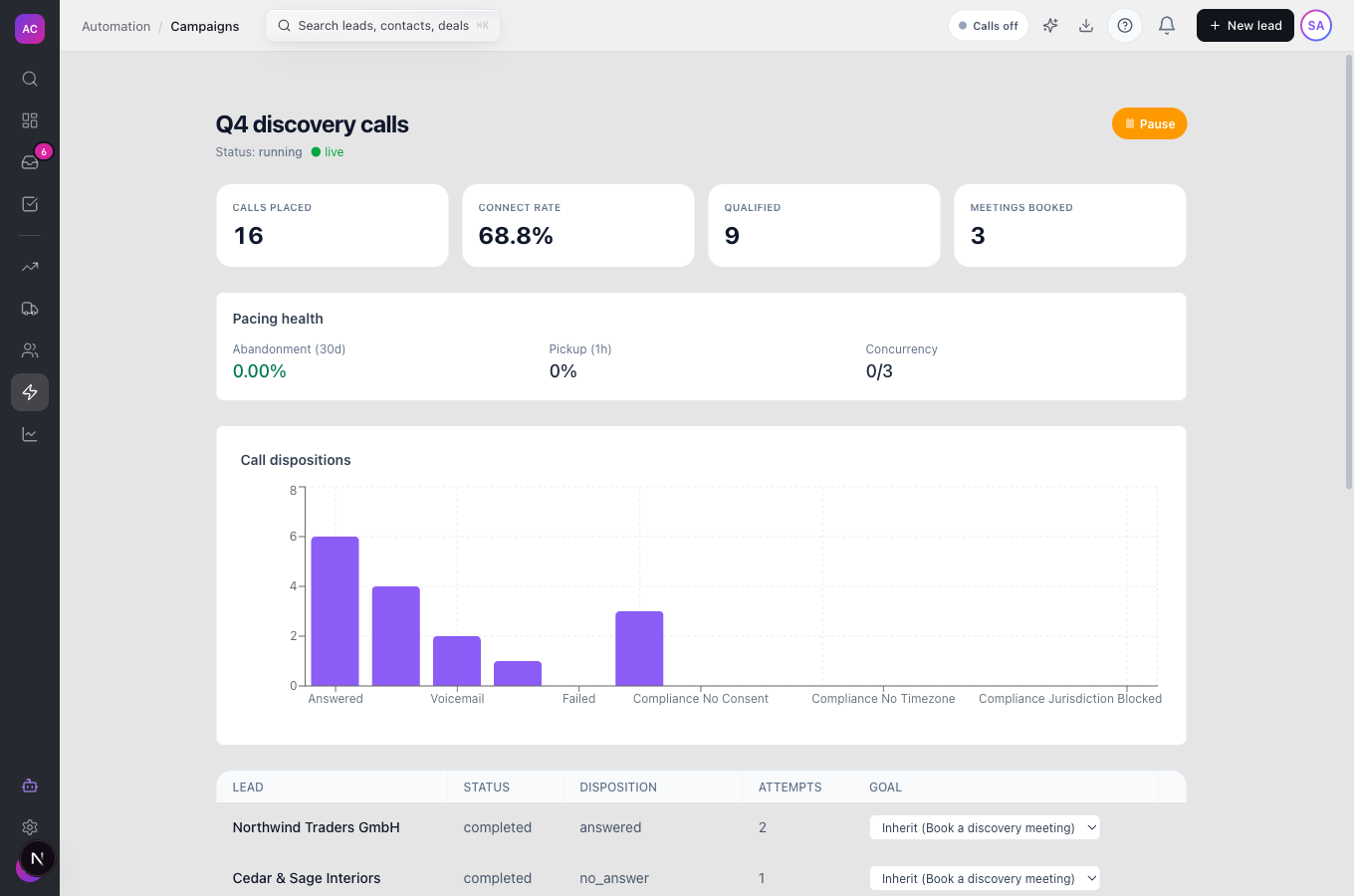
- Shows each campaign’s calls placed, connect rate, qualified leads and meetings booked, and lets a manager Listen to live call.
- Keeps a prompt history per agent and an analytics page with sentiment, quality signals, top objections and phase completion.
- Can answer inbound calls on a number when a routing rule sends them to the agent. See Calling and power dialer.
Parts of the app call the voice agent “Ari”. That is the product’s name for it; your agent’s own name is the one you set in Name.
What it does not do
Section titled “What it does not do”- It does not work without your own Retell account. You connect it with an API key, and phone numbers must be connected to Retell before an agent can call from them.
- It does not let you pick leads by name for a fixed campaign list yet. Static lead list takes lead IDs separated by commas; use a smart view instead where you can.
- It does not write the legally required AI disclosure for you. You put it in the prompt and tick the attestation; the agent cannot check that it was said correctly.
- It does not place marketing calls outside 8 AM to 9 PM in the lead’s local time, whatever the campaign says.
- It is not part of the AI Team. AI Team agents propose calls for a human to approve; voice agents place them.
Set it up
Section titled “Set it up”- Open Settings → Voice Agents. If you see “Connect Retell to get started”, open the provider page and enter your Retell API key, the webhook secret and the default voice and models. Add your Twilio details if you also use the browser dialer or your own SIP trunk. Click Validate connection, then Save configuration; you should see “Provider configuration saved.”
- On the same provider page, under Phone numbers, click Connect to Retell next to each number the agents may use. It then shows Connected.
- Back on Voice Agents, click New agent. Fill in Name (for example “Outbound qualifier”), the language, voice and models.
- Write the General prompt: who the agent calls for, what to ask and when to hang up. Start the Begin message with who is calling and why. Click Preview prompt to check the filled-in version.
- Under Compliance, tick the box confirming your prompt contains the AI disclosure. Under Call termination, keep Enable end_call function tool on and leave the default silence and duration limits unless you have a reason.
- Save, click Test call, enter your own number and click Call me. When it sounds right, click Activate.
Works the same on mobile.
Use it day to day
Section titled “Use it day to day”Call one lead. Open the lead, for example Summit Logistics, click Call with agent, pick the Agent and From number, and click Start call. You see “Agent call started” and the agent dials straight away.
Run a campaign. Open Campaigns in the sidebar and click New Campaign.
- Target list: enter a Campaign name such as “Q4 discovery calls” and pick a Smart view.
- Agent & number: choose the Voice agent, the From number, the Campaign purpose and a Call goal such as “Book a discovery meeting”.
- Pacing & launch: set Max concurrent calls and Calls per minute, the calling window in Quiet hours start and Quiet hours end (calls are placed between these hours, in each lead’s local time), keep Respect Do-Not-Call list on, then click Launch, or Save as draft to launch later.
Watch it. Open the campaign to see Calls Placed, Connect Rate, Qualified and Meetings Booked, and the pre-call briefing for the next leads. Click Listen to live call to hear a call in progress. Use Pause and Resume from the campaign list or the campaign page.
When it auto-pauses. If the share of abandoned calls passes the Auto-pause threshold (%), the campaign stops and shows “Campaign auto-paused”. Lower the pace, then click Resume campaign.
Rules and limits
Section titled “Rules and limits”| Rule | Value |
|---|---|
| Plans | Growth and Scale |
| Prompt length | up to 20,000 characters |
| Begin message | up to 2,000 characters |
| Silence before hanging up | default 15 seconds, up to 10 minutes |
| Maximum call length | default 5 minutes, up to 1 hour |
| Interruption sensitivity | 0 (never) to 1 (stops on first word), 0.7 typical |
| Concurrent calls per campaign | 1 to 50, default 3 |
| Calls per minute | 1 to 60 in the wizard, default 10 |
| Marketing calling window | 8 AM to 9 PM in the lead’s local time, at most |
| Abandonment | warning default 2.5 percent, automatic pause at 3 percent at most |
| Marketing consent | each lead needs AI-voice marketing consent before it is dialled |
| Permissions | Voice Agent: Create, Edit, Delete, Dial (place calls), Manage Numbers; provider settings need Settings Edit; listening needs Calling Listen Live |
Troubleshooting and FAQ
Section titled “Troubleshooting and FAQ”“Voice provider is not fully configured.” The Retell connection is missing a key or setting. Click Configure provider settings in the message and complete the provider page.
“No Retell-connected phone numbers”. Open the provider page and click Connect to Retell on a number.
“No active agents — create and activate one first”. Agents start as drafts. Open the agent and click Activate.
The campaign runs but most leads are skipped. For a marketing campaign, leads without AI-voice consent are skipped. Record consent first, or use an informational or transactional purpose if that truly describes the call.
Calls hit voicemail and nothing is left. No voicemail recording is set. Pick one under Voicemail, or set a default under Settings → Voicemail Drops.
The editor warns “Calls won’t terminate automatically.” Turn on Enable end_call function tool or set a silence timeout.