Email templates
In short. An email template is a saved subject and body. You write it once under Settings → Email, then insert it into an email to a lead and adjust it before you press Send.
Who it is for. Reps who send the same follow-up, recap or introduction many times a week and want to start from a good draft.
- Where it lives
- Settings › MESSAGING › EmailSettings › MESSAGING › SMS Templates
- Plans
- SoloEssentialsGrowthScaleEvery plan
- Permission
- Email Templates
What it does
Section titled “What it does”- Stores templates with a name, a subject and a formatted body: bold, italic, underline, strikethrough, bulleted and numbered lists, quotes and links.
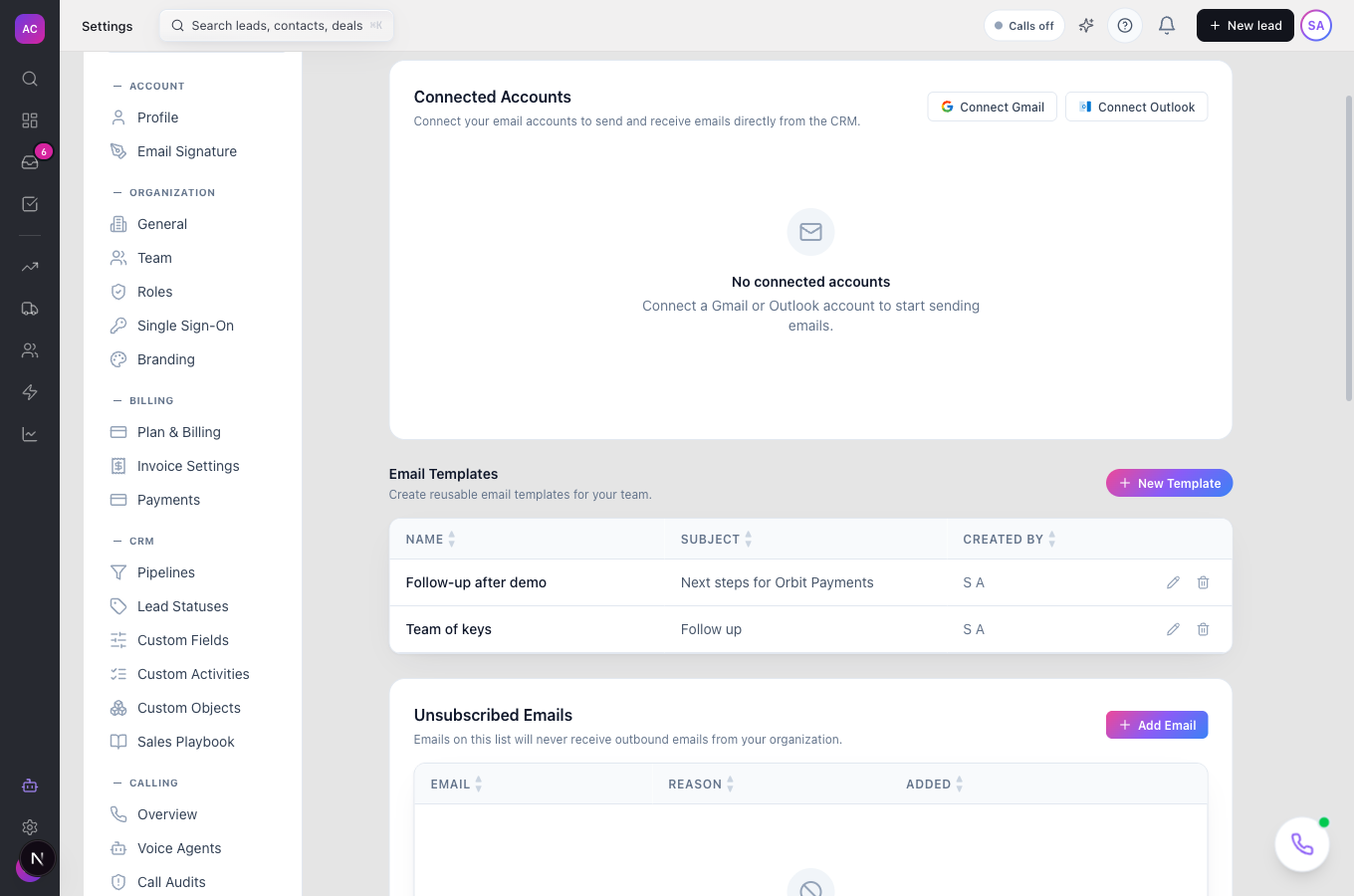
- Lists your templates in the Email Templates section of Settings → Email, with the name, the subject and who created each one.
- Adds a Templates menu to the email composer on a lead. Picking a template fills in the subject and replaces the body, which you can then edit freely.
- Records which template an email started from, so sends can be attributed to the template.
- Cleans the body of unsafe HTML when you save it.
What it does not do
Section titled “What it does not do”- It does not share templates with your team from the screen. A template you create is visible to you; there is no share switch in the dialog yet. See the FAQ.
- It does not fill in placeholders for you. Text such as
{{first_name}}that you add from the composer’s Variables menu is sent exactly as typed. Replace it by hand before you send. - It does not plug into Sequences or Workflows. Their email steps have their own subject and body fields; see Outreach sequences and Workflows.
- It has no folders, categories or search on the settings screen, and no headings, images or attachments inside a template.
Set it up
Section titled “Set it up”There is nothing to switch on. Anyone whose role can create email templates can add one; the built-in Admin, Manager and Employee roles all can.
- Open Settings, then Email under Messaging.
- Scroll to Email Templates and click New Template. If the list is empty, click Create Template instead.
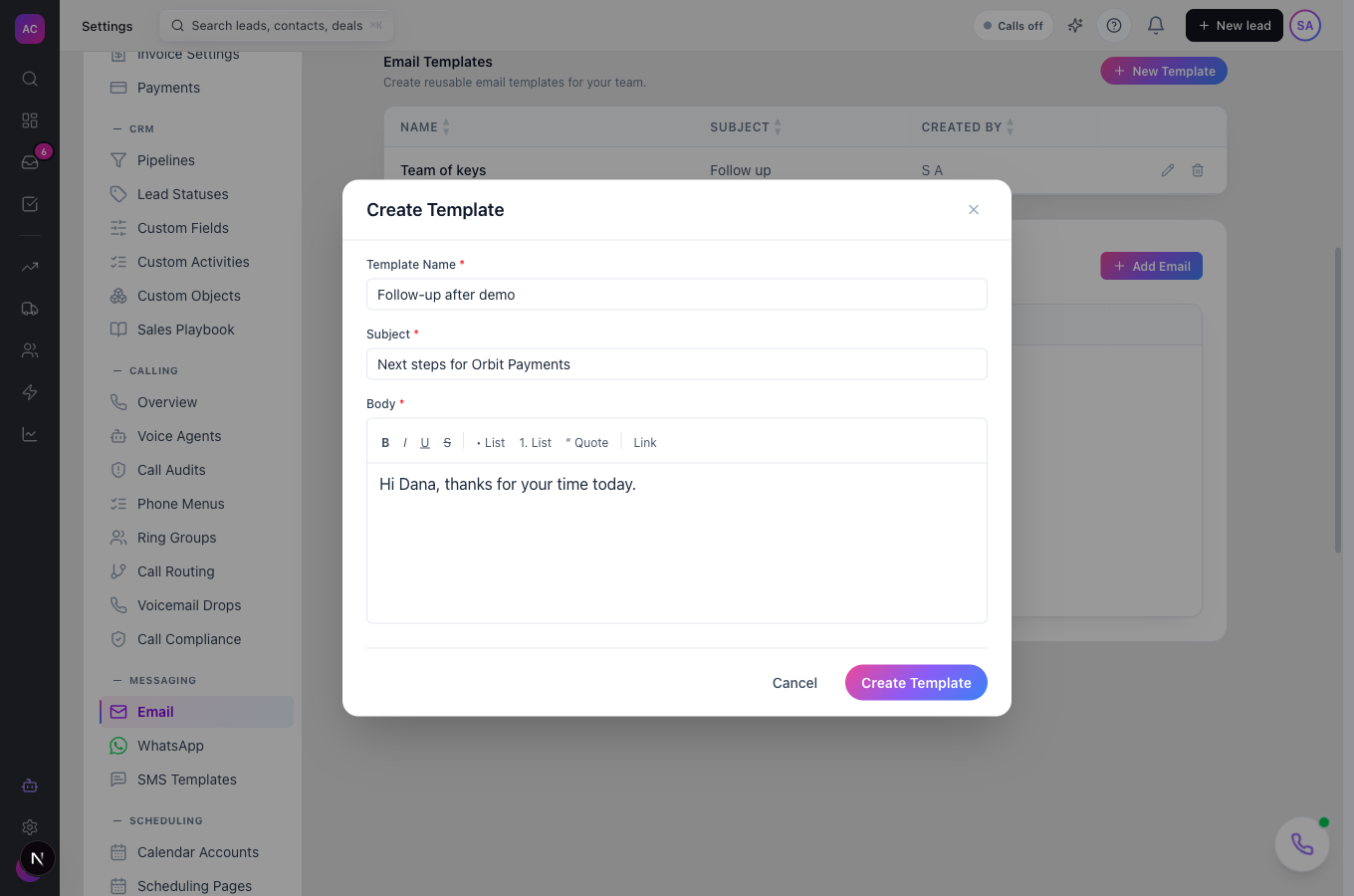
- Enter a Template Name that your future self will recognise, for example “Follow-up after demo”.
- Enter the Subject, for example “Next steps for Orbit Payments”.
- Write the Body. Use the toolbar for bold, lists, quotes and Link.
- Click Create Template. A “Template created” message confirms it and the template appears in the list.
Works the same on mobile.
Use it day to day
Section titled “Use it day to day”Start an email from a template
Section titled “Start an email from a template”- Open the lead, for example Summit Logistics, and start an email as you normally do. See Email for the composer.
- Click Templates in the bar above the body and pick a template. The subject and body are replaced with the template’s.
- Personalise the greeting and any details, then send.
The Templates menu only appears once you have at least one template.
Change or remove a template
Section titled “Change or remove a template”- Edit. In Settings → Email, click the pencil next to the template, change it in the Edit Template dialog and click Update Template. Emails already sent are not affected.
- Delete. Click the bin, then Delete in the confirmation. This cannot be undone. In the built-in roles only Admin can delete templates.
Rules and limits
Section titled “Rules and limits”| Rule | Value |
|---|---|
| Template name | 1 to 100 characters |
| Subject | 1 to 500 characters |
| Body | required; text formatting, lists, quotes and links |
| Templates shown in the list and the composer | up to 100 |
| Who sees a template | the person who created it |
| Who can create and edit | built-in Admin, Manager and Employee roles |
| Who can delete | built-in Admin role, or any role given Delete for Email Templates |
| Plans | all plans |
Troubleshooting and FAQ
Section titled “Troubleshooting and FAQ”My colleague cannot see the template I made. Templates are personal. There is no control to share one with the team yet. Your colleague can create the same template under their own login.
The recipient saw {{first_name}} in my email. Placeholders are not filled in automatically when you send from the composer. Before sending, replace each placeholder with the real name or detail.
I do not see a Templates button in the composer. It is hidden until you have saved at least one template. Create one under Settings → Email.
I cannot see the Email page in Settings. Your role needs the view permission for Email Templates. Ask an admin to check your role under Roles and permissions.
Can I use a template in a sequence? Not yet. Copy the subject and body into the sequence step instead.