Customers
In short. A client is a lead you have won. It keeps the same record and history, gets a green Client badge, and appears on the Clients page. Account managers see their own clients, with a health score, under My Clients.
Who it is for. Reps who close deals, account managers who look after clients after the sale, and admins who decide who can see them.
- Where it lives
- CRM › Clients
- Plans
- SoloEssentialsGrowthScaleEvery plan
- Permission
- Customers
What it does
Section titled “What it does”- Marks a lead as a client, either by hand with Convert to Client or automatically when one of its opportunities moves to a Won status.
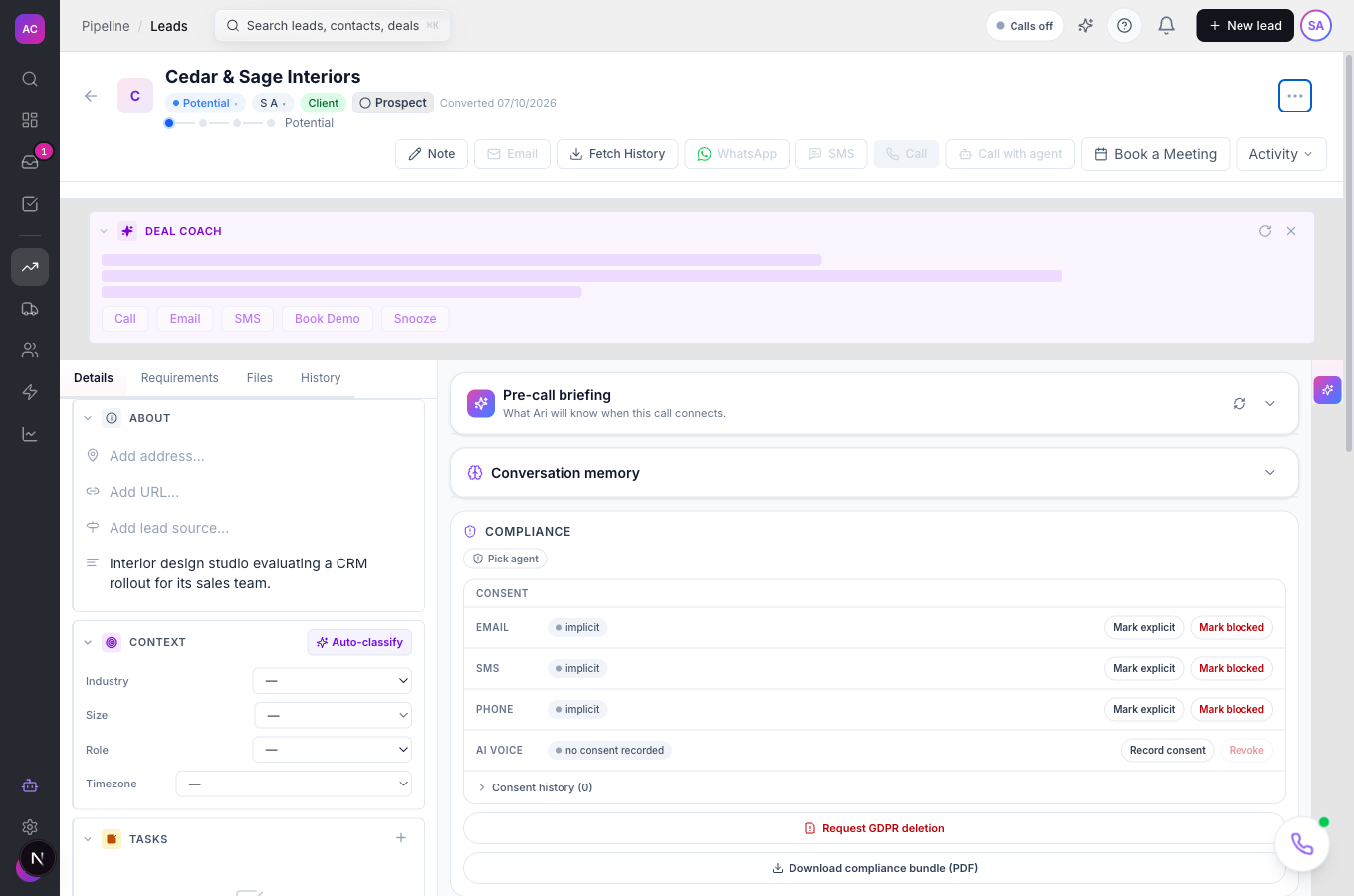
- Keeps everything on one record: contacts, emails, calls, notes, opportunities and invoices stay where they were. The lead page shows a Client badge and the date it was converted, with “(auto)” when a won deal did it.
- Lists every client on the Clients page, with the same filters, Smart Views, sorting and bulk actions as the Leads list.
- Lets you create a client directly with New Client, for customers who never went through your pipeline.
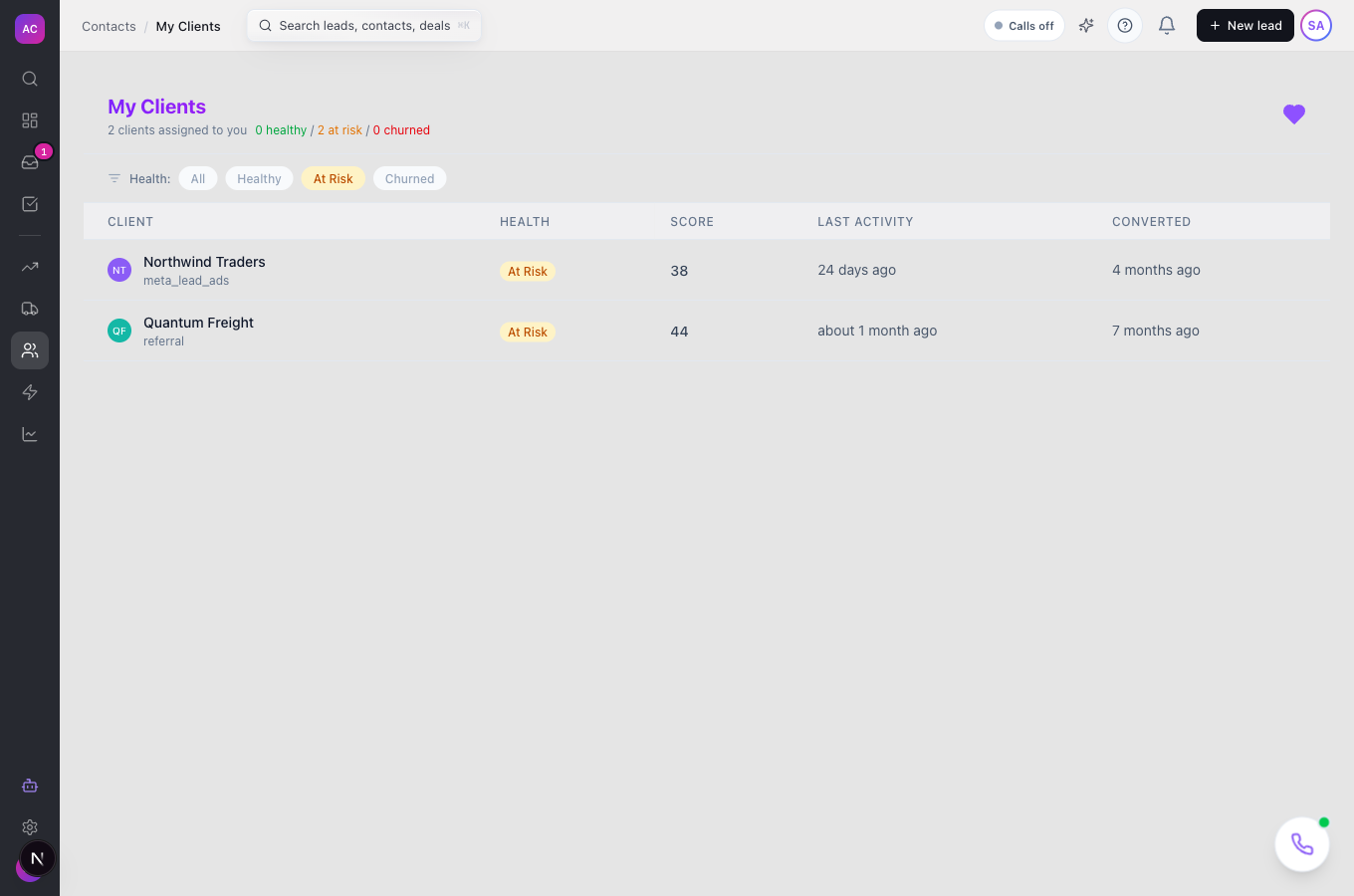
- Assigns an Account Manager per client, and shows each account manager their own book on My Clients.
- Scores each client’s health from 0 to 100 and labels it Healthy, At Risk or Churned.
- Starts any Workflow that uses the “lead converted to client” trigger, for example a welcome email or an onboarding task.
What it does not do
Section titled “What it does not do”- It does not create a separate customer record. A client is a lead with a flag, so it opens on the lead page and keeps its lead URL.
- It does not have a screen for automatic account manager rules yet. Assign account managers by hand.
- It does not rename lead actions for clients. The record’s menu still says Edit Lead and Merge Lead.
- It does not delete anything when you revert a client to a lead. Only the flag changes.
Set it up
Section titled “Set it up”There is nothing to switch on. Clients are available on every plan.
- Check who should see the sidebar items. Open Settings → Roles and make sure the role has the Customers permission. Because clients are leads, the role also needs the matching Leads permissions to open, create and edit them.
- Optionally, add a Workflow with the “lead converted to client” trigger so every new client gets the same welcome steps. See Workflows.
- Make sure your pipelines have a Won status. Opportunities that reach it convert their lead automatically. See Opportunities.
Works the same on mobile.
Use it day to day
Section titled “Use it day to day”Convert a lead by hand. Nina Alvarez closes Orbit Payments on a call. She opens the lead, clicks the three-dot menu at the top right and chooses Convert to Client. The badge turns green and a “Converted to client” message confirms it.
Convert several at once. On the Leads page, tick the rows, choose Convert to Client in the bulk bar and confirm with Convert.
Let a won deal do it. When Raj Malhotra moves the Summit Logistics opportunity to Won, Summit Logistics becomes a client on its own. Its header reads “Converted” with the date and “(auto)”.
Work from the Clients page. Open Clients in the sidebar. The header shows how many clients you have and how many are new this week. Use the filter bar, sort the columns, or pick a Smart View on the left. Click a row to open the client. On the Leads page, the All / Leads Only / Clients Only toggle does the same filtering.
Add a client who skipped the pipeline. Click New Client, fill in Client Name and the other fields, and click Create Client.
Assign an account manager. On the client’s page, find the Account Manager section and pick a teammate. Remove them with the remove button in the same section.
Look after your book. Tom Fischer opens My Clients to see the clients where he is the account manager, with Health, Score, Last Activity and Converted columns. He clicks At Risk to see only the clients that need attention.
Undo a conversion. Open the client’s three-dot menu and choose Revert to Lead. The record goes back to the Leads Only list.
Rules and limits
Section titled “Rules and limits”| Rule | Value |
|---|---|
| Plans | Solo, Essentials, Growth, Scale |
| What a client is | a lead marked as a client; same record and URL |
| Automatic conversion | when an opportunity moves to a Won status |
| Who can convert or revert | anyone whose role can edit that lead |
| Who sees the Clients and My Clients items | roles with the Customers permission |
| Client name length | 1 to 500 characters |
| Rows per page | 25 by default, up to 100 |
| Leads per bulk action | up to 100 |
| Health score | 0 to 100: Healthy at 70 or above, At Risk from 30 to 69, Churned below 30 |
| Health score inputs | activity recency 25%, payment history 20%, ticket ratio 15%, contract status 15%, engagement 15%, NPS 10% |
Troubleshooting and FAQ
Section titled “Troubleshooting and FAQ”I see Clients in the sidebar but the page shows errors. Your role has the Customers permission but not the Leads permission. Ask an admin to add Leads view rights to your role under Settings → Roles.
My Clients is empty. It only lists clients where you are the account manager. Ask your manager to assign you in the Account Manager section of each client.
A deal was won but the lead did not become a client. Check that the opportunity’s status is a Won status in that pipeline, not just a status named “won”. You can see which stage is the Won stage of each pipeline under Settings → Pipelines.
Can I convert a client back? Yes. Use Revert to Lead in the three-dot menu. Nothing on the record is lost.
Why does the menu still say Edit Lead on a client? The client is the same record as the lead, and the menu has not been relabelled yet. The actions work the same way.