Smart Views
In short. A Smart View is a saved filter on the Leads list that stays up to date on its own. Pin the ones you use daily, and share them so the whole team works from the same list.
Who it is for. Reps who rebuild the same filter every morning, and managers who want everyone to call from the same list.
- Where it lives
- Opens from a record or another screen
- Plans
- SoloEssentialsGrowthScaleEvery plan
- Permission
- Smart Views
What it does
Section titled “What it does”- Saves the search text, status filter, owner filter and sort order of the Leads list as a named view.
- Updates live: a lead that stops matching drops out, and one that starts matching appears.
- Shows each pinned view in the Views rail on the Leads and Clients pages, with a live count next to its name.
- Also lists pinned views under Saved views in the main sidebar, so you can open one from anywhere in the app.
- Lets you keep a view Private, or share it with everyone in the organisation.
- Lets each person pin and unpin views for themselves without affecting anyone else.
What it does not do
Section titled “What it does not do”- It does not change any lead. A view is a lens, not an action. To act on a view’s leads, select them and use the bulk actions, or build a Workflow.
- It does not save every filter. Engagement tier, In transcripts, Qualified and Show DNC are not stored in the view.
- It does not let you rename, edit or delete a view from the app yet. To change a view, save a new one with the right filters and unpin the old one.
- It does not list views you have not pinned. Leave Pin to sidebar ticked when you save, or you will only reach the view through its link.
- It is not a report. Counts are live, not historical. For trends over time, use Reports.
Set it up
Section titled “Set it up”- Open Leads and set the filters you want: type in the search box, pick one or more statuses under Status, choose an Owner, and sort by a column.
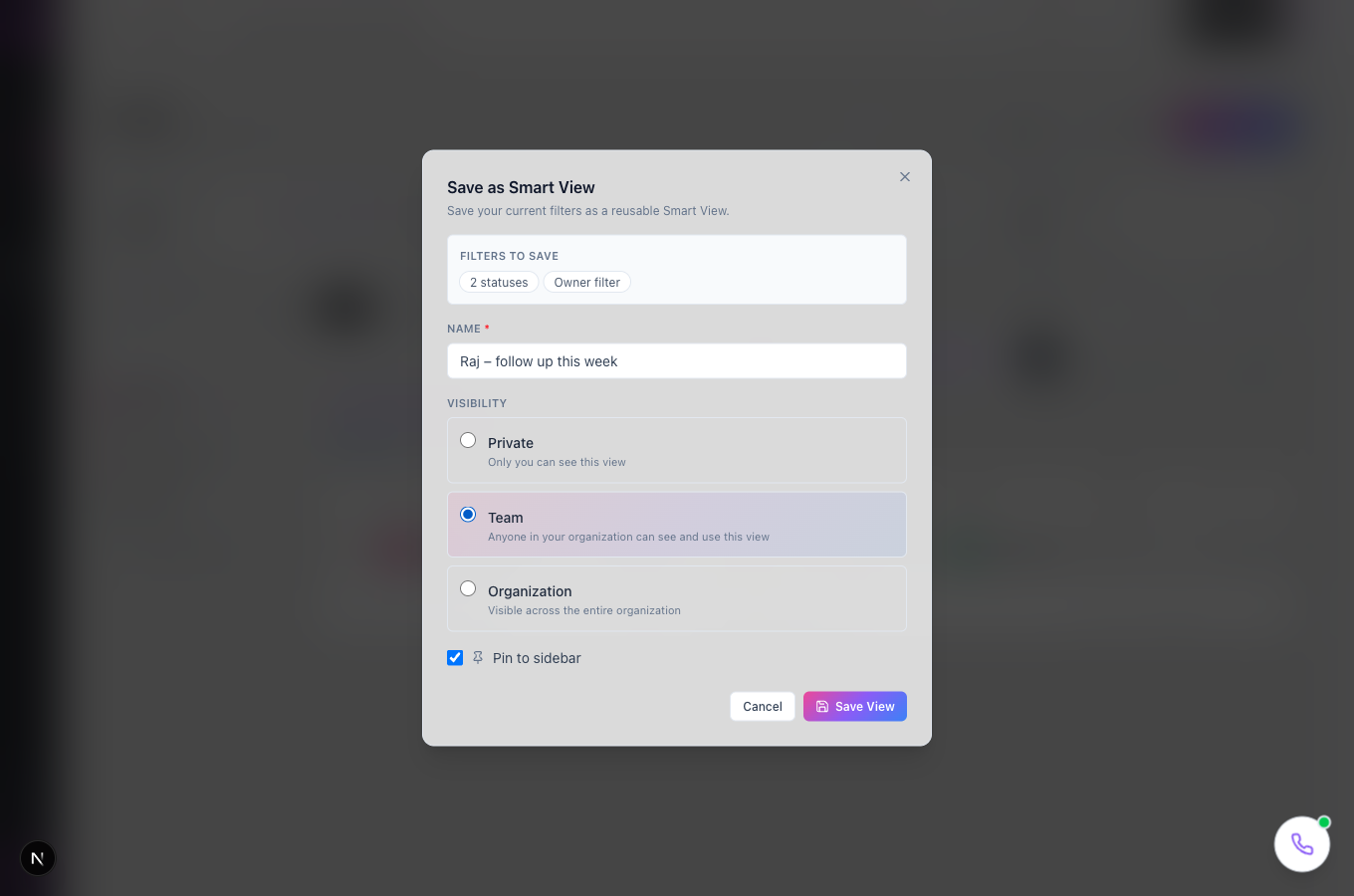
- Click Save as Smart View in the filter bar, or Create Smart View at the bottom of the Views rail. The Save as Smart View panel opens and shows the filters it will save.
- Type a Name, for example “Raj follow-ups this week”.
- Choose a Visibility: Private keeps it to yourself; Team or Organization shares it with everyone in your organisation.
- Leave Pin to sidebar ticked and click Save View. A message confirms the view was created, and the list switches to it.
On a phone, pinned views show as chips above the Leads list, with a Save view chip to create one.
Use it day to day
Section titled “Use it day to day”Start the day from a view. Raj Malhotra opens Leads and clicks his pinned view in the Views rail. The list shows only his open leads, sorted the way he saved them, and the count beside the name tells him how many are left.
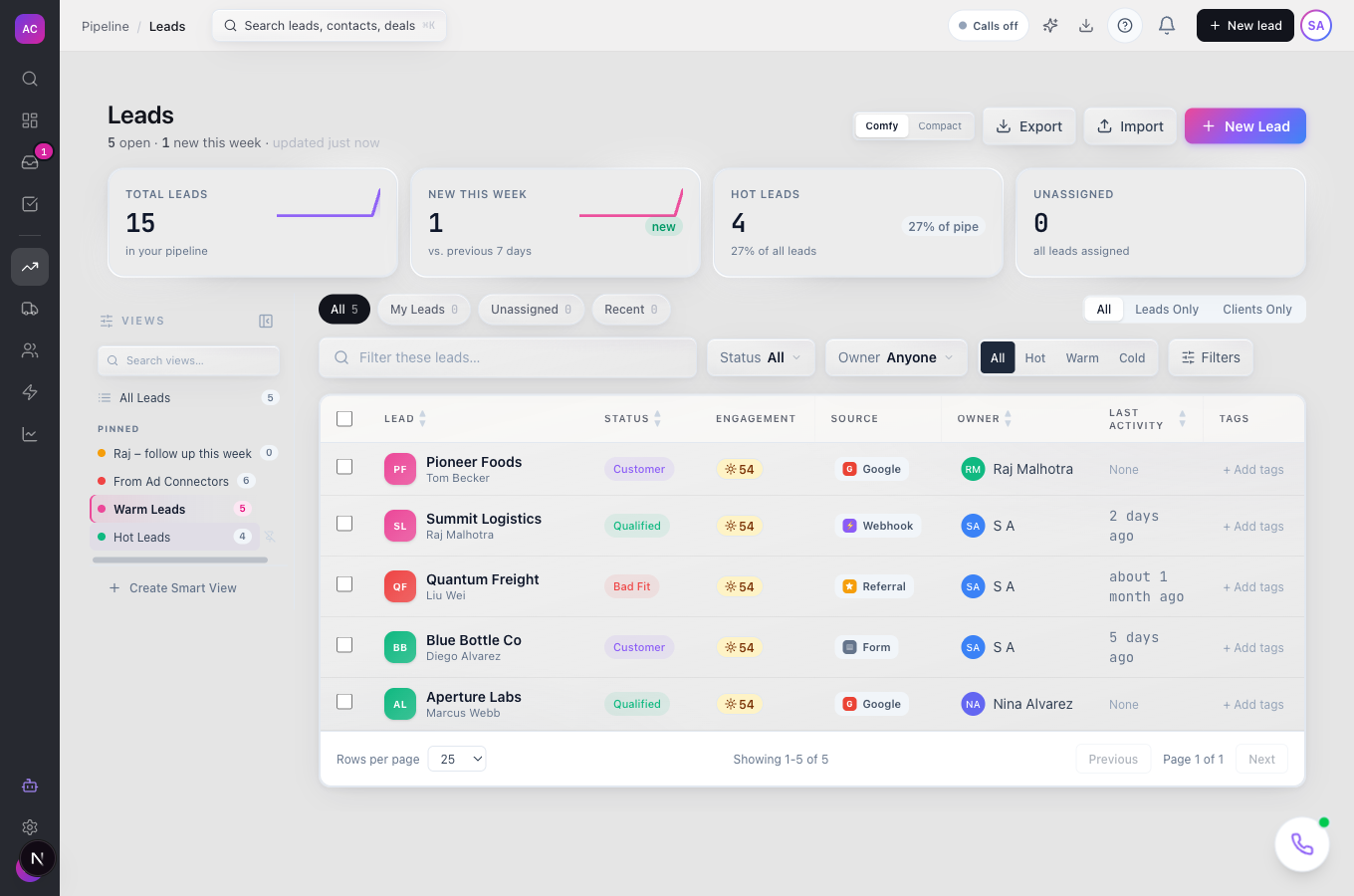
Go back to everything. Click All Leads at the top of the rail.
Find a view. If you have pinned many views, type in Search views… at the top of the rail.
Unpin a view. Click the unpin button next to a pinned view (its tooltip reads Unpin view). It leaves your rail only; colleagues who pinned it keep it.
Make more room. Click the collapse button next to Views to fold the rail away, and again to bring it back.
Rules and limits
Section titled “Rules and limits”| Rule | Value |
|---|---|
| Plans | Solo, Essentials, Growth, Scale |
| Name length | 1 to 200 characters |
| What is saved | search text, statuses, owner and sort order |
| Visibility | Private (only you) or Team / Organization (everyone in the organisation) |
| Default visibility | Private |
| Who can change or delete a view | only the person who created it |
| Pinning | per person; no limit |
| Who can create views | roles with the Smart Views Create permission |
Troubleshooting and FAQ
Section titled “Troubleshooting and FAQ”A lead I expect is missing. Check the filters you saved: the most common cause is an owner or status that does not match.
I saved a view but cannot find it. It was saved without Pin to sidebar. Only pinned views appear in the rail. Save it again with the box ticked.
My Engagement or DNC filter was lost. Those filters are not stored in a view yet. Save the view with the filters that are kept, and add the others by hand when you use it.
What is the difference between Team and Organization? Today there is none: both share the view with everyone in your organisation.
Can I see how many leads were in a view last month? Not from the view itself. Use Reports for historical counts.