Online payments
In short. Connect your organisation’s own Stripe or Razorpay account. Clients can then pay their invoices online from the client portal, and each payment is recorded on the invoice automatically.
Who it is for. Admins who connect the payment provider once, and anyone who bills, because paid invoices update on their own.
- Where it lives
- Opens from a record or another screen
- Plans
- SoloEssentialsGrowthScaleEvery plan
- Permission
- Payments
What it does
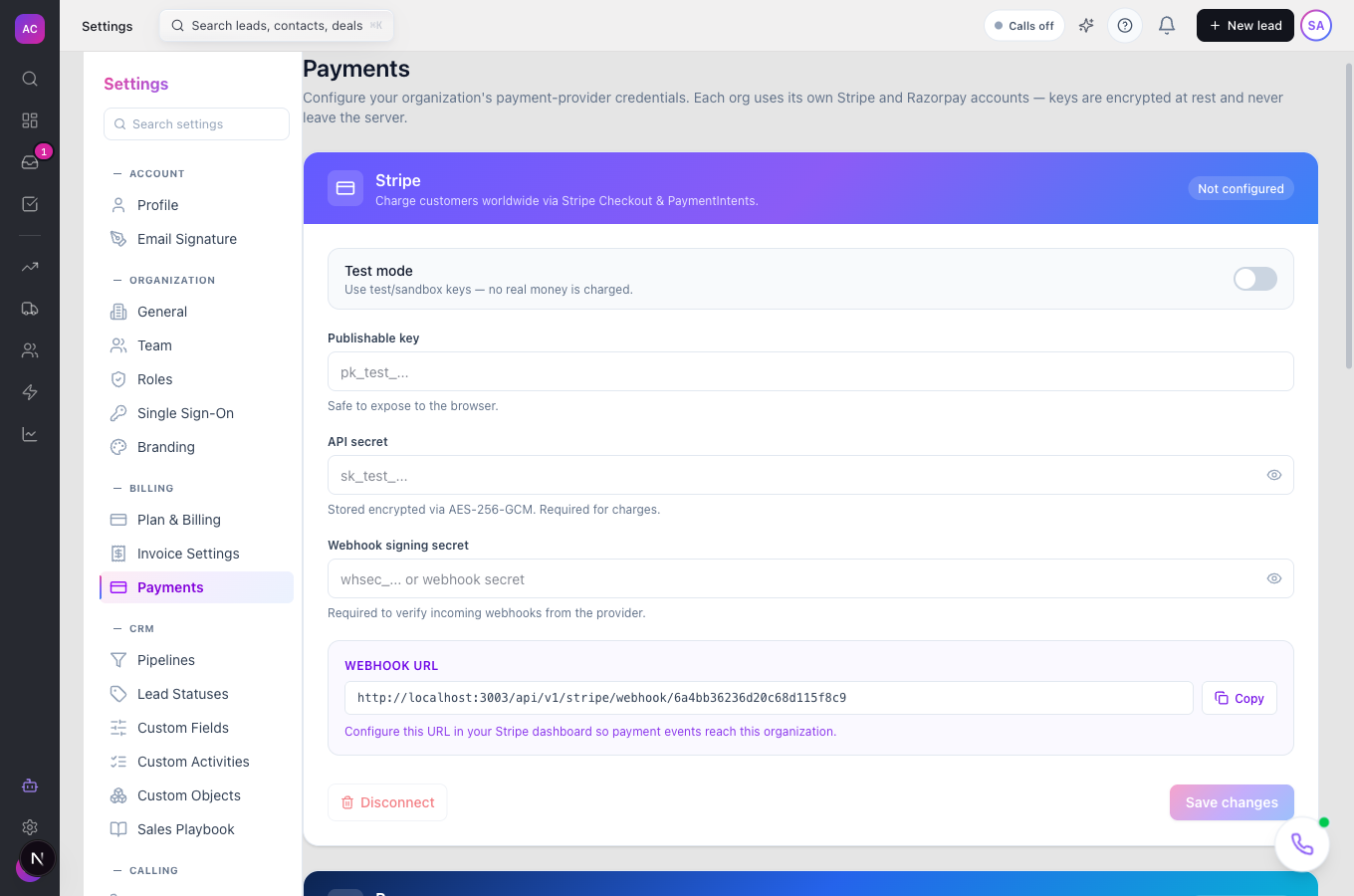
Section titled “What it does”- Connects Stripe, Razorpay or both under Settings → Payments, using your own accounts. Secret keys are encrypted and never shown again after saving.
- Lets you work in Test mode with sandbox keys before you switch to Live mode.
- Gives you the Webhook URL to paste into the provider, so it can tell Pitch2Sale when a payment succeeds.
- Adds a Pay with Stripe or Pay with Razorpay button to every unpaid invoice in the client portal. Invoices in Indian rupees go to Razorpay; other currencies go to Stripe, if each is connected.
- Records the payment on the invoice and moves it to Paid, or to Partial if a balance remains.
What it does not do
Section titled “What it does not do”- It does not have a page listing every payment. Payments appear in each invoice’s Payment History.
- It does not take payments outside the client portal. A client needs portal access to pay online.
- It does not use a shared Pitch2Sale merchant account. Money goes straight to your Stripe or Razorpay account, and their fees apply.
- It does not record cash, cheque or bank transfers on its own. Use Record Payment on the invoice for those; see Invoices.
Set it up
Section titled “Set it up”You need an admin role to see this page.
- Open Settings → Payments.
- On the Stripe card, turn on Test mode while you try it out.
- Paste the Publishable key, the API secret and the Webhook signing secret from your Stripe dashboard.
- Click Copy next to Webhook URL, and add that URL as a webhook in your Stripe dashboard.
- Click Save changes. The card shows “Connected · Test”.
- For Razorpay, do the same on the Razorpay card, using the Key ID instead of the publishable key.
- When a test payment works, switch to Live mode, enter your live keys, and click Save changes again.
Works the same on mobile.
Use it day to day
Section titled “Use it day to day”- Send the invoice as usual from Billing → Invoices.
- The client signs in to the client portal, opens the invoice and clicks Pay with Stripe or Pay with Razorpay. When the payment goes through, they see “Payment received. Thank you!”.
- Open the invoice. The payment is listed under Payment History, and the status is Paid or Partial.
To change keys, enter the new value in the field and click Save changes; the stored secret is replaced. To stop taking payments through a provider, click Disconnect on its card.
Rules and limits
Section titled “Rules and limits”| Rule | Value |
|---|---|
| Plans | every plan |
| Who can see payment settings | Admin and Super User by default |
| Who can change payment settings | people with the Settings edit permission |
| Providers | Stripe, Razorpay |
| Provider choice | INR invoices use Razorpay; other currencies use Stripe; falls back to whichever is connected |
| Pay button shows | when the invoice has an amount due and is not paid |
| Secrets | encrypted at rest, never shown after saving |
| Modes | Test or Live, per provider |
Troubleshooting and FAQ
Section titled “Troubleshooting and FAQ”The client sees “Stripe is not configured for this organization”. Stripe is not connected, or it was disconnected. Connect it under Settings → Payments, or connect Razorpay for INR invoices.
The client paid but the invoice still shows Sent. The provider could not reach the webhook. Check that the Webhook URL is added in the provider’s dashboard and that the Webhook signing secret matches, then record the payment by hand with Record Payment.
“You don’t have permission to edit payment-provider settings.” Your role can view the page but not change it. Ask an admin.
The client has no Pay button. The invoice is already paid, or has nothing due. Clients also need access to the client portal.
Can I test without charging real cards? Yes. Keep Test mode on and use the provider’s test keys and test cards.