API access
In short. API access lets your own scripts and tools read and change CRM data. A personal access token acts as you; an OAuth app lets other people grant access to their own account.
Who it is for. Admins and developers who connect Pitch2Sale to internal systems, reporting tools or automation platforms.
- Where it lives
- Opens from a record or another screen
- Plans
- SoloEssentialsGrowthScaleEvery plan
- Permission
- API Keys
What it does
Section titled “What it does”- Creates personal access tokens: a secret you send with each API request. The token can do what your role allows, limited by the scopes you tick.
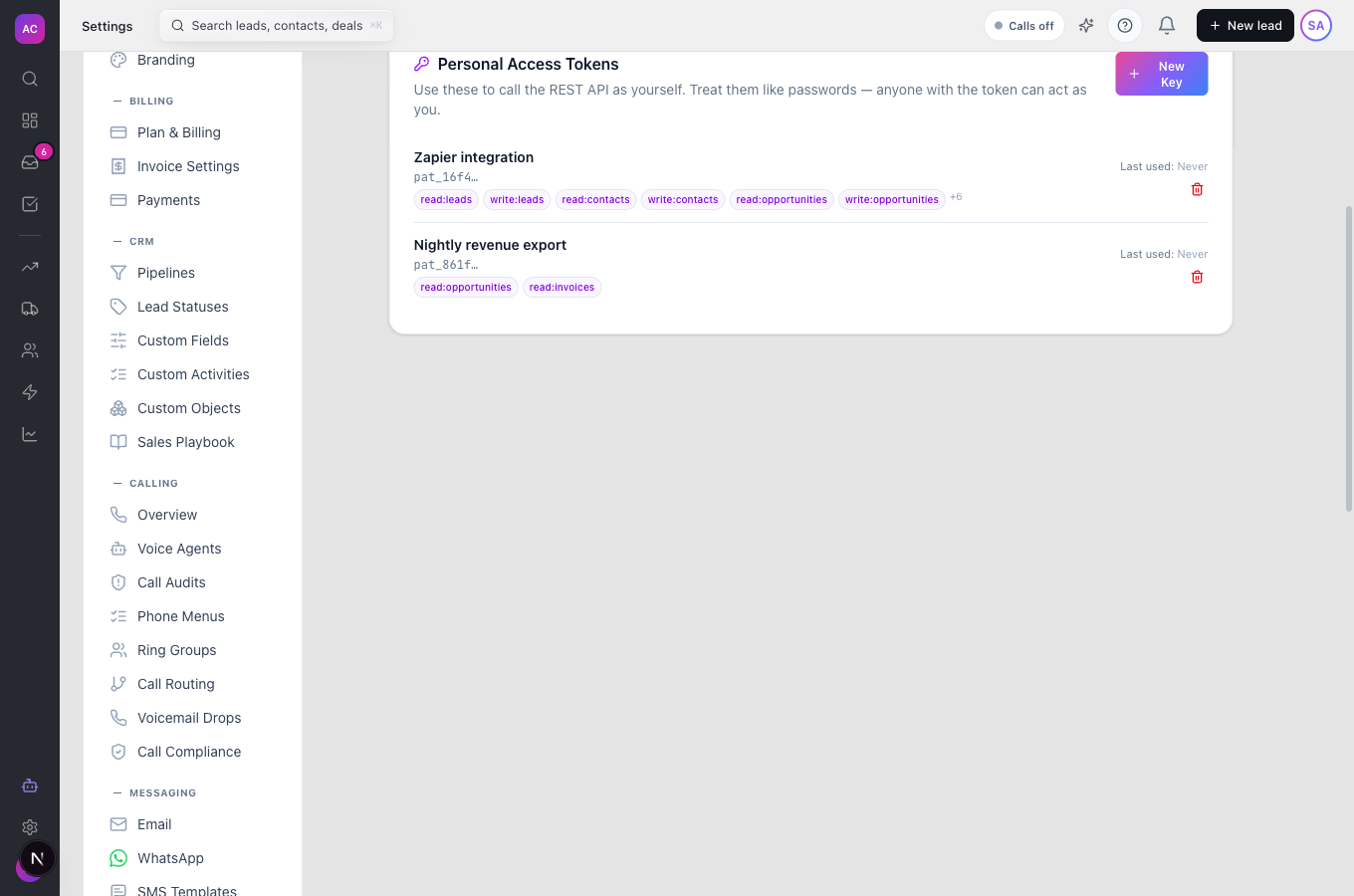
- Shows the token once, when you create it. Afterwards the list shows only its label, its first characters, its scopes and when it was last used.
- Lets you Revoke a token at any time. A revoked token stops working at once and stays in the list marked Revoked.
- Registers OAuth apps: a client ID and client secret for an application that asks users to sign in and approve access, with redirect addresses you list.
- Offers scopes for reading and writing leads, contacts, opportunities, invoices, proposals and projects.
The endpoints, request formats and examples are on the developer site.
What it does not do
Section titled “What it does not do”- Tokens do not expire on their own. Revoke the ones you no longer use.
- A token never has more rights than you. If your role cannot delete leads, neither can your token.
- Scopes do not yet limit everything. They are checked for leads, contacts, opportunities, invoices and proposals; other parts of the API follow your role permissions only. Treat every token as able to act fully as you.
- The screen does not offer the scopes needed for the Pitch2Sale MCP server. Those tokens are created through the API; see the developer site.
- Another person’s tokens are never visible to you, even as an admin.
Set it up
Section titled “Set it up”Create a personal access token
Section titled “Create a personal access token”- Open Settings → API Keys under Developer. The page is titled Developer.
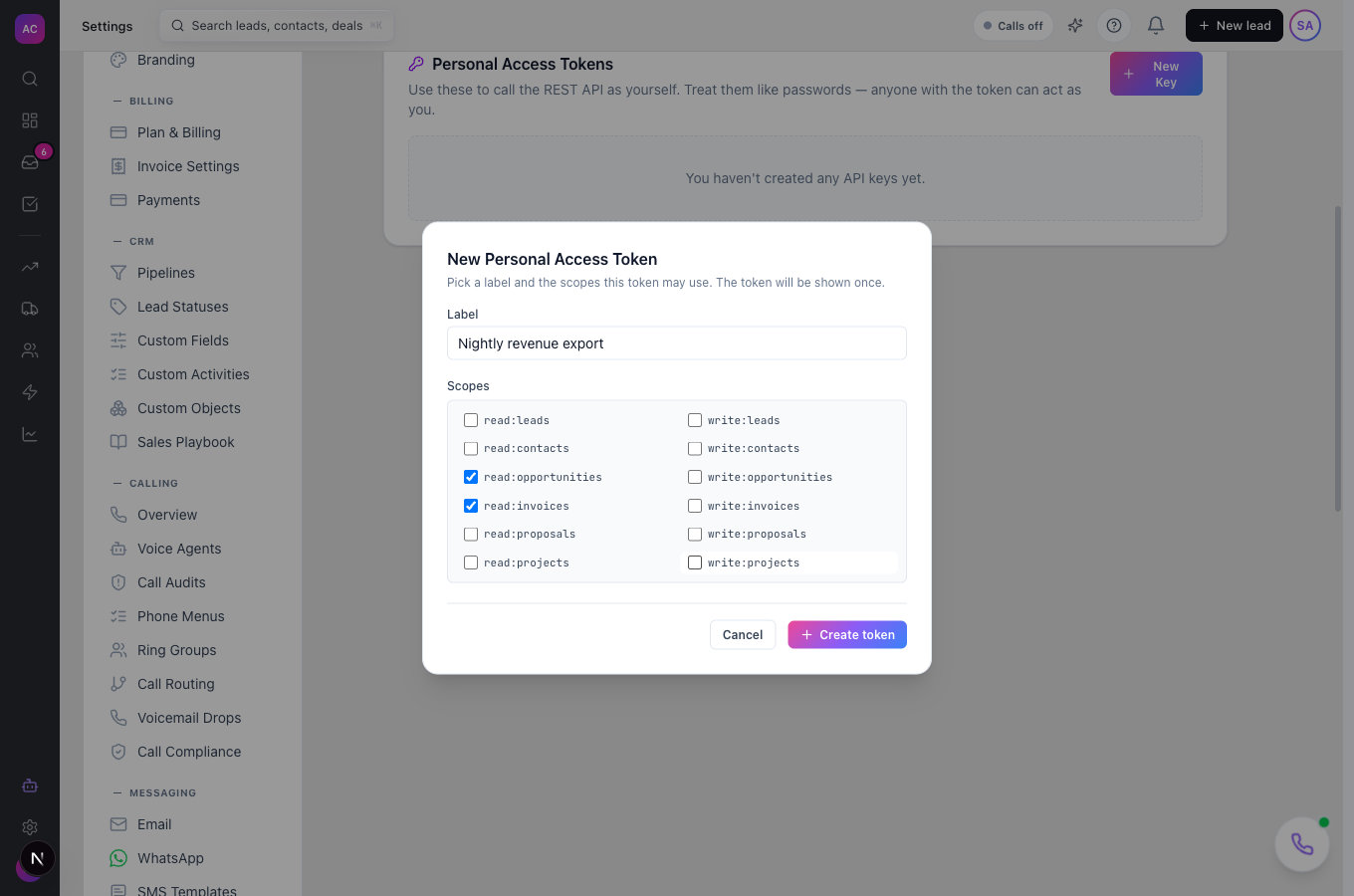
- Under Personal Access Tokens, click New Key.
- Enter a Label that says where the token will live, for example “Zapier integration” or “Nightly revenue export”.
- Under Scopes, untick everything the tool does not need. All scopes start ticked.
- Click Create token.
- In Save your access token, copy the token and store it in your password manager or the tool’s secret settings. You cannot see it again.
Register an OAuth app
Section titled “Register an OAuth app”- Under OAuth Apps, click New App.
- Fill in App name, Description (optional) and Redirect URIs (one per line). Redirect addresses must start with https://, or http://localhost while you develop.
- Tick the scopes the app may ask for and click Create.
- In Save your client secret, copy the Client ID and Client Secret. The secret is shown once.
Works the same on mobile, though you will usually do this from a computer.
Use it day to day
Section titled “Use it day to day”- Call the API. Send the token as a bearer token in the Authorization header. See the developer site for the base URL and endpoints.
- Check what is in use. The list shows Last used: for each token, or “Never”. A token unused for months is a good candidate to revoke.
- Rotate a token. Create a new token with the same scopes, switch your tool to it, then click the revoke icon on the old one and confirm Revoke.
- When someone leaves. Their tokens belong to their user. Deactivating the user is the reliable way to stop them; see Team management.
Rules and limits
Section titled “Rules and limits”| Rule | Value |
|---|---|
| Token label | 1 to 100 characters |
| Token shown | once, at creation |
| Token expiry | none; revoke manually |
| Default scopes | all 12 read and write scopes ticked |
| Who sees a token | only the person who created it |
| OAuth app name | 1 to 200 characters |
| OAuth redirect addresses | https://, or http://localhost |
| Request rate | 300 requests per minute per IP address across the API |
| Who can create tokens and apps | built-in Admin role |
Troubleshooting and FAQ
Section titled “Troubleshooting and FAQ”I lost my token. It cannot be shown again. Create a new one and revoke the old one.
“Invalid or expired token”. The token was revoked, mistyped, or belongs to a user who has been deactivated. Create a new token from an active account.
The API refuses a request although the token is valid. Either the token lacks the scope for that resource, or your role lacks the permission. Check both: the scopes are listed under the token, your role under Roles and permissions.
The API says I sent too many requests. You sent more than 300 requests in a minute from one IP address. Slow down and retry after a short wait.
I do not see Settings → API Keys. Your role does not include API Keys. Ask an admin.
Can a manager create tokens? Not with the built-in Manager role. An admin can add API Keys permissions to a custom role.