Contacts
In short. A contact is a person inside a lead: a name, a title, one email and one phone. You add and edit contacts on the lead page, and the Inbox suggests new ones when an unknown person emails you.
Who it is for. Reps working a lead, when a second decision-maker joins the conversation. Anyone reading the Inbox, when an email arrives from someone the CRM has never seen.
- Where it lives
- Opens from a record or another screen
- Plans
- SoloEssentialsGrowthScaleEvery plan
- Permission
- Contacts
What it does
Section titled “What it does”- Keeps every person attached to a lead in the Contacts card on the left of the lead page, with the primary contact marked Primary and shown first.
- Gives each contact one-click actions: Email, Call and WhatsApp, each opening the right composer or dialer with the contact already filled in.
- Lets you edit a contact in place. Click the name, change a field, click away, and it saves.
- Detects a contact’s preferred language from their emails and lets you override it, so replies and translations use the right language.
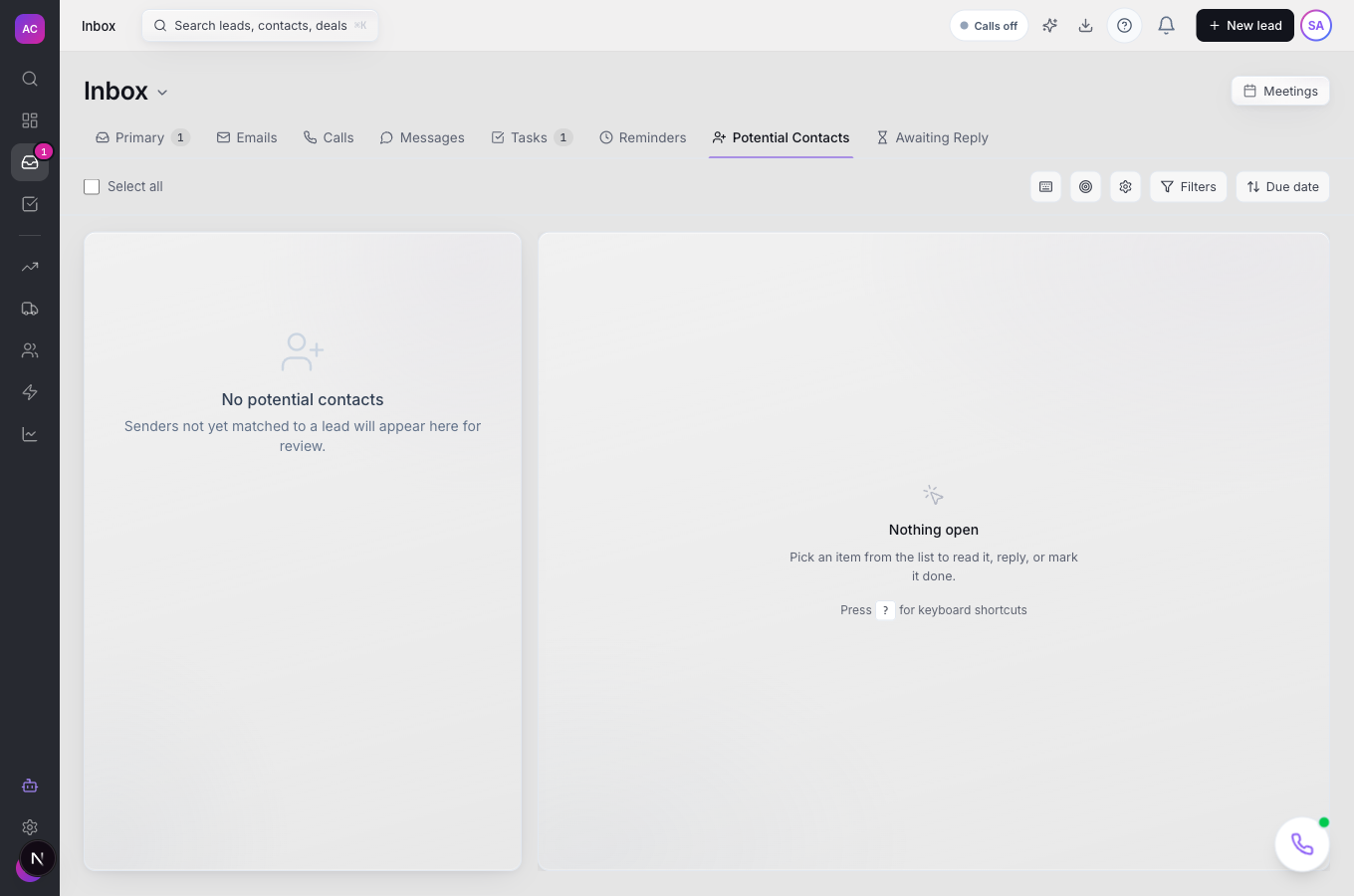
- Suggests Potential Contacts in the Inbox: people who emailed a connected mailbox but match no lead or contact. One click adds them to an existing lead or creates a new one.
- Fills in the lead’s time zone from a contact’s phone area code, if the lead has none yet.
What it does not do
Section titled “What it does not do”- It does not have its own list. Contacts live on leads; there is no Contacts screen, no contact export and no contact-only import.
- It does not merge or de-duplicate contacts. Merging works at the lead level and moves every contact across.
- It does not let you delete a contact or change which one is primary after creation from the lead page. Primary is chosen when you add the contact.
- It does not hold more than one email or one phone per person. Add a second contact for a second address.
- It does not track consent per person. Consent and unsubscribe are recorded on the lead and on the email address, not on the contact.
Set it up
Section titled “Set it up”There is nothing to configure. Contacts follow the lead’s permissions: if you can create or edit a lead, you can add and edit its contacts.
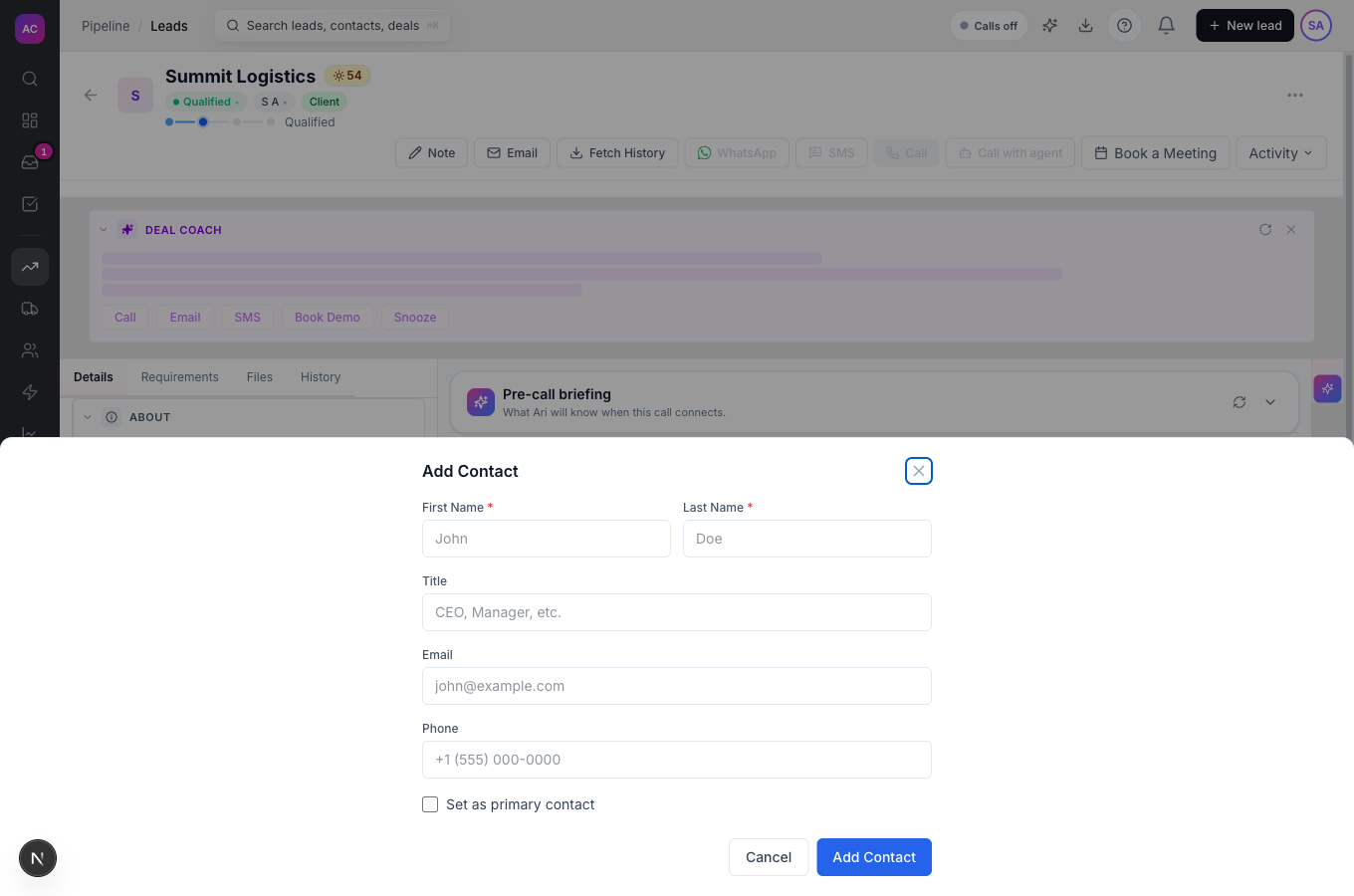
- Open a lead, for example Summit Logistics, and find the Contacts card.
- Click the Add contact icon, or Add Contact if the card is empty.
- Fill in First Name and Last Name. Title, Email and Phone are optional.
- Tick Set as primary contact if this is the main person. This moves the Primary badge from whoever had it.
- Click Add Contact.
Works the same on mobile. The left panel opens as a drawer from the top bar.
Use it day to day
Section titled “Use it day to day”- Reach someone. Hover a contact row and use the Email, Call or WhatsApp icons. Email opens the composer with the address in To; Call puts the number in the dial pad; WhatsApp opens the WhatsApp composer for that person.
- Fix a detail. Click the contact’s name to expand it, edit First Name, Last Name, Title, Phone, Email or Preferred language, and click away. Each field saves on its own.
- Find a person on a busy lead. When a lead has more than two contacts, a Search contacts icon appears above the list.
- Accept a potential contact. In the Inbox, open the Potential Contacts tab. Each row shows who emailed, how many times and their last subject. Click Add, choose Create new lead and type a lead name, or choose Existing lead and paste the lead’s ID, then confirm. The email that triggered the suggestion is attached to the lead’s timeline.
- Dismiss noise. Click Discard on a potential contact. You can undo straight away from the toast, and that sender will not be suggested to you again.
Rules and limits
Section titled “Rules and limits”| Rule | Value |
|---|---|
| First and last name | up to 100 characters each, both required |
| Title | up to 200 characters |
| one per contact, stored in lowercase, up to 255 characters | |
| Phone | one per contact, up to 30 characters |
| Primary contact | one per lead, set when the contact is added |
| Potential contacts | only from inbound email to a connected mailbox; shown to the user whose mailbox received it |
| Imported contacts | one per imported row, marked primary; matched by email, then phone |
| Exported contacts | the lead export includes one contact per lead |
Troubleshooting and FAQ
Section titled “Troubleshooting and FAQ”I need to delete a contact. The lead page cannot do this yet. Edit the contact’s details instead, or ask an admin to remove it through the API or support.
The wrong person is marked Primary. Add the right person again with Set as primary contact ticked. The badge moves to them.
A potential contact never appeared for an email I received. Suggestions skip senders who already exist as a contact, senders that are one of your own connected mailboxes, and senders you discarded before. They also need the email to arrive in a connected mailbox, not a forwarded one.
Clearing a phone or email did not stick. Clearing a field in place does not always remove the old value. Type the new value over it instead.
Where is the contact’s consent? Open the Consent card on the same lead page. Consent is recorded for the lead and its purposes, not per person.