In short. Link a WhatsApp number to Pitch2Sale by scanning a QR code, then message a lead’s contacts from the lead page. Conversations are saved on the lead’s timeline.
Who it is for. Teams whose buyers prefer WhatsApp to email, with admins linking the company number and reps sending from the lead page.
- Where it lives
- Settings › MESSAGING › WhatsApp
- Plans
- SoloEssentialsGrowthScale
- Permission
What it does
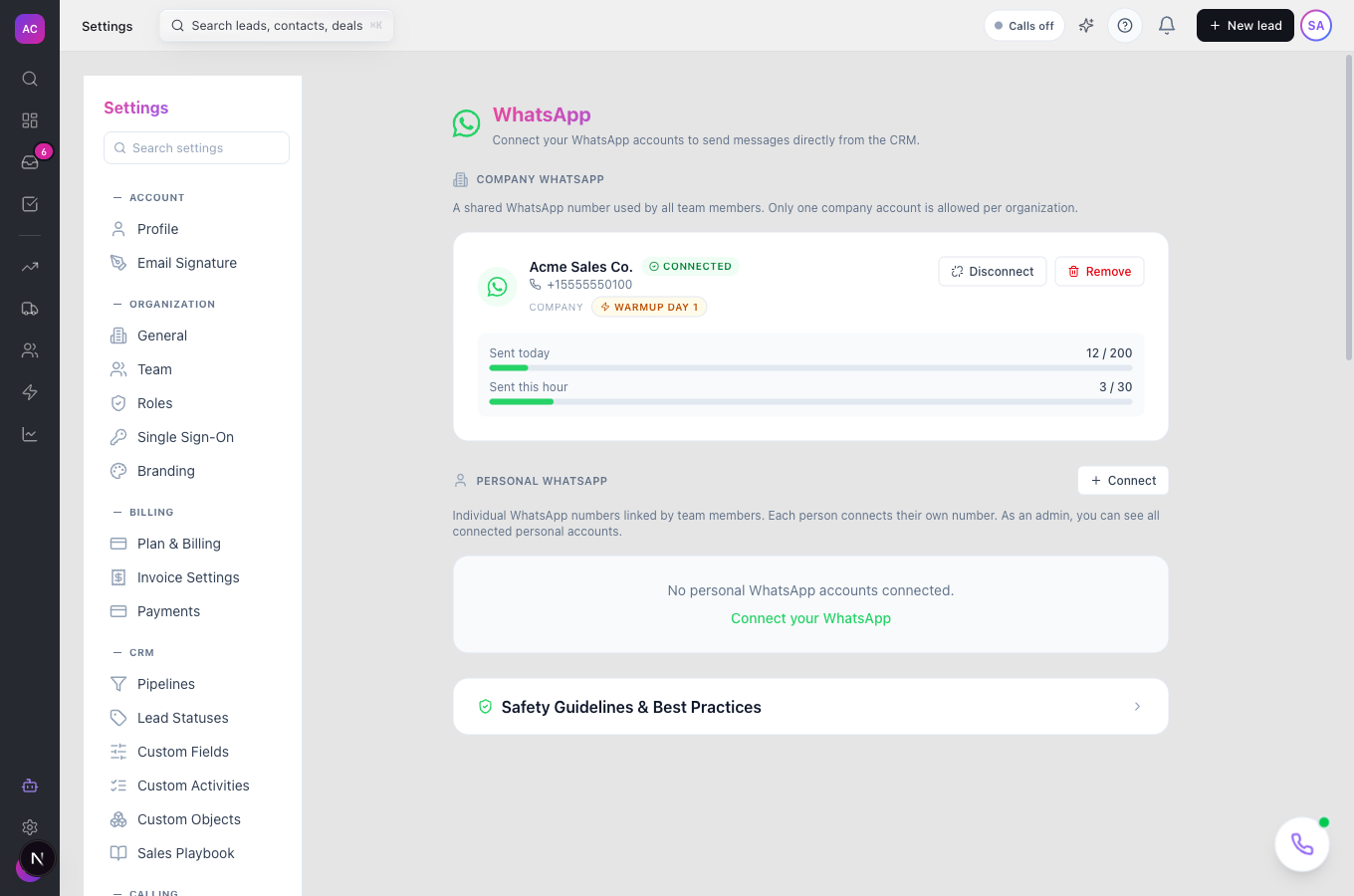
Section titled “What it does”- Links one shared Company WhatsApp number per organisation, plus a Personal WhatsApp number for each person who connects their own.
- Connects by QR code, the same way WhatsApp Web does, from the phone’s Linked Devices screen.
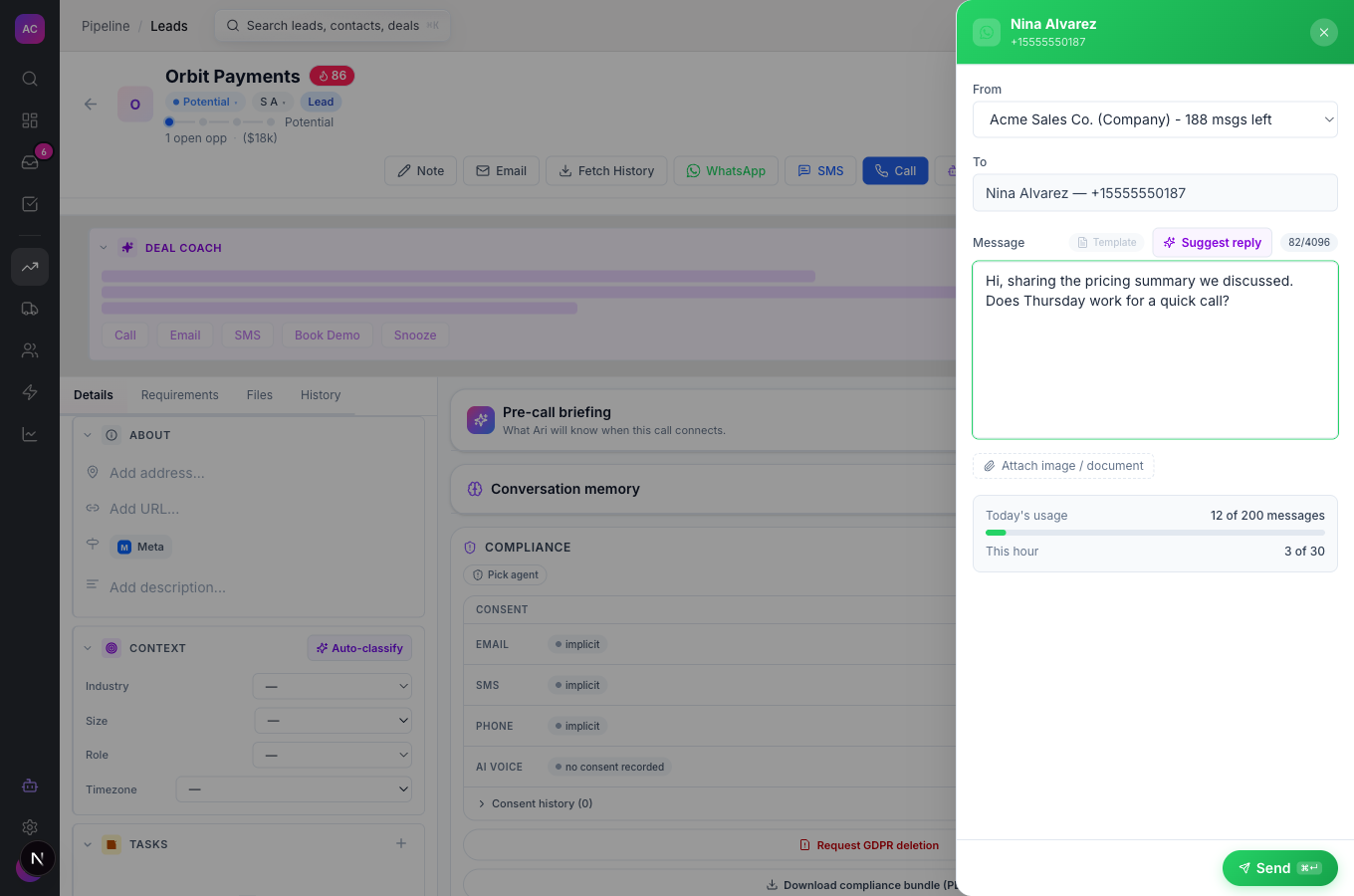
- Opens a WhatsApp composer from a lead: choose the From account, write up to 4,096 characters, attach a file, or ask the AI for a suggested reply.
- Saves sent and received messages on the lead’s timeline and in the Messages tab of the Inbox.
- Protects your number with a warm-up period, hourly and daily caps, a short pause between sends and a block on copy-paste messages to many people.
- Shows Sent today and Sent this hour against the limits on each connected account.
What it does not do
Section titled “What it does not do”- It does not offer a screen to connect an official WhatsApp Business (Cloud API) number. Template messages and the 24-hour session indicator appear only for such a number, which needs setting up outside this screen.
- It does not send broadcasts. A QR-linked number cannot message five or more people in one send.
- It does not keep your phone out of the loop. A QR-linked number depends on the phone staying online with WhatsApp installed.
Set it up
Section titled “Set it up”- Open Settings → WhatsApp under Messaging.
- Click Connect Company WhatsApp for the shared number, or Connect your WhatsApp under Personal WhatsApp for your own.
- Wait for “Initializing WhatsApp connection…” to turn into a QR code.
- On your phone, open WhatsApp, go to Settings → Linked Devices, tap Link a Device and point the phone at the QR code. If the code expires, click Refresh QR.
- When you see “WhatsApp Connected!”, click Done. The account card shows Connected and the usage bars.
- Read Safety Guidelines & Best Practices on the same page before your first busy day.
In the built-in roles, only Admin can connect a number. Ask an admin to add Create for WhatsApp to your role if you need to link your personal number.
Works the same on mobile, where WhatsApp sits in the lead’s Action menu.
Use it day to day
Section titled “Use it day to day”Send a message
Section titled “Send a message”- Open the lead, for example Orbit Payments, and click WhatsApp at the top. The composer opens for the primary contact with a phone number. To write to another contact, use the WhatsApp action on that contact.
- Pick the From account.
- Type your Message, or attach a file with the paperclip.
- Click Send. The message appears on the lead’s timeline.
Read and answer replies
Section titled “Read and answer replies”Replies to a connected number appear on the lead’s timeline and in Inbox → Messages. Open the lead and reply from the composer.
Reconnect or remove a number
Section titled “Reconnect or remove a number”- Reconnect shows a fresh QR code when a card reads Disconnected, for example after the phone was offline for a long time.
- Disconnect stops sending from that number until you reconnect.
- Remove deletes the account card permanently. Past conversations stay on your leads.
Rules and limits
Section titled “Rules and limits”| Rule | Value |
|---|---|
| Company accounts | one per organisation |
| Personal accounts | one per person |
| Message length | up to 4,096 characters |
| Attachments | images, video and audio up to 16 MB; documents up to 25 MB |
| Daily limit, first 7 days after connecting | 20 messages |
| Daily limit, days 7 to 14 | 80 messages |
| Daily limit after 14 days | 200 messages by default |
| Hourly limit | 30 messages by default |
| Pause between sends | at least 3 seconds |
| Same message to many people | blocked once it reaches 3 contacts within 10 minutes |
| Recipients per send on a QR-linked number | fewer than 5 |
| Plans | Essentials, Growth and Scale |
Troubleshooting and FAQ
Section titled “Troubleshooting and FAQ”I do not see the WhatsApp button on a lead. The button follows the Create permission for WhatsApp, which only the built-in Admin role has. Ask an admin to adjust your role under Roles and permissions.
The WhatsApp button is greyed out. No contact on the lead has a phone number. Add one and try again.
“Hourly limit reached”. Your number has sent its hourly allowance. Wait for the next hour.
“Duplicate message detected … This looks like spam.” You sent the same text to several contacts in a short time. Personalise each message or wait ten minutes.
“Must wait at least 3 seconds between sends.” Wait a moment and click Send again.
The badge on my account still says “Warmup Day 1”. The badge does not show the warm-up day yet. The real limit is the one shown in the Sent today bar.
“Organization already has an active company WhatsApp account”. Only one company number is allowed. Disconnect or remove the existing one first, or connect this number as a personal account.
The Template button is greyed out. Template messages need an official WhatsApp Business (Cloud API) number, which is not connected.